> ## Documentation Index
> Fetch the complete documentation index at: https://docs.shipmobilefast.com/llms.txt
> Use this file to discover all available pages before exploring further.
# Firebase Auth
> Authenticate your app with Firebase.
This guide explains how to implement Firebase Authentication in your React Native application using our authentication wrapper.
## Features
* Email/Password Authentication
* [Apple Sign-In](/auth/oauth/apple-oauth)
* [Google Sign-In (configurable)](/aiwrapper/auth#google-sign-in)
* Anonymous Authentication
* Password Reset
* Token Management
* Error Handling
## Setup
First, wrap your application with the `AuthProvider`:
```tsx theme={null}
import { AuthProvider } from '@/path/to/auth';
function App() {
return (
);
}
```
## Usage
Use the `useAuth` hook to access authentication functions and state:
```tsx theme={null}
import { useAuth } from '@/path/to/auth';
function YourComponent() {
const {
user,
signIn,
signUp,
signOut,
isLoading
} = useAuth();
}
```
## Authentication Methods
### Email/Password Authentication
```tsx theme={null}
// Sign Up
const { signUp } = useAuth();
await signUp('user@example.com', 'password');
// Sign In
const { signIn } = useAuth();
await signIn('user@example.com', 'password');
```
## Social Authentication
### Apple Sign-In
To enable Apple Sign-In:
1. Actually, you can follow the [Apple Sign-In](/auth/oauth/apple-oauth) guide.
2. Apple configuration parts are same as in Supabase but when you add your callback url to Apple Developer Console, this time you need to add Firebase callback url.
3. You can check: [React Native Firebase Social Auth](https://rnfirebase.io/auth/social-auth)
```tsx theme={null}
const { signInWithApple } = useAuth();
await signInWithApple();
```
### Google Sign-In
To enable Google Sign-In:
1. Uncomment the Google Sign-In configuration in the auth provider
2. Configure your Google credentials (eas credentials sha-1 key)
3. Use the signInWithGoogle method:
```tsx theme={null}
const { signInWithGoogle } = useAuth();
await signInWithGoogle();
```
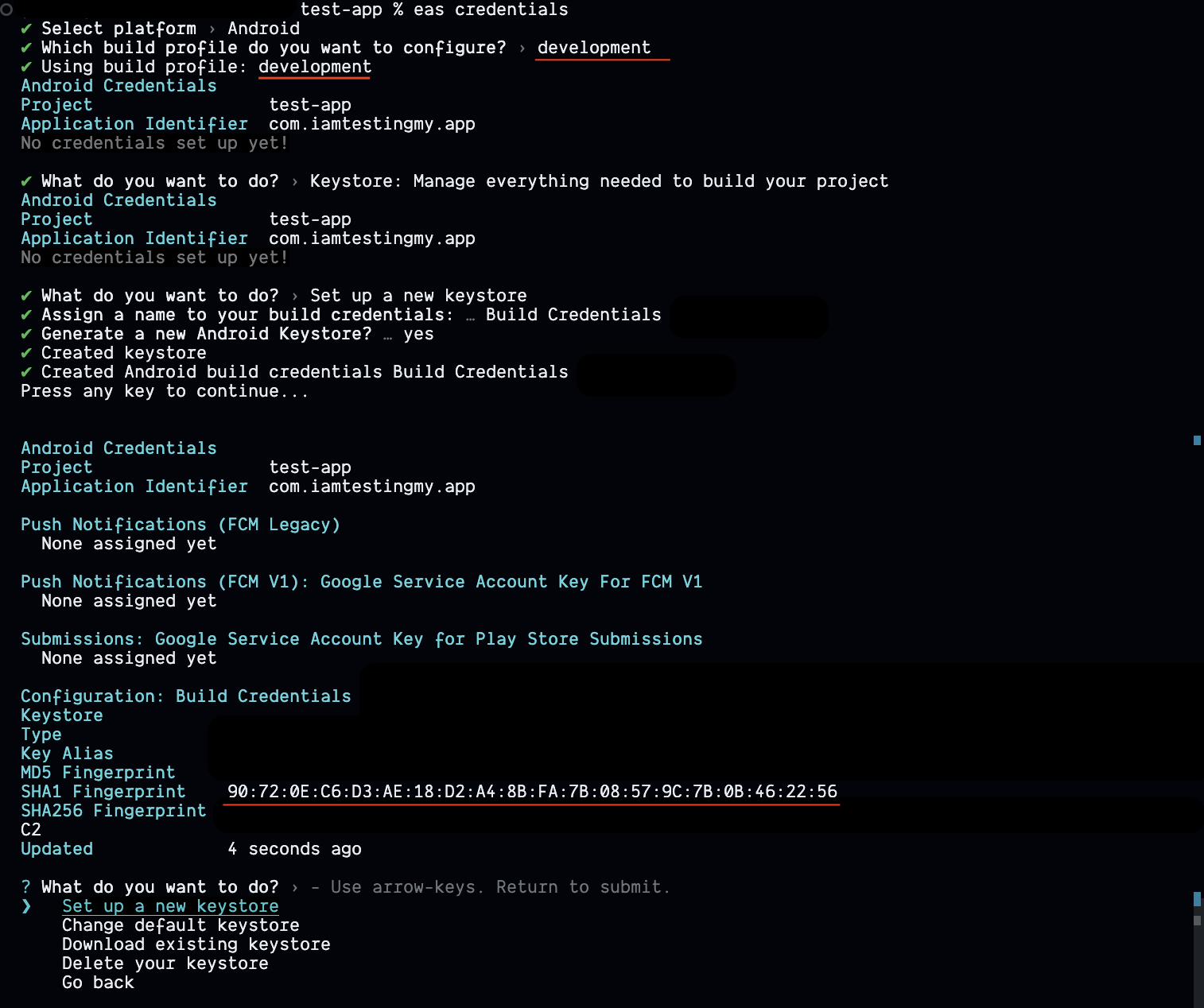
### How to get eas credentials sha-1 key?
1. Open your Expo project codebase and run: `eas credentials`
2. Select Platform: `Android`
3. Using build profile: `development`
4. Pick the `Keystore: Manage everything needed to build your project`
5. Set up a new Keystore
6. Get your SHA-1 key
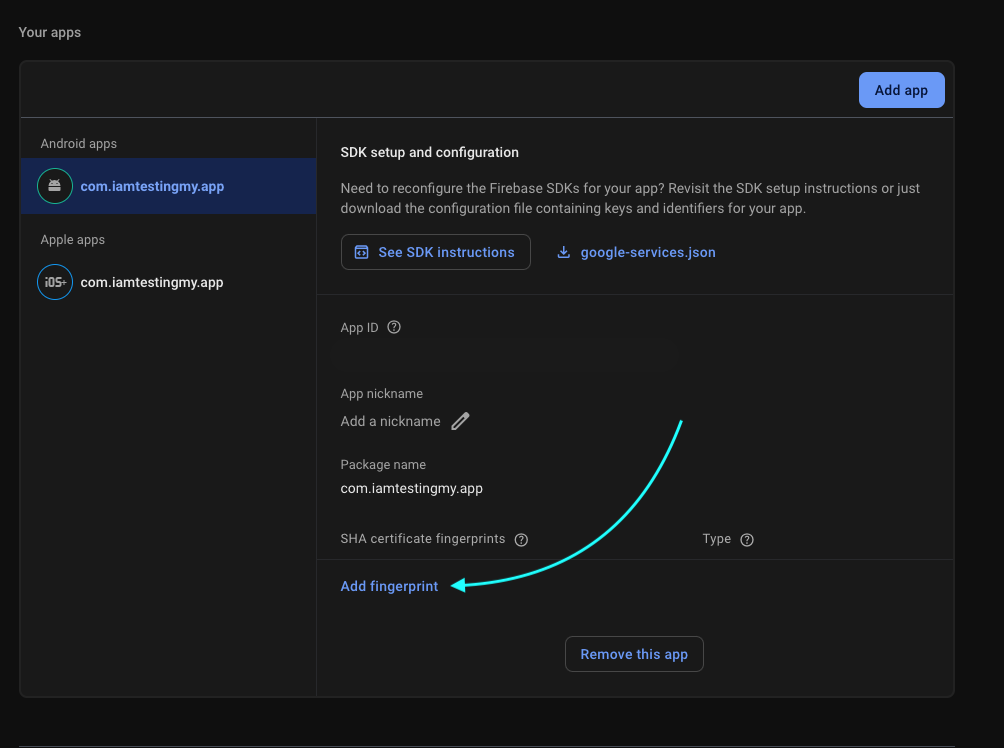
 When you get your SHA-1 key, you need to add it to Firebase Console.
1. Go to Firebase Console
2. Open project settings,
3. Go to `Your apps` section.
4. Add SHA-1 key to your app and download google-services.json file.
5. Save it to the Expo project codebase.
6. You need to rebuild your app with eas or npx prebuild
(prebuild is not going to work because we created this key with eas).
When you get your SHA-1 key, you need to add it to Firebase Console.
1. Go to Firebase Console
2. Open project settings,
3. Go to `Your apps` section.
4. Add SHA-1 key to your app and download google-services.json file.
5. Save it to the Expo project codebase.
6. You need to rebuild your app with eas or npx prebuild
(prebuild is not going to work because we created this key with eas).
 You need to do that for Production build too.
You need to integrate with your Play Console.
And I must say again. If you do that steps, you need to create eas development build for testing Google Sign-In.
It is not going to work with npx prebuild.
### Anonymous Authentication
```tsx theme={null}
const { signUpAnonymously } = useAuth();
await signUpAnonymously();
```
### Password Reset
```tsx theme={null}
const { sendNewPasswordLink } = useAuth();
await sendNewPasswordLink('user@example.com');
```
## Auth State
The `useAuth` hook provides several state variables:
```tsx theme={null}
const {
user, // Current user object
idToken, // Firebase ID token
initialized, // Auth initialization status
isLoading, // Loading state for auth operations
error, // Current error message
showPassword // Password visibility state
} = useAuth();
```
## Error Handling
The authentication wrapper includes built-in error handling:
* Token expiration management
* Firebase auth error parsing
* Toast notifications for errors
* Automatic token refresh
```tsx theme={null}
const { handleError } = useAuth();
try {
// Your auth code
} catch (error) {
handleError(error);
}
```
## Sign Out
```tsx theme={null}
const { signOut } = useAuth();
await signOut();
```
## TypeScript Support
The authentication context is fully typed with TypeScript. The main types include:
```tsx theme={null}
type AuthContextType = {
user: FirebaseAuthTypes.User | null;
idToken: string | null;
initialized: boolean;
signOut: () => Promise;
signIn: (email: string, password: string) => Promise;
signUp: (email: string, password: string) => Promise;
signInWithGoogle: () => Promise;
signInWithApple: () => Promise;
handleShowPassword: () => void;
isLoading: boolean;
error: string | null;
showPassword: boolean;
handleError: (error: Error) => void;
sendNewPasswordLink: (email: string) => Promise;
signUpAnonymously: () => Promise;
};
```
## Security Considerations
* Automatic token management
* Secure storage of credentials
* Email verification for new accounts
* Proper error handling and user feedback
* Token refresh mechanism
This documentation provides a comprehensive guide for developers implementing Firebase authentication in their applications. It covers all the main features, usage patterns, and important considerations for secure implementation.
You need to do that for Production build too.
You need to integrate with your Play Console.
And I must say again. If you do that steps, you need to create eas development build for testing Google Sign-In.
It is not going to work with npx prebuild.
### Anonymous Authentication
```tsx theme={null}
const { signUpAnonymously } = useAuth();
await signUpAnonymously();
```
### Password Reset
```tsx theme={null}
const { sendNewPasswordLink } = useAuth();
await sendNewPasswordLink('user@example.com');
```
## Auth State
The `useAuth` hook provides several state variables:
```tsx theme={null}
const {
user, // Current user object
idToken, // Firebase ID token
initialized, // Auth initialization status
isLoading, // Loading state for auth operations
error, // Current error message
showPassword // Password visibility state
} = useAuth();
```
## Error Handling
The authentication wrapper includes built-in error handling:
* Token expiration management
* Firebase auth error parsing
* Toast notifications for errors
* Automatic token refresh
```tsx theme={null}
const { handleError } = useAuth();
try {
// Your auth code
} catch (error) {
handleError(error);
}
```
## Sign Out
```tsx theme={null}
const { signOut } = useAuth();
await signOut();
```
## TypeScript Support
The authentication context is fully typed with TypeScript. The main types include:
```tsx theme={null}
type AuthContextType = {
user: FirebaseAuthTypes.User | null;
idToken: string | null;
initialized: boolean;
signOut: () => Promise;
signIn: (email: string, password: string) => Promise;
signUp: (email: string, password: string) => Promise;
signInWithGoogle: () => Promise;
signInWithApple: () => Promise;
handleShowPassword: () => void;
isLoading: boolean;
error: string | null;
showPassword: boolean;
handleError: (error: Error) => void;
sendNewPasswordLink: (email: string) => Promise;
signUpAnonymously: () => Promise;
};
```
## Security Considerations
* Automatic token management
* Secure storage of credentials
* Email verification for new accounts
* Proper error handling and user feedback
* Token refresh mechanism
This documentation provides a comprehensive guide for developers implementing Firebase authentication in their applications. It covers all the main features, usage patterns, and important considerations for secure implementation.