> ## Documentation Index
> Fetch the complete documentation index at: https://docs.shipmobilefast.com/llms.txt
> Use this file to discover all available pages before exploring further.
# Email Verification
> If you want to redirect to the app after email verification, you can do it with the following steps.
## How can I redirect to the app after email verification?
That is a common question.
So many developers asked me this question.
Naa, don't worry. Of course, I fixed this.
First go to the [Supabase Dashboard](https://supabase.com/dashboard) > `Click on your project` > `Authentication` > `URL Configuration` > `Redirect URLs` > `Add URL`.
Add the following URL: `://**`
You can find your app bundle identifier in the `app.json` file.
You can use `*` as a wildcard for the path. Otherwise, you can use the exact path.
Like this: \`com.your-app-bundle-identifier.app\://callback/verify
### That's it! You don't have to change Email Template. Initial version of the email template is working fine.
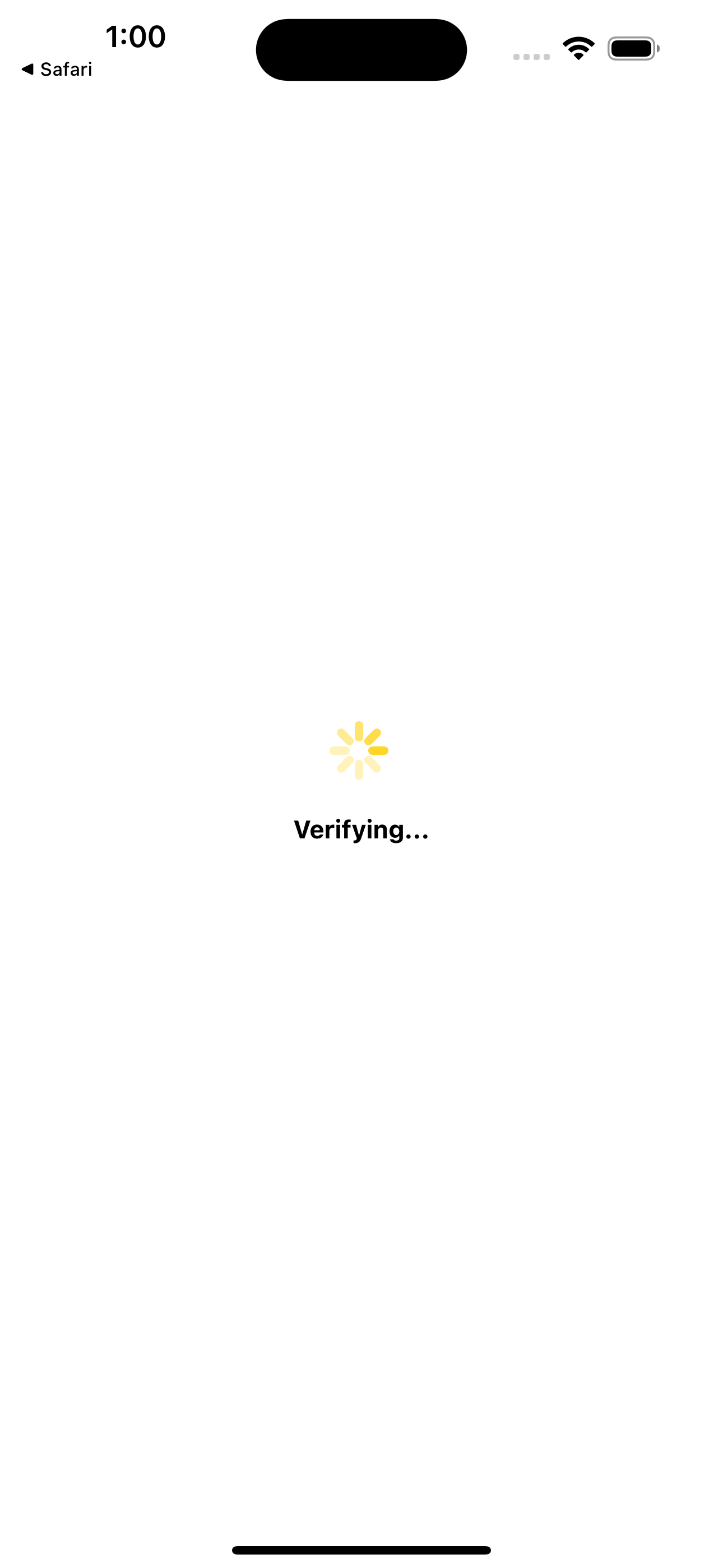
When you click the verification link in the email, you will be redirected to the app.
Then you should see the following screen: