> ## Documentation Index
> Fetch the complete documentation index at: https://docs.shipmobilefast.com/llms.txt
> Use this file to discover all available pages before exploring further.
# AdMob Integration
> Implement Google AdMob in your Expo app
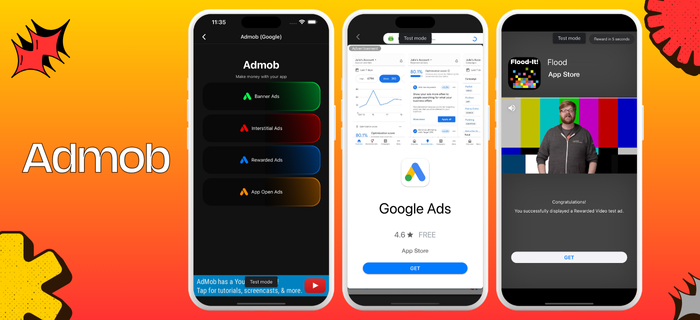 ## How to integrate AdMob in our React Native Expo App?
1. Firstly, you need to make sure to have an AdMob account. If you don't have one, you can create it [here](https://apps.admob.com/v2/home).
2. Start the setup by following the steps below.
### Setup
First, you need to install the `react-native-google-mobile-ads` package.
```bash theme={null}
npm install react-native-google-mobile-ads
```
Go to the [admob.google.com](https://admob.google.com/v2/home) and create your account.
## How to integrate AdMob in our React Native Expo App?
1. Firstly, you need to make sure to have an AdMob account. If you don't have one, you can create it [here](https://apps.admob.com/v2/home).
2. Start the setup by following the steps below.
### Setup
First, you need to install the `react-native-google-mobile-ads` package.
```bash theme={null}
npm install react-native-google-mobile-ads
```
Go to the [admob.google.com](https://admob.google.com/v2/home) and create your account.
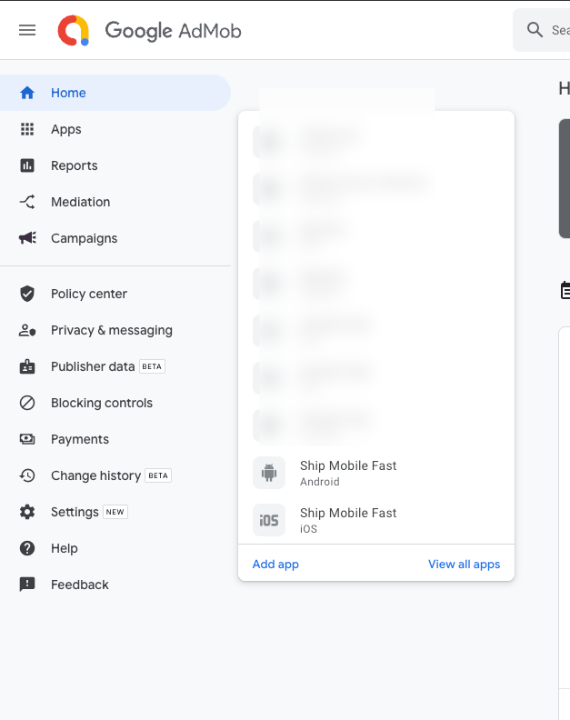 You need to create the same app for iOS and Android.
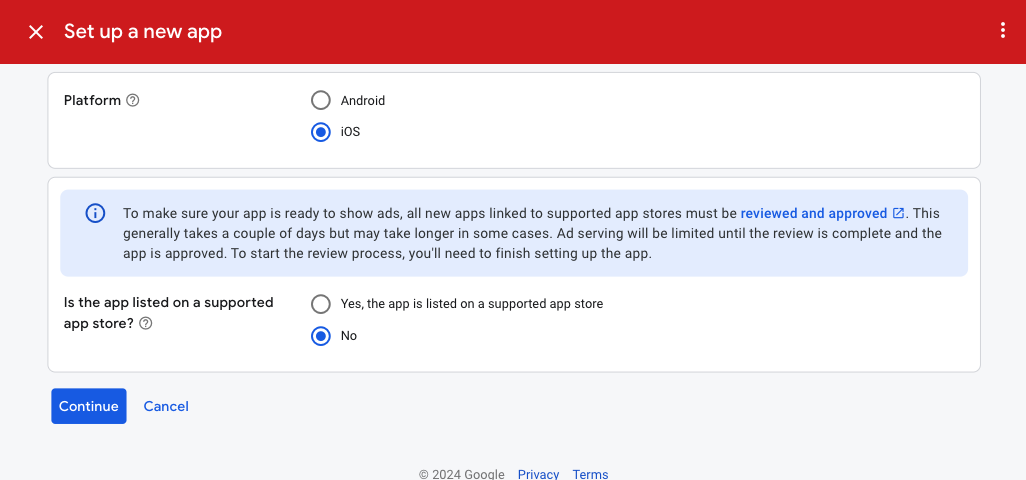 Then pick a name for your app:
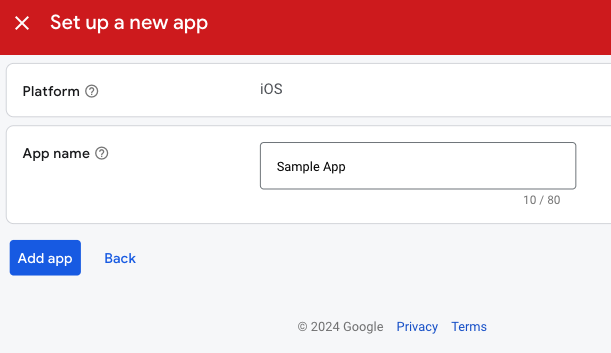 Now you need to create an ad unit for each type of ad.
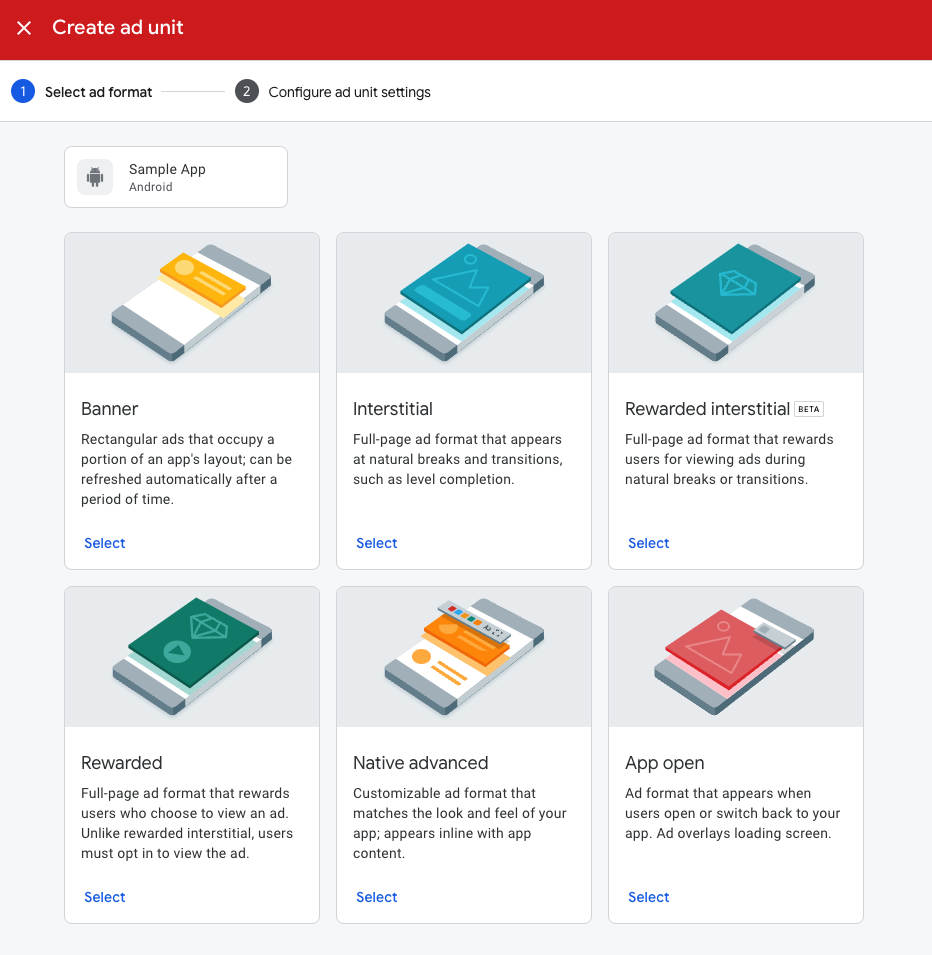
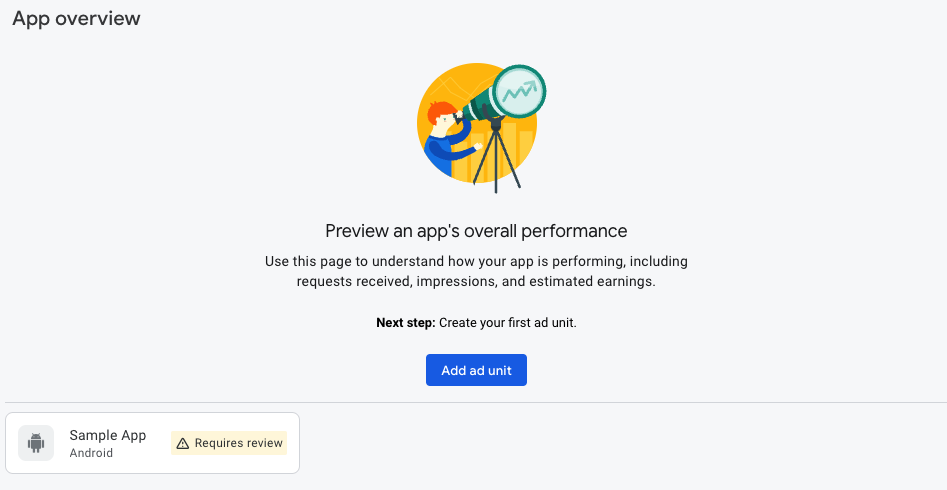 You can choose a 4 category:
`Banner`, `Interstitial`, `Rewarded` and `App Open`.
You can choose a 4 category:
`Banner`, `Interstitial`, `Rewarded` and `App Open`.
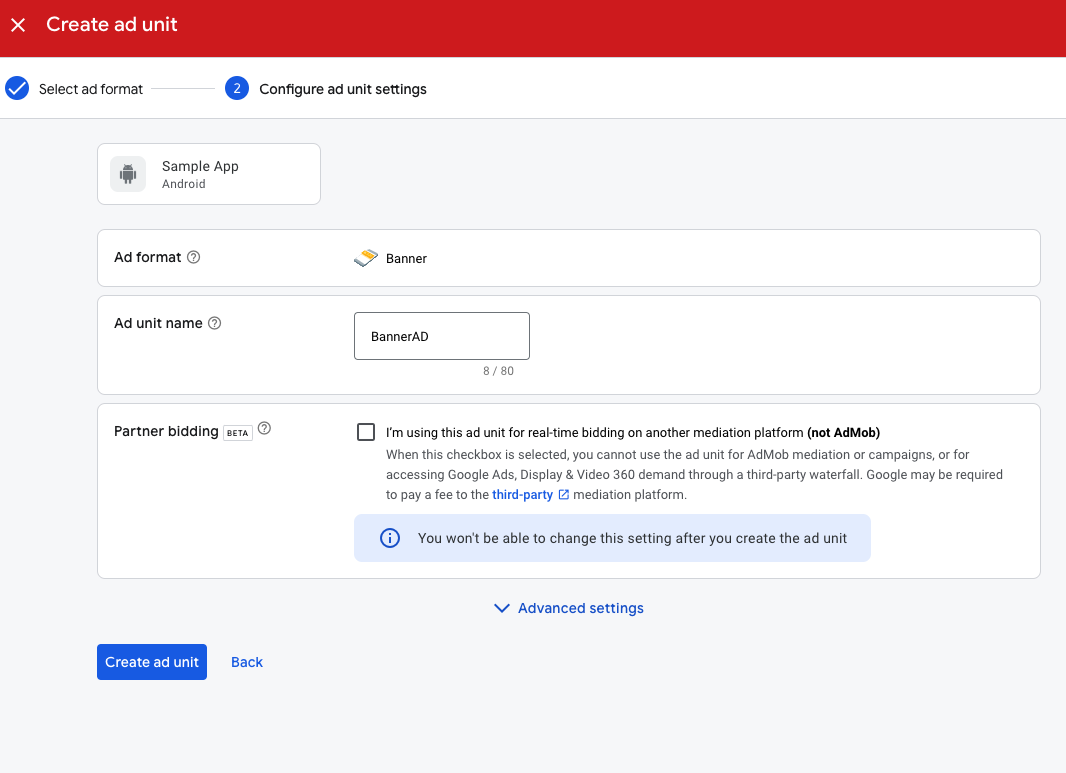
 Now you need to get your app ID for each platform.
 Ad Unit Successfully Created.
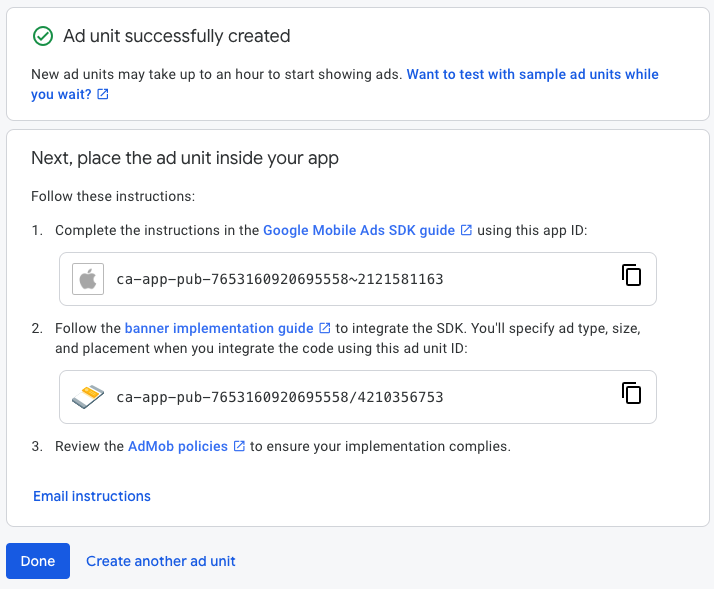 Now, listen carefully to the following steps.
Open `app.json` file and add the following code down below:
```json theme={null}
plugins: [
...
[
"react-native-google-mobile-ads",
{
"androidAppId": "ca-app-pub-",
"iosAppId": "ca-app-pub-"
}
],
...
]
```
Go to `services/admob/admobConfig.ts` file and change the values with your own.
If you are using the Gluestack branch go to the `services/admob/admobInitialize.ts` file and change the values to your own.
Go to `services/admob/admobService.ts` file and uncomment the code.
Now , go to `app/_layout.tsx` file and add the following code down below:
```tsx app/_layout.tsx {1,2,5,9,16,19} theme={null}
import { initializeAdmobService } from '@/services/admob';
import { useAdmob } from '@/hooks/useAdmob';
function App(){
const { admobState, initializeAdmobService } = useAdmob();
useEffect(() => {
...
// Ad this line: 👇
initializeAdmobService();
...
getUserTrackingPermission();
...
}, []);
// Find this useEffect and change this line: 👇
useEffect(() => {
if (loaded && initialized && admobState.admobReady.isLoaded) {
SplashScreen.hideAsync();
}
}, [loaded, initialized, admobState.admobReady.isLoaded]);
```
Now you can use Ads in where you want in your app. For example:
```tsx app/screens/profile.tsx {1,3,5} theme={null}
import { BannerAd } from 'react-native-google-mobile-ads';
// If you want to use other Ad types, use this import: 👇
import { useAdmob } from '@/hooks/useAdmob';
// If you want to use Banner AD, use this import: 👇
import { admobConfig } from '@/services/admob/admobConfig';
const ProfileScreen = () => {
const { showInterstitial, showRewarded, showAppOpen } = useAdmob();
useEffect(() => {
// Show Interstitial Ad
showInterstitial();
// or
showRewarded();
// or
showAppOpen();
}, []);
return (
<>
);
};
```
Don't forget to build your app again.
`npx expo prebuild` or `eas build --profile development --platform `
Now, listen carefully to the following steps.
Open `app.json` file and add the following code down below:
```json theme={null}
plugins: [
...
[
"react-native-google-mobile-ads",
{
"androidAppId": "ca-app-pub-",
"iosAppId": "ca-app-pub-"
}
],
...
]
```
Go to `services/admob/admobConfig.ts` file and change the values with your own.
If you are using the Gluestack branch go to the `services/admob/admobInitialize.ts` file and change the values to your own.
Go to `services/admob/admobService.ts` file and uncomment the code.
Now , go to `app/_layout.tsx` file and add the following code down below:
```tsx app/_layout.tsx {1,2,5,9,16,19} theme={null}
import { initializeAdmobService } from '@/services/admob';
import { useAdmob } from '@/hooks/useAdmob';
function App(){
const { admobState, initializeAdmobService } = useAdmob();
useEffect(() => {
...
// Ad this line: 👇
initializeAdmobService();
...
getUserTrackingPermission();
...
}, []);
// Find this useEffect and change this line: 👇
useEffect(() => {
if (loaded && initialized && admobState.admobReady.isLoaded) {
SplashScreen.hideAsync();
}
}, [loaded, initialized, admobState.admobReady.isLoaded]);
```
Now you can use Ads in where you want in your app. For example:
```tsx app/screens/profile.tsx {1,3,5} theme={null}
import { BannerAd } from 'react-native-google-mobile-ads';
// If you want to use other Ad types, use this import: 👇
import { useAdmob } from '@/hooks/useAdmob';
// If you want to use Banner AD, use this import: 👇
import { admobConfig } from '@/services/admob/admobConfig';
const ProfileScreen = () => {
const { showInterstitial, showRewarded, showAppOpen } = useAdmob();
useEffect(() => {
// Show Interstitial Ad
showInterstitial();
// or
showRewarded();
// or
showAppOpen();
}, []);
return (
<>
);
};
```
Don't forget to build your app again.
`npx expo prebuild` or `eas build --profile development --platform `