> ## Documentation Index
> Fetch the complete documentation index at: https://docs.shipmobilefast.com/llms.txt
> Use this file to discover all available pages before exploring further.

# Android

> Setup in-app purchases for Android
<Frame>
  <img src="https://mintcdn.com/shipmobilefast-51a499dc/rNBXOQ08cKXtmr3A/images/header/iap.png?fit=max&auto=format&n=rNBXOQ08cKXtmr3A&q=85&s=095f24dab20452f645c6dbc1f774b618" alt="In-App Purchases" className="w-full h-full rounded-xl" width="700" height="320" data-path="images/header/iap.png" />
</Frame>

We are using [RevenueCat](https://www.revenuecat.com/) to handle in-app purchases.

* Relevant Links: [RevenueCat Docs](https://www.revenuecat.com/docs)

<Warning>
  First, you need a Google Play Developer Account to setup in-app purchases.
</Warning>

## Setup

<Steps>
  <Step>
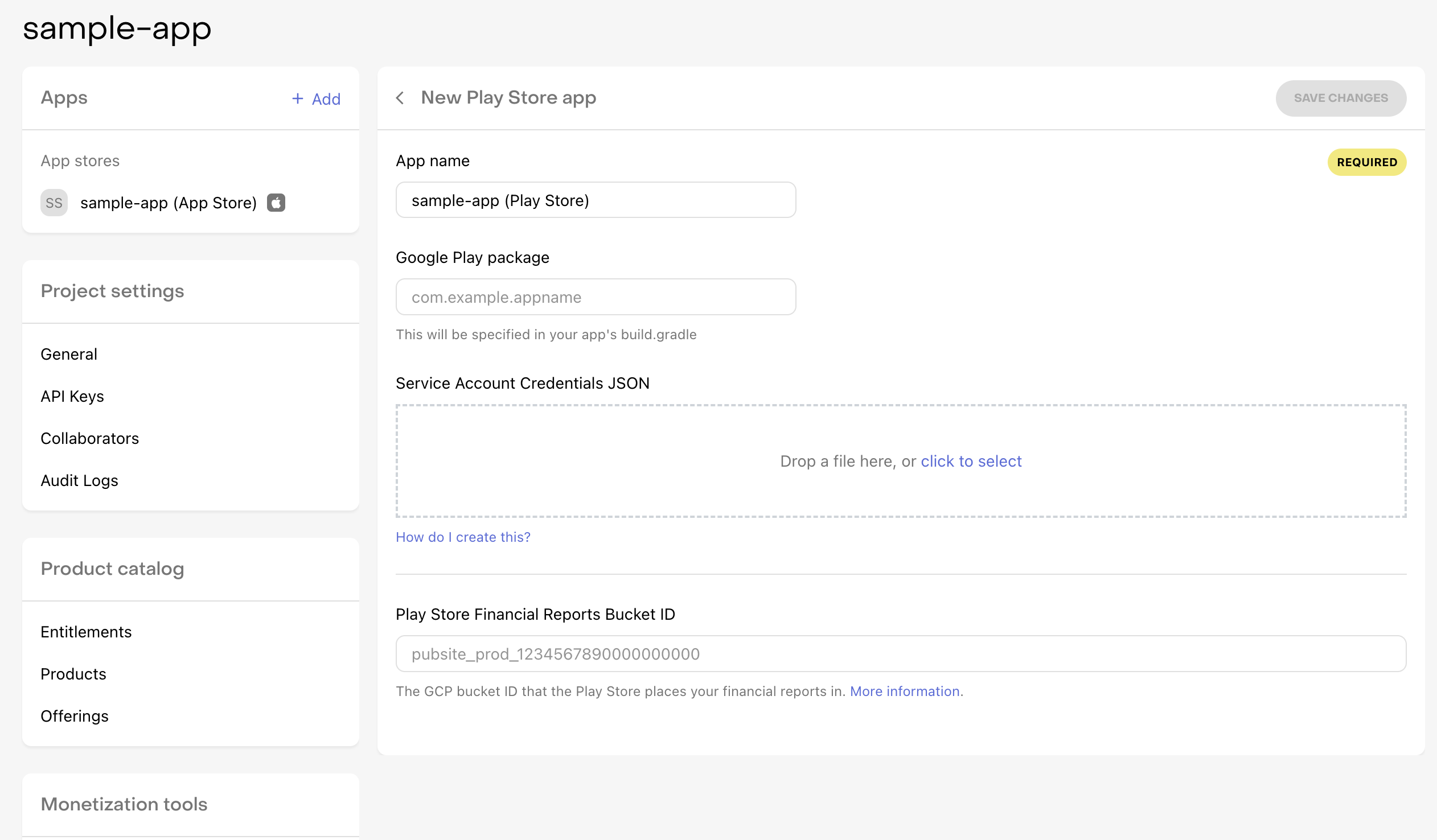
    Firstly, you need to see like that screen in RevenueCat.
    <Frame>
      <img src="https://mintcdn.com/shipmobilefast-51a499dc/eqBm0v-I9CQ3GkW-/images/setup/iap/android/step1.png?fit=max&auto=format&n=eqBm0v-I9CQ3GkW-&q=85&s=d283f074dff7e65ff625f100ebfead7b" alt="Step 1" className="w-full h-full rounded-xl" width="2524" height="1476" data-path="images/setup/iap/android/step1.png" />
    </Frame>
  </Step>

  <Step>
    Please click the link down below:

    * Link: [Google Cloud API Console](https://console.cloud.google.com/apis/dashboard)
  </Step>

  <Step>
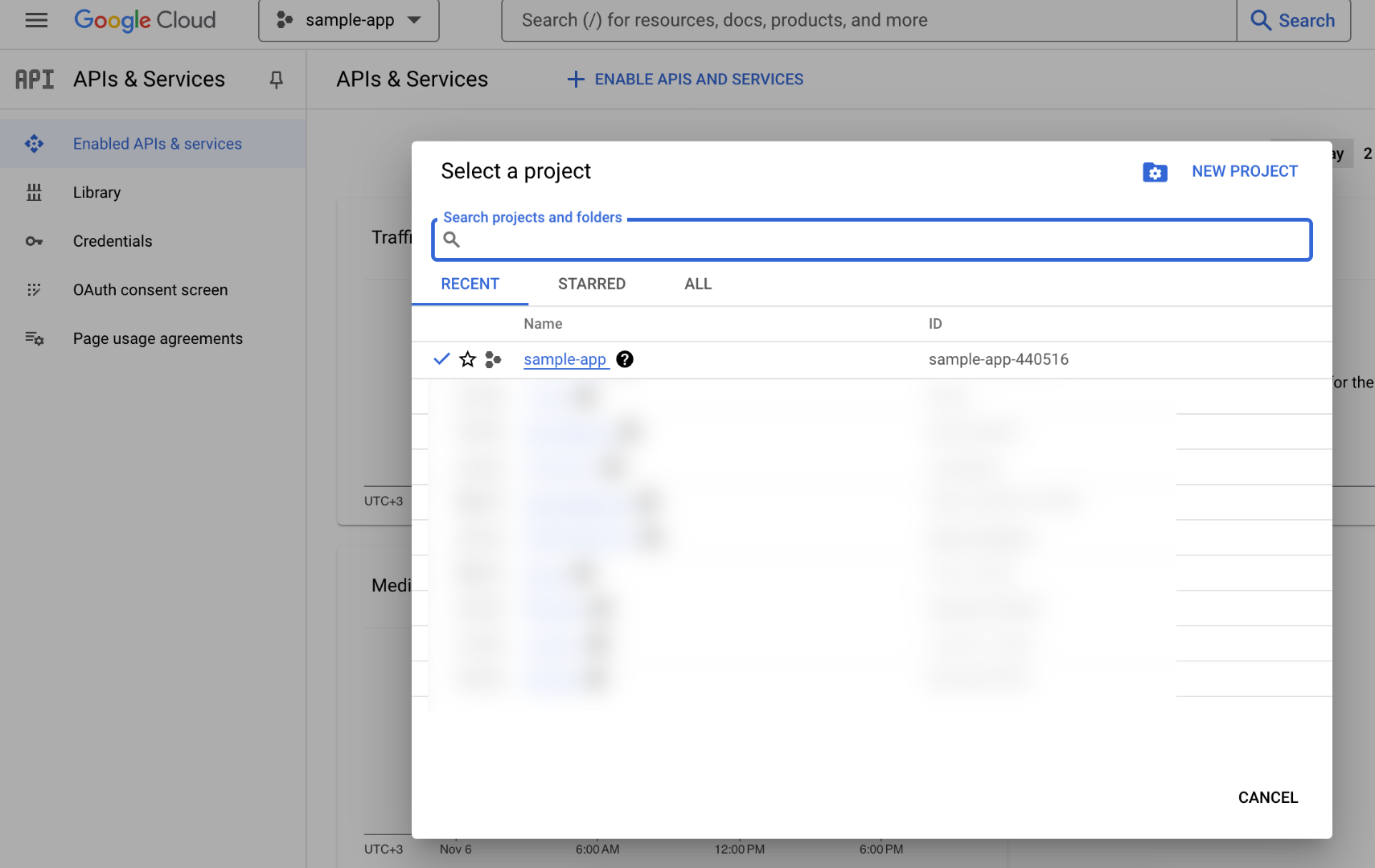
    Create a new project or select an existing project.
    <Frame>
      <img src="https://mintcdn.com/shipmobilefast-51a499dc/eqBm0v-I9CQ3GkW-/images/setup/iap/android/step2.png?fit=max&auto=format&n=eqBm0v-I9CQ3GkW-&q=85&s=375761dde50e713e8b487b5524f36e33" alt="Step 2" className="w-full h-full rounded-xl" width="1710" height="1080" data-path="images/setup/iap/android/step2.png" />
    </Frame>
  </Step>

  <Step>
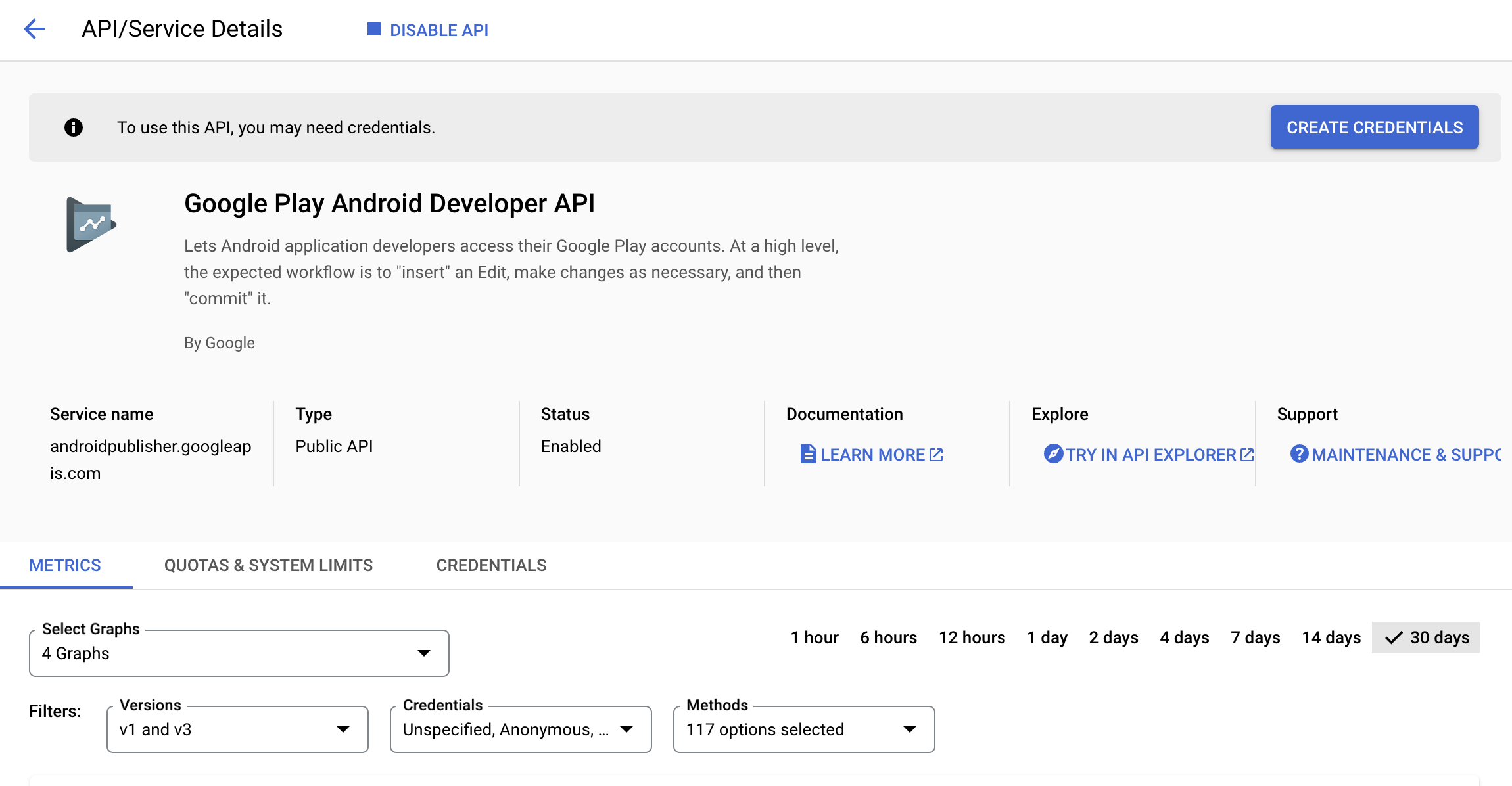
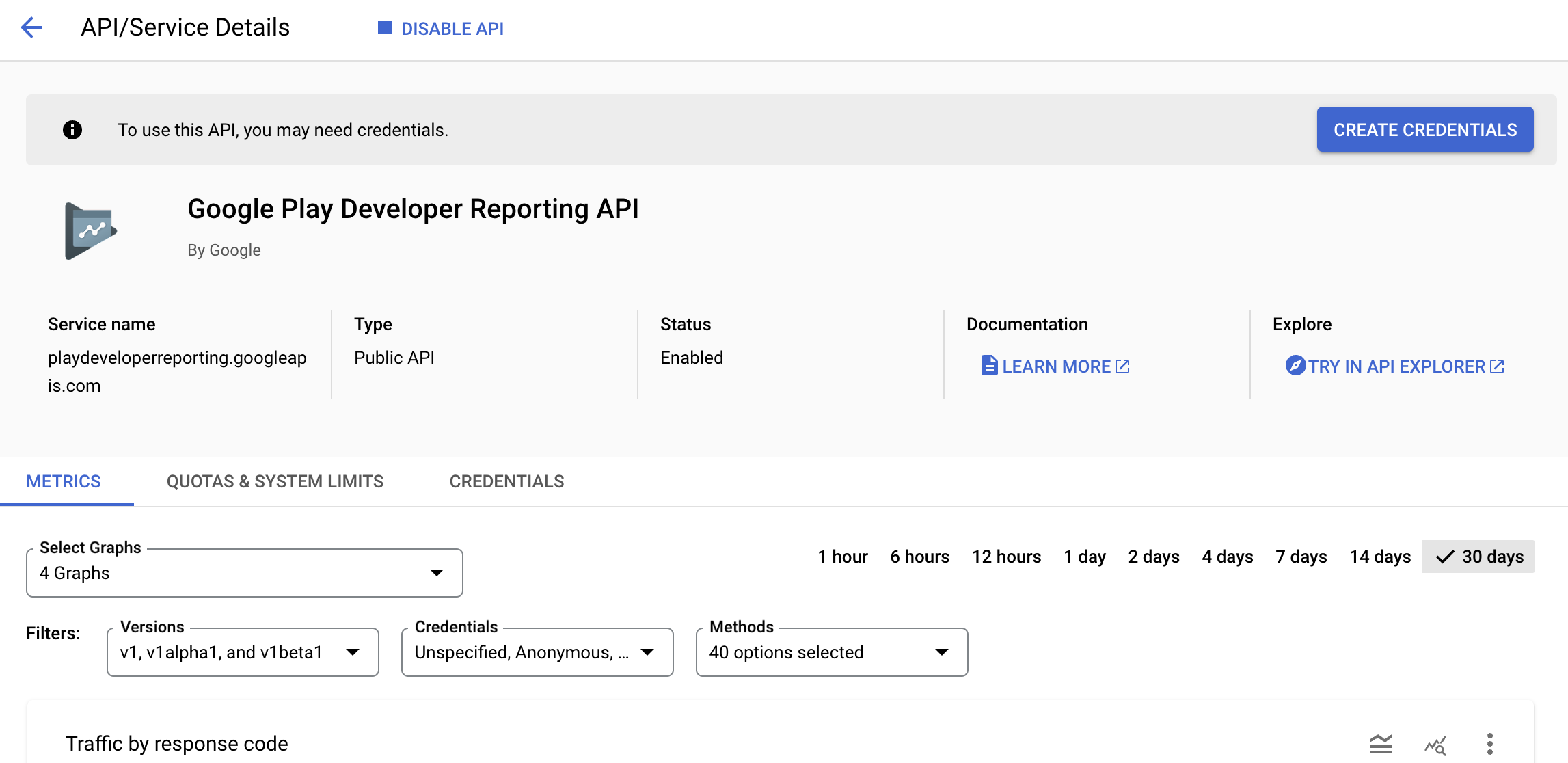
    Go to the [Google Play Android Developer API page](https://console.cloud.google.com/apis/library/androidpublisher.googleapis.com) and [Google Play Developer Reporting API page](https://console.cloud.google.com/apis/library/playdeveloperreporting.googleapis.com)
    <Frame>
      <img src="https://mintcdn.com/shipmobilefast-51a499dc/eqBm0v-I9CQ3GkW-/images/setup/iap/android/step3-1.png?fit=max&auto=format&n=eqBm0v-I9CQ3GkW-&q=85&s=44c52c58458aae52d4b34451fcccc5f1" alt="Step 3-1" className="w-full h-full rounded-xl" width="2300" height="1196" data-path="images/setup/iap/android/step3-1.png" />

      <img src="https://mintcdn.com/shipmobilefast-51a499dc/eqBm0v-I9CQ3GkW-/images/setup/iap/android/step3-2.png?fit=max&auto=format&n=eqBm0v-I9CQ3GkW-&q=85&s=8c868aa96df6fe5b35f79f31b74db7a4" alt="Step 3-2" className="w-full h-full rounded-xl ml-2" width="2294" height="1116" data-path="images/setup/iap/android/step3-2.png" />
    </Frame>

    <Check>
      Please click the `Enable` button both of them.
    </Check>
  </Step>

  <Step>
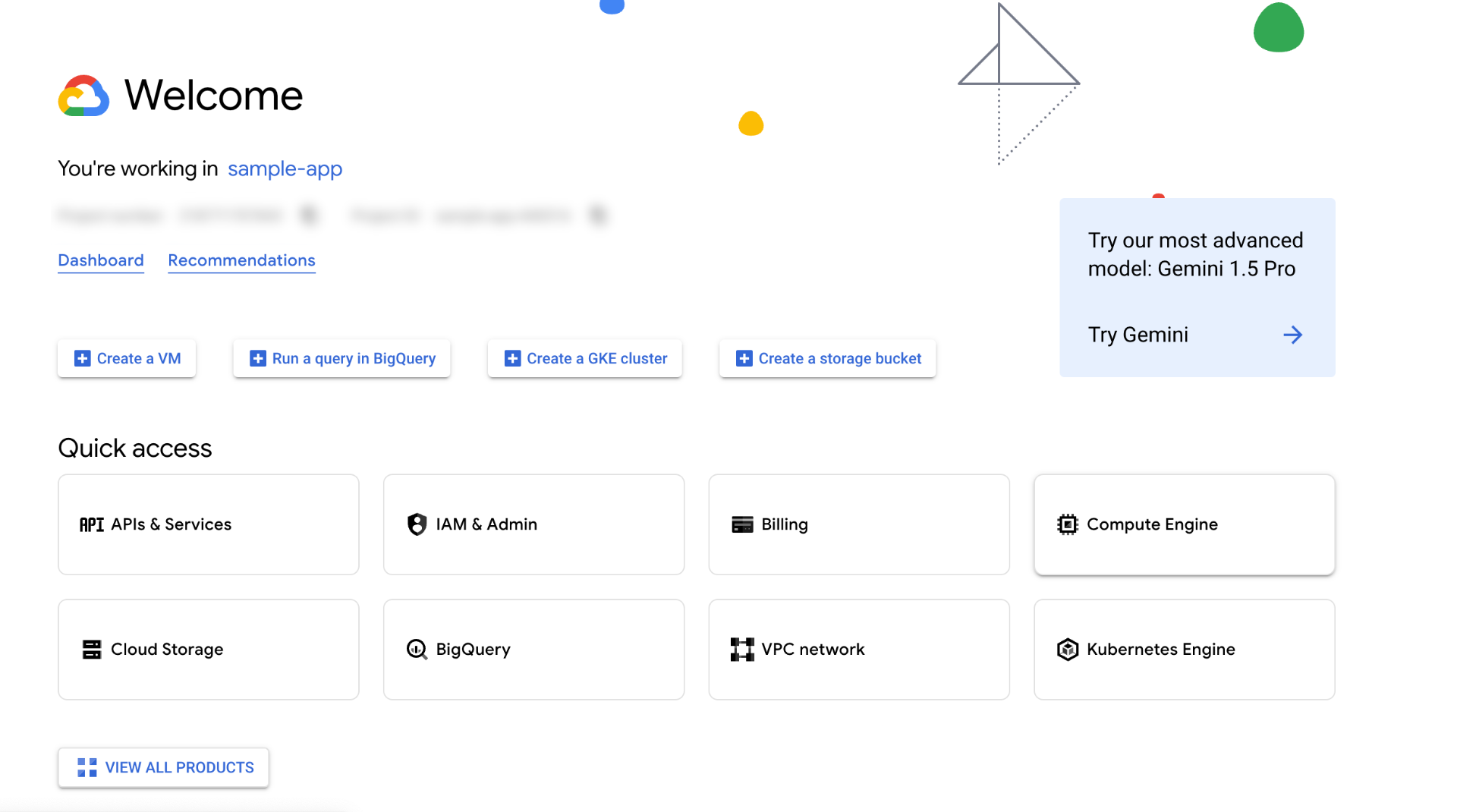
    After clicking the `Enable` button, go home page in Google Cloud Console.
    <Frame>
      <img src="https://mintcdn.com/shipmobilefast-51a499dc/eqBm0v-I9CQ3GkW-/images/setup/iap/android/step4.png?fit=max&auto=format&n=eqBm0v-I9CQ3GkW-&q=85&s=aa89e1febefeddad7b2c98a1d95851c6" alt="Step 4" className="w-full h-full rounded-xl" width="1920" height="1070" data-path="images/setup/iap/android/step4.png" />
    </Frame>
  </Step>

  <Step>
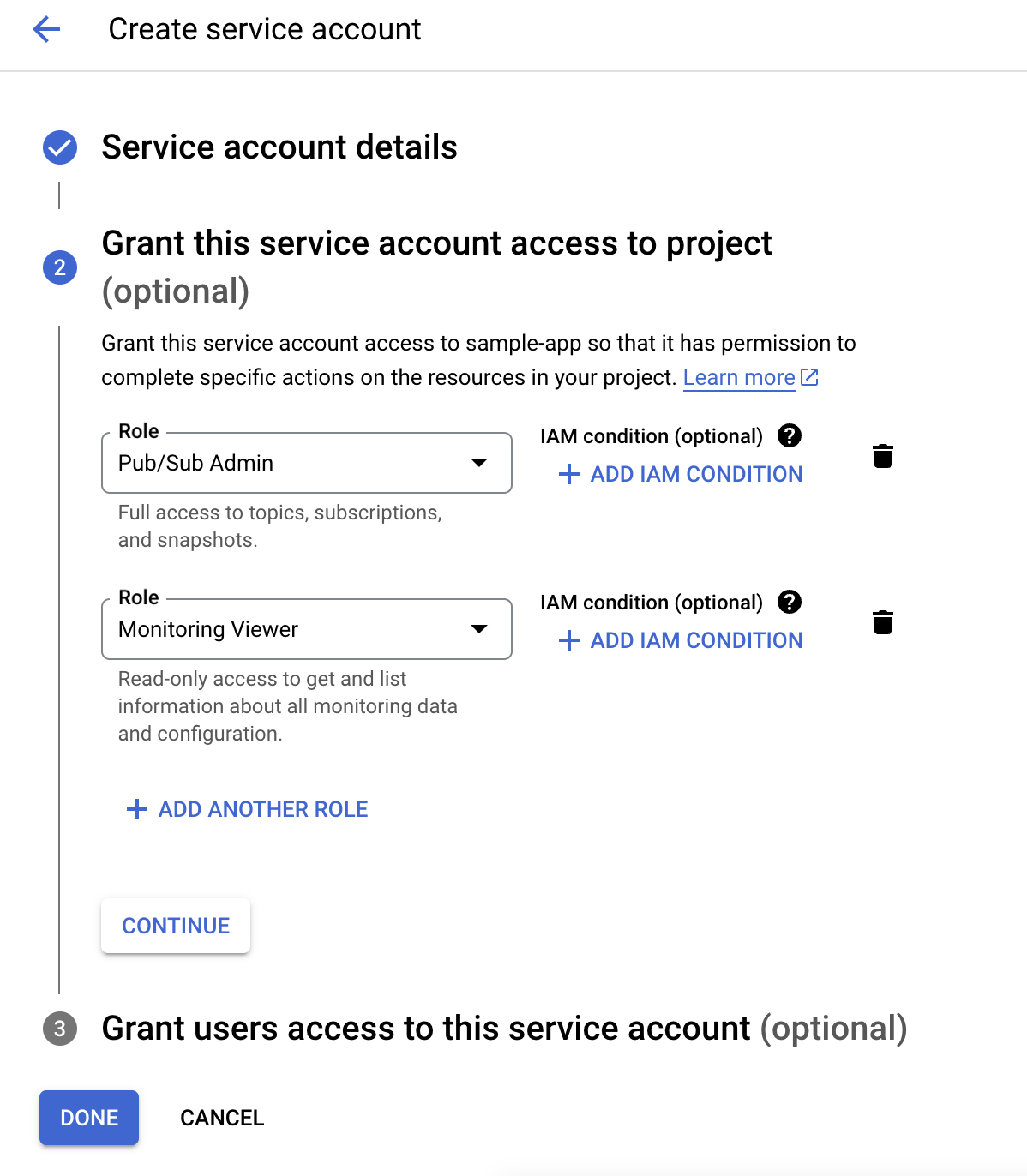
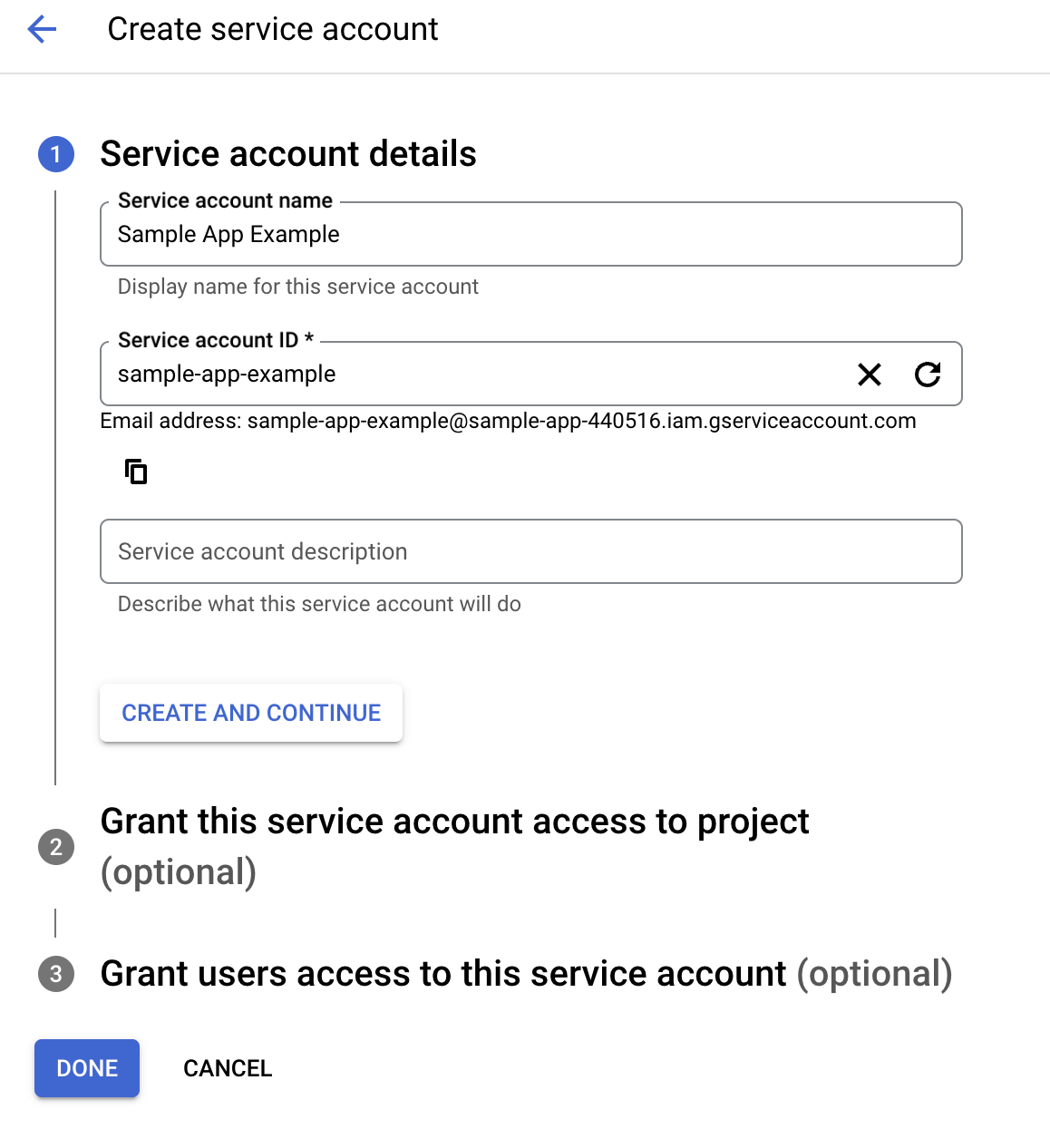
    Go to IAM & Admin > Service Accounts Page

    * Click the `Create Service Account` button.
    * Add your Service Account Name like: `SMF RC Service Account`.
    * Pick your first role : 'Pub/Sub Admin'
    * Other role should be 'Monitoring Viewer'
    * Click the `Continue` and `Done` button.
    <Frame>
      <img src="https://mintcdn.com/shipmobilefast-51a499dc/eqBm0v-I9CQ3GkW-/images/setup/iap/android/step5.png?fit=max&auto=format&n=eqBm0v-I9CQ3GkW-&q=85&s=5a9944f94e2f168a26d9b376850ad8f0" alt="Step 5" className="w-full h-full rounded-xl" width="1158" height="1266" data-path="images/setup/iap/android/step5.png" />

      <img src="https://mintcdn.com/shipmobilefast-51a499dc/eqBm0v-I9CQ3GkW-/images/setup/iap/android/step6.png?fit=max&auto=format&n=eqBm0v-I9CQ3GkW-&q=85&s=8d64cdeebf44e788da047bfda21a7ba1" alt="Step 6" className="w-full h-full rounded-xl ml-2" width="1198" height="1372" data-path="images/setup/iap/android/step6.png" />
    </Frame>
  </Step>

  <Step>
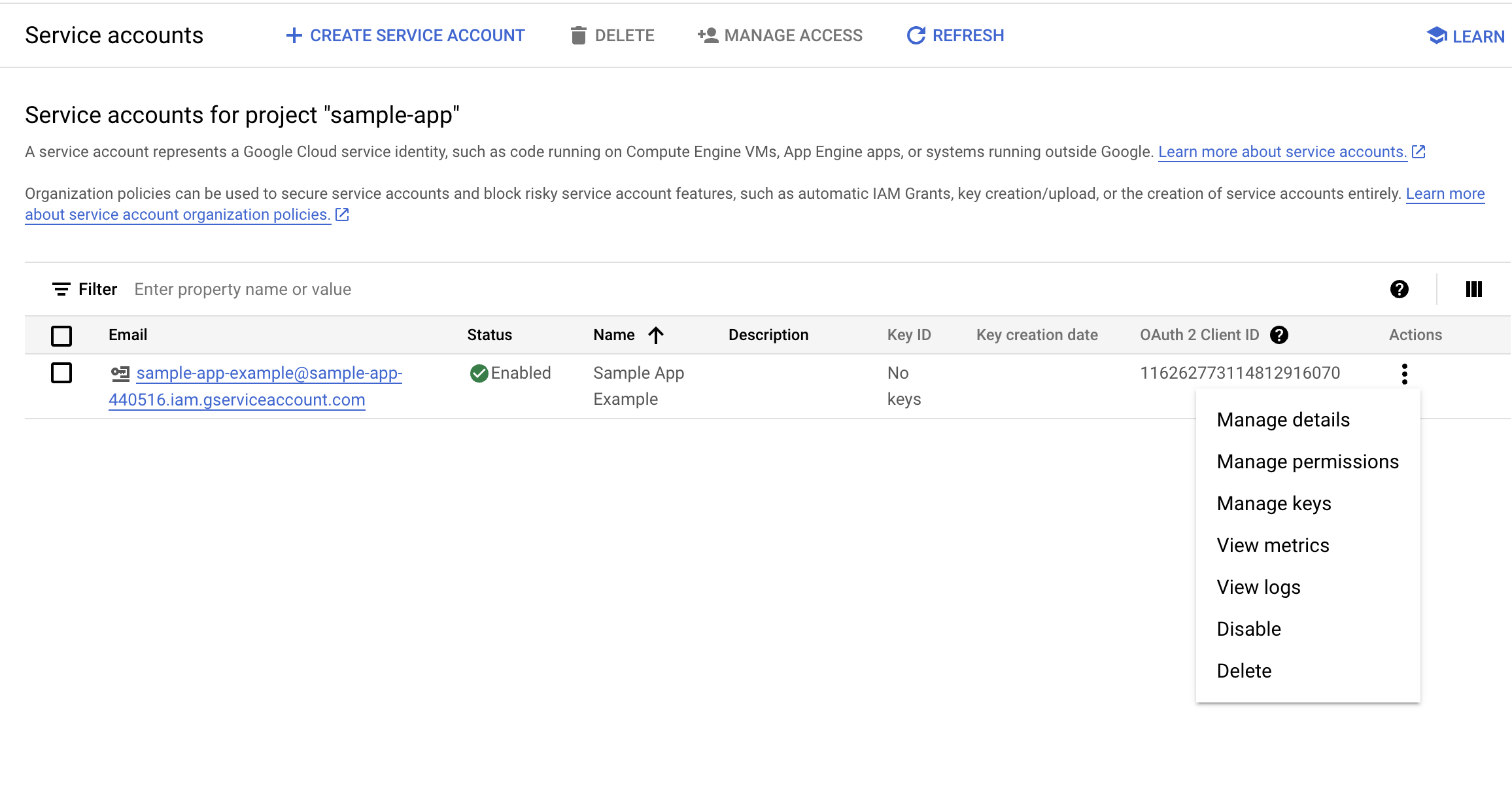
    After clicking the `Done` button, you will see the screen like below.

    * Click the `3 dots` button.
    * Click the `Manage Keys` button.
    <Frame>
      <img src="https://mintcdn.com/shipmobilefast-51a499dc/eqBm0v-I9CQ3GkW-/images/setup/iap/android/step7.png?fit=max&auto=format&n=eqBm0v-I9CQ3GkW-&q=85&s=38e5cb6a6f548d73ba5d80a5f76fae1c" alt="Step 7" className="w-full h-full rounded-xl" width="2312" height="1240" data-path="images/setup/iap/android/step7.png" />
    </Frame>
  </Step>

  <Step>
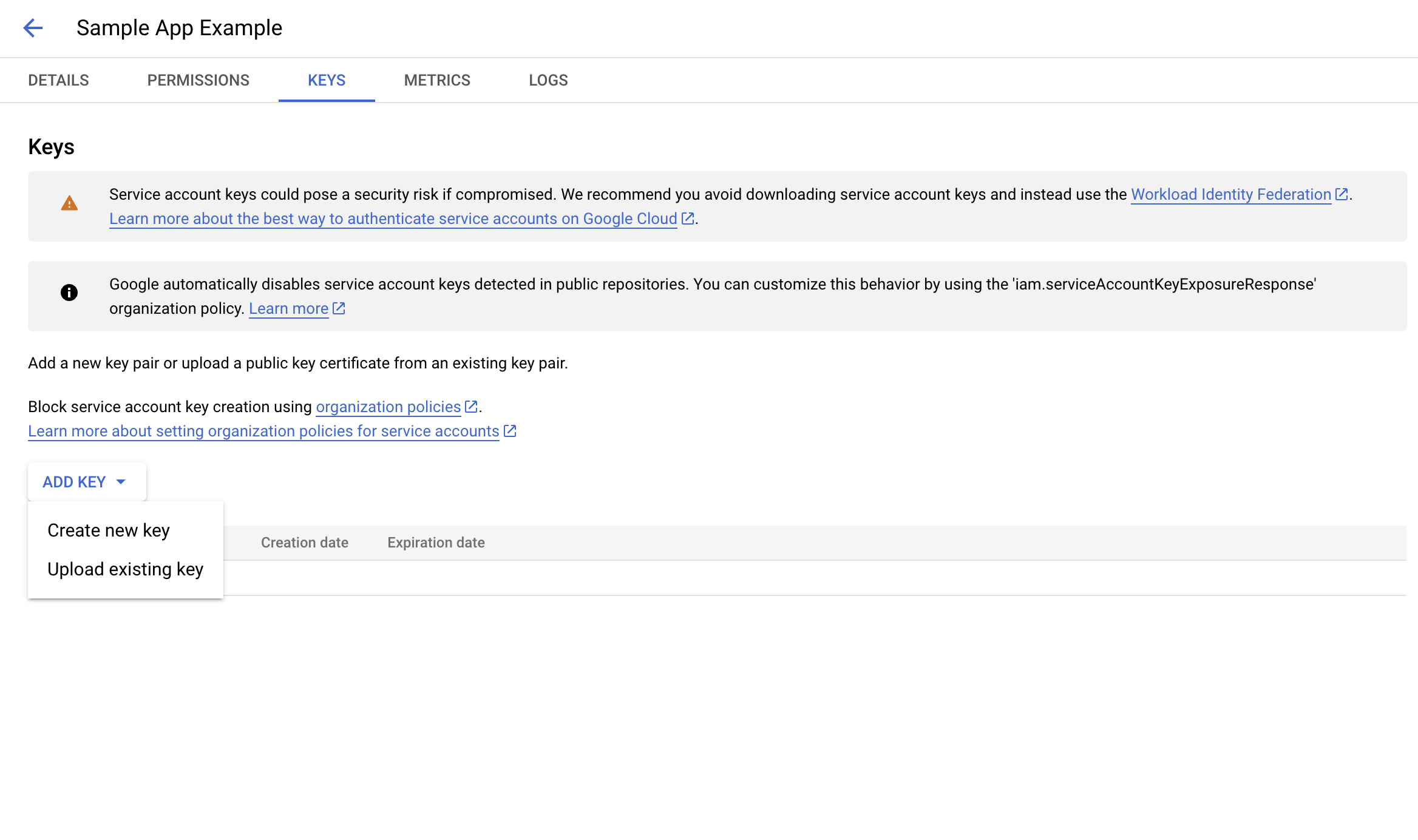
    Click the `Add Key` button. Then click the `Create new key` button.
    <Frame>
      <img src="https://mintcdn.com/shipmobilefast-51a499dc/eqBm0v-I9CQ3GkW-/images/setup/iap/android/step8.png?fit=max&auto=format&n=eqBm0v-I9CQ3GkW-&q=85&s=748b9935e305a9c368e6e13f86bd8ee5" alt="Step 8" className="w-full h-full rounded-xl" width="2336" height="1384" data-path="images/setup/iap/android/step8.png" />
    </Frame>
  </Step>

  <Step>
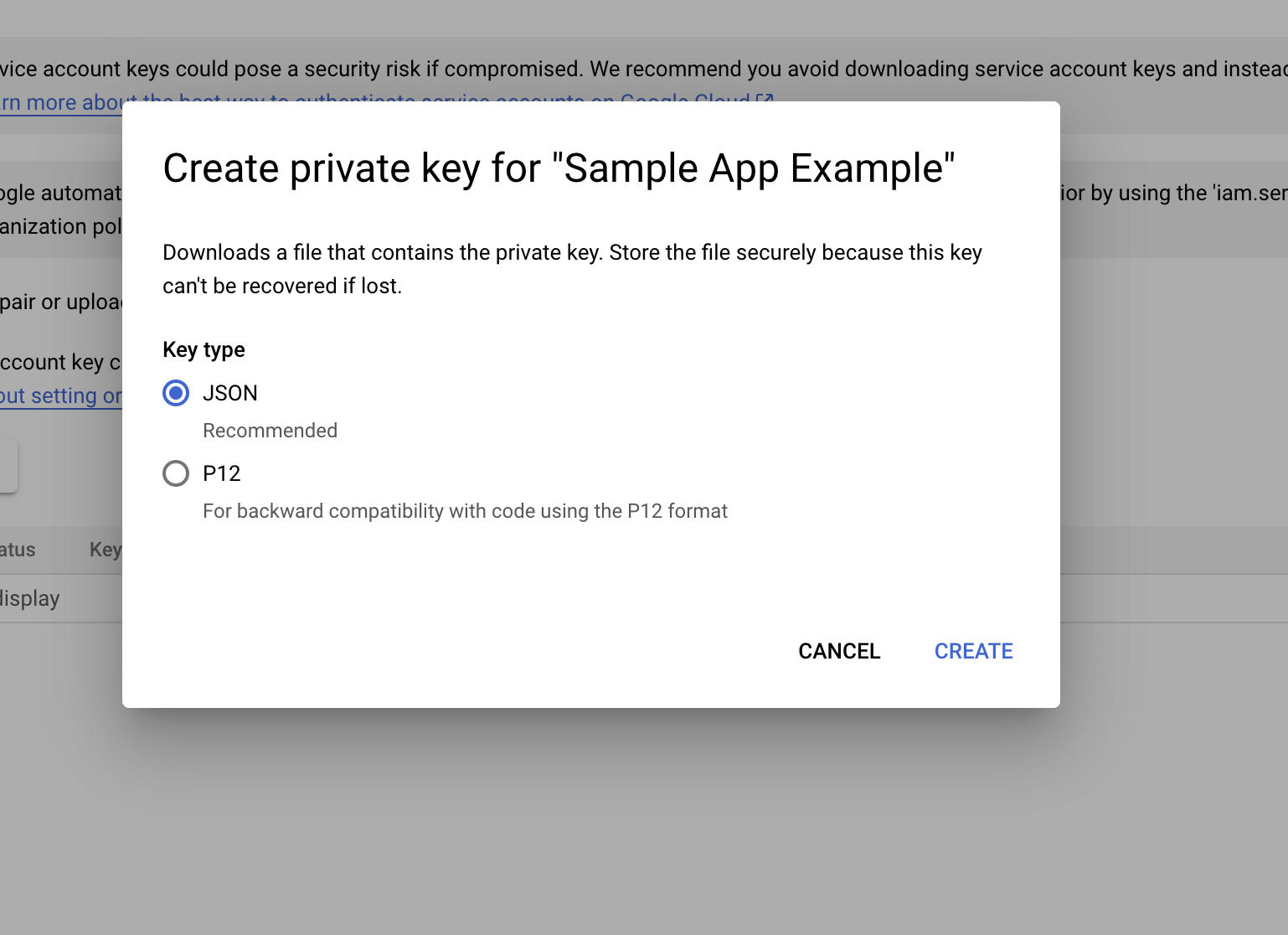
    Please pick the `JSON` and click the `Create` button.
    <Frame>
      <img src="https://mintcdn.com/shipmobilefast-51a499dc/eqBm0v-I9CQ3GkW-/images/setup/iap/android/step9.png?fit=max&auto=format&n=eqBm0v-I9CQ3GkW-&q=85&s=db971105637235232587bf4f61f215f2" alt="Step 9" className="w-full h-full rounded-xl" width="1538" height="1116" data-path="images/setup/iap/android/step9.png" />
    </Frame>
  </Step>

  <Step>
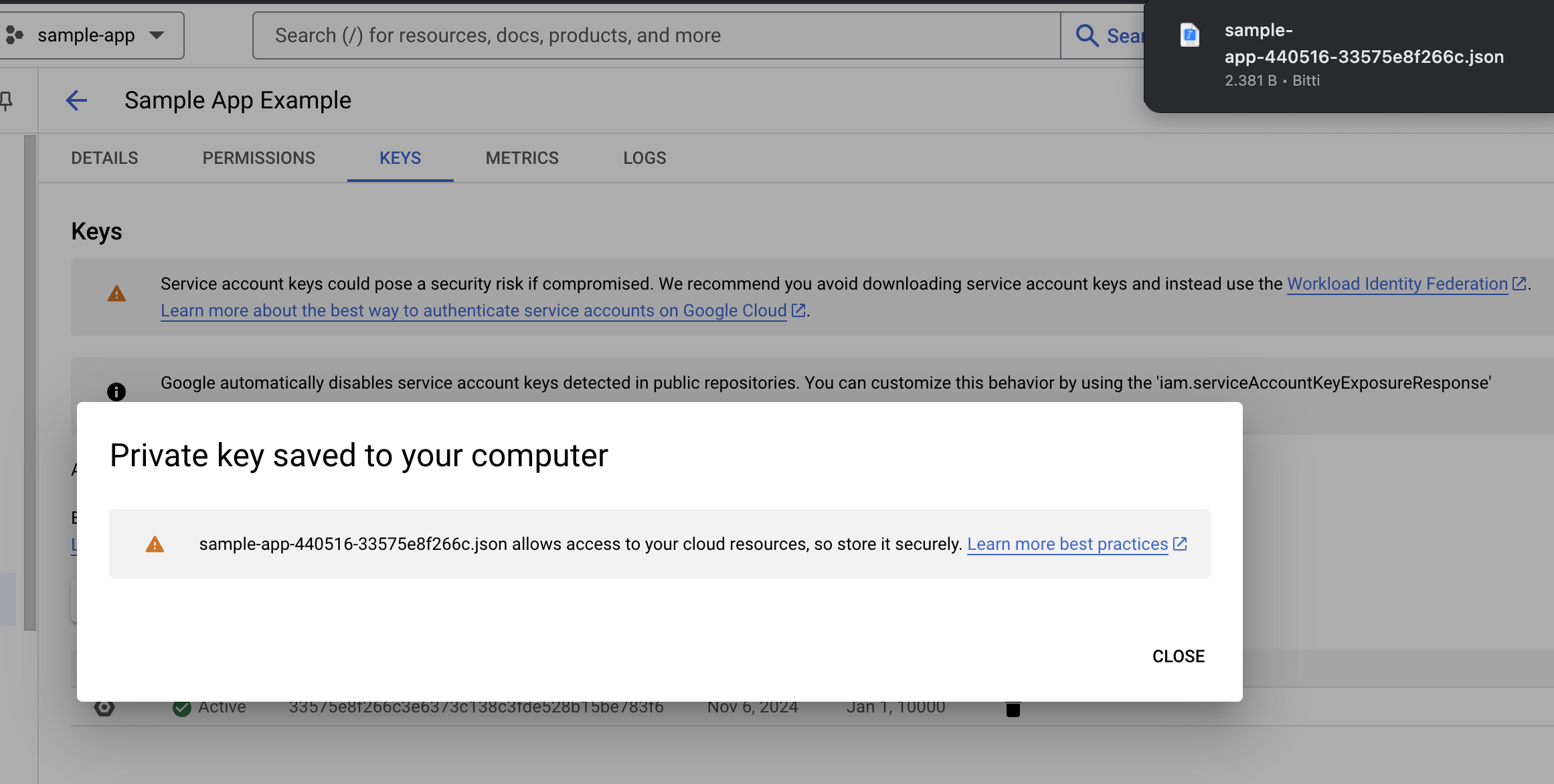
    Save the JSON file and keep it in a safe place. We'll use it in the next step.
    <Frame>
      <img src="https://mintcdn.com/shipmobilefast-51a499dc/eqBm0v-I9CQ3GkW-/images/setup/iap/android/step10.png?fit=max&auto=format&n=eqBm0v-I9CQ3GkW-&q=85&s=eb70f3f5912efb1633fefbc72c1c0ad3" alt="Step 10" className="w-full h-full rounded-xl" width="2322" height="1172" data-path="images/setup/iap/android/step10.png" />
    </Frame>
  </Step>

  <Step>
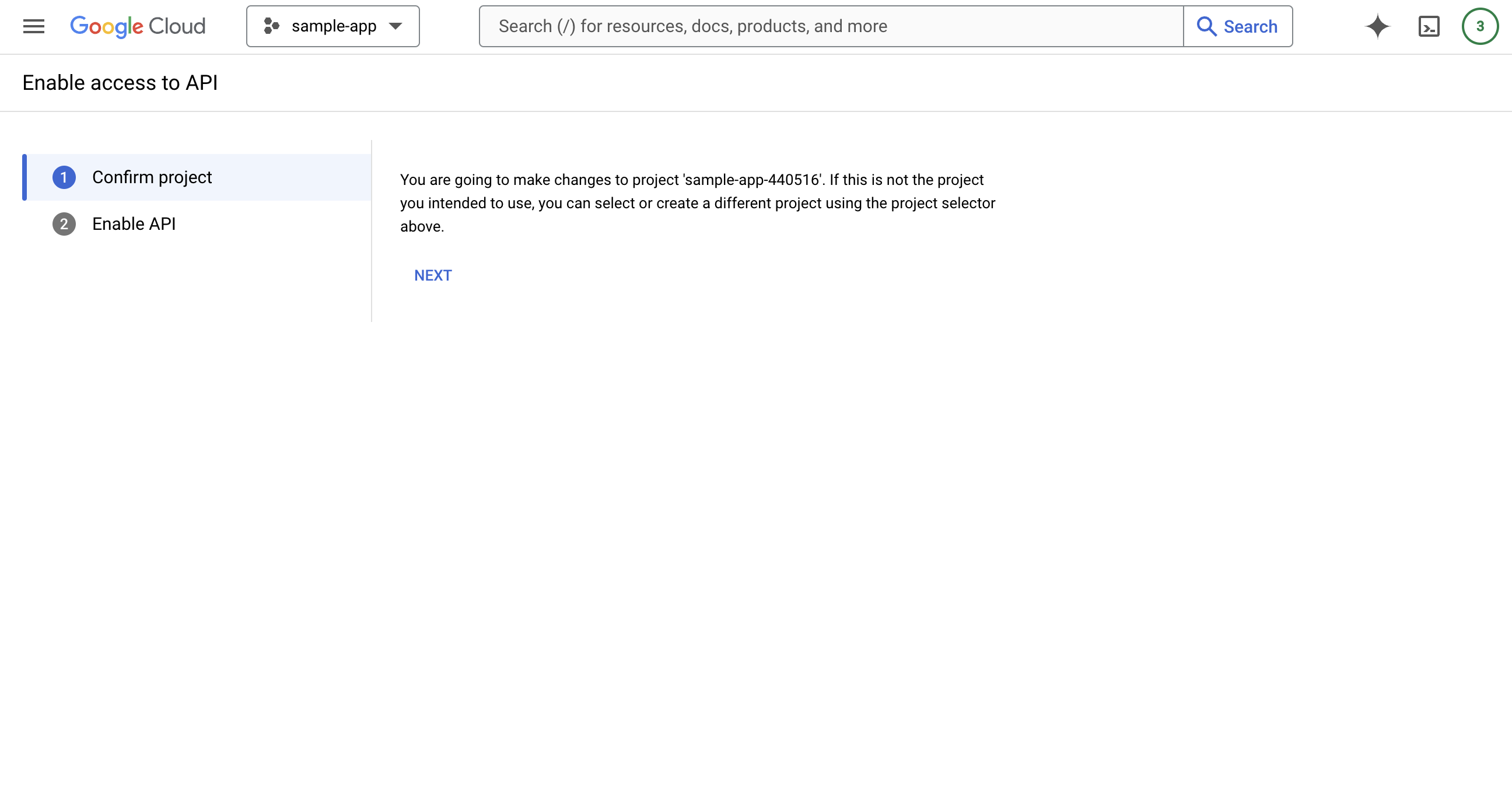
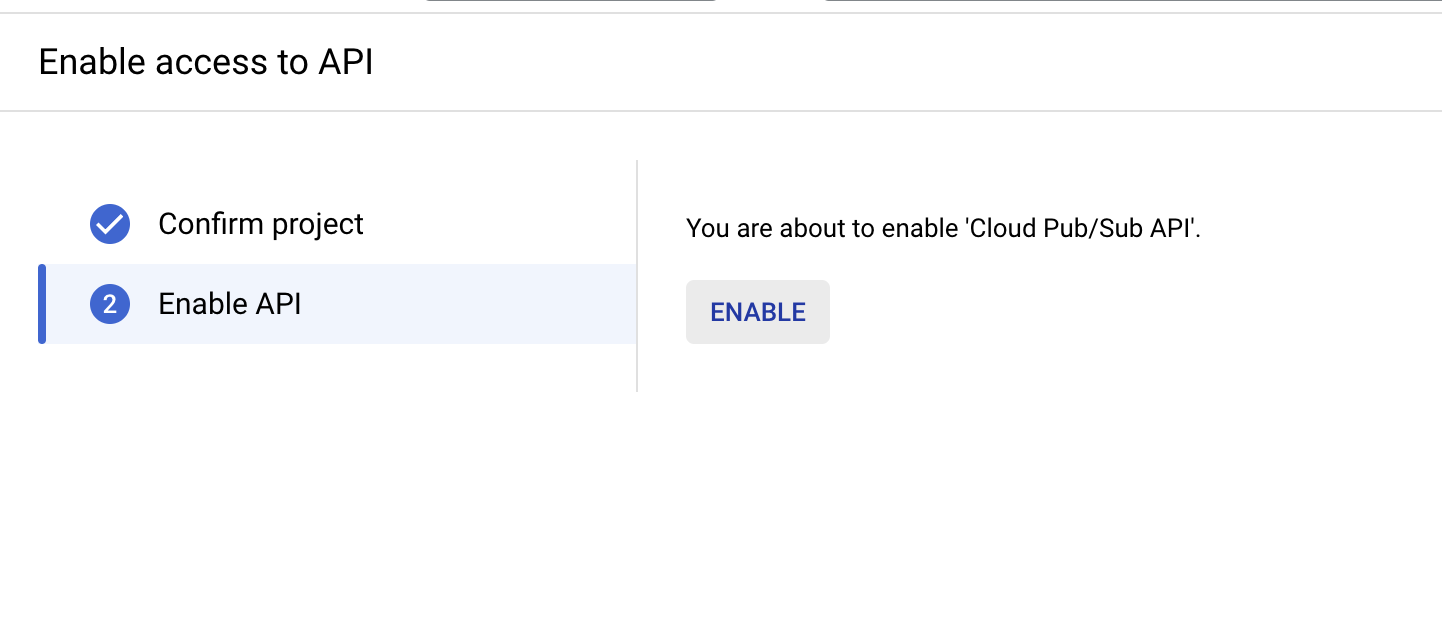
    By the way: Go to [Pub/Sub Developer Notifications](https://console.cloud.google.com/apis/enableflow?apiid=pubsub)
    <Frame>
      <img src="https://mintcdn.com/shipmobilefast-51a499dc/eqBm0v-I9CQ3GkW-/images/setup/iap/android/step11.png?fit=max&auto=format&n=eqBm0v-I9CQ3GkW-&q=85&s=b8d75c65347e9c173a161459386b39de" alt="Step 11" className="w-full h-full rounded-xl" width="2592" height="1356" data-path="images/setup/iap/android/step11.png" />
    </Frame>
  </Step>

  <Step>
    <Frame>
      <img src="https://mintcdn.com/shipmobilefast-51a499dc/eqBm0v-I9CQ3GkW-/images/setup/iap/android/step12.png?fit=max&auto=format&n=eqBm0v-I9CQ3GkW-&q=85&s=95f31f15473d13218480da8e14b67266" alt="Step 12" className="w-full h-full rounded-xl" width="1442" height="622" data-path="images/setup/iap/android/step12.png" />
    </Frame>
  </Step>

  <Step>
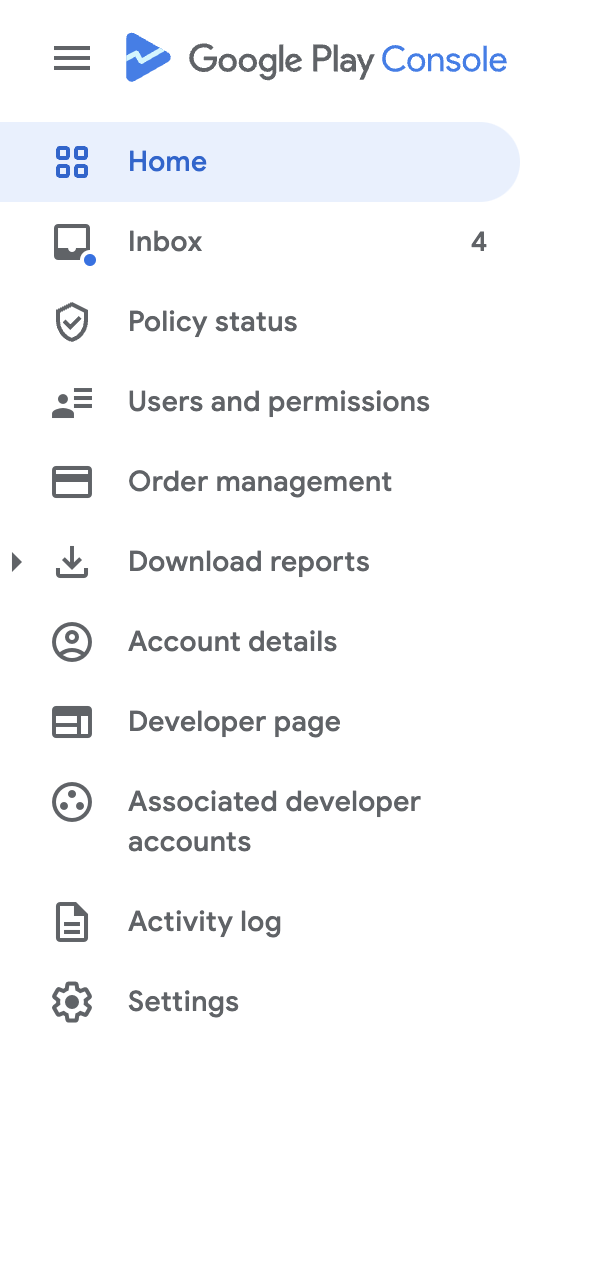
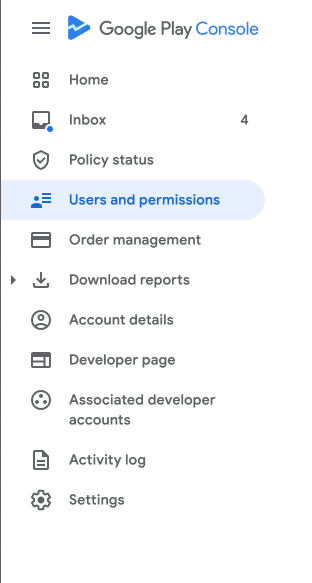
    * Go to the `Google Play Console` section.
    * Click `Users and Permissions`
    <Frame>
      <img src="https://mintcdn.com/shipmobilefast-51a499dc/eqBm0v-I9CQ3GkW-/images/setup/iap/android/step13.png?fit=max&auto=format&n=eqBm0v-I9CQ3GkW-&q=85&s=7f15214349eff3a5408de2d7cd147283" alt="Step 13" className="w-full h-full rounded-xl" width="312" height="583" data-path="images/setup/iap/android/step13.png" />
    </Frame>
  </Step>

  <Step>
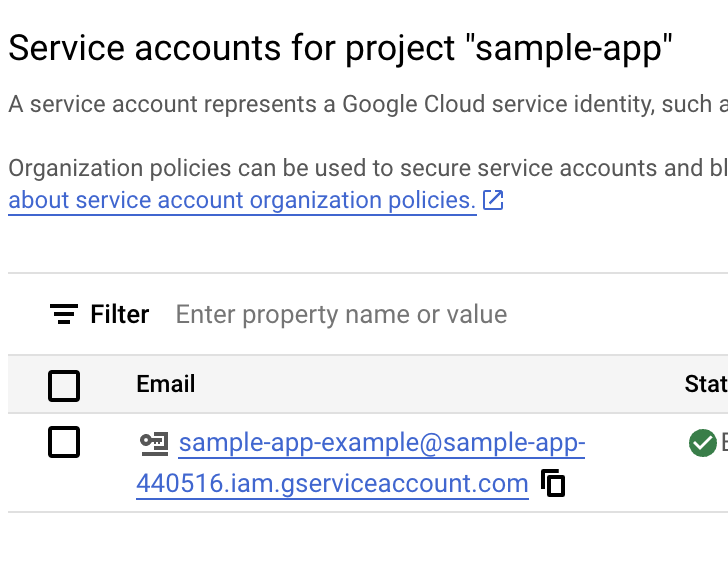
    Go back to Google Cloud Console and Copy the service account mail.
    <Frame>
      <img src="https://mintcdn.com/shipmobilefast-51a499dc/eqBm0v-I9CQ3GkW-/images/setup/iap/android/step14.png?fit=max&auto=format&n=eqBm0v-I9CQ3GkW-&q=85&s=543be095892e660b7545053dff69d1de" alt="Step 14" className="w-full h-full rounded-xl" width="728" height="578" data-path="images/setup/iap/android/step14.png" />
    </Frame>
  </Step>

  <Step>
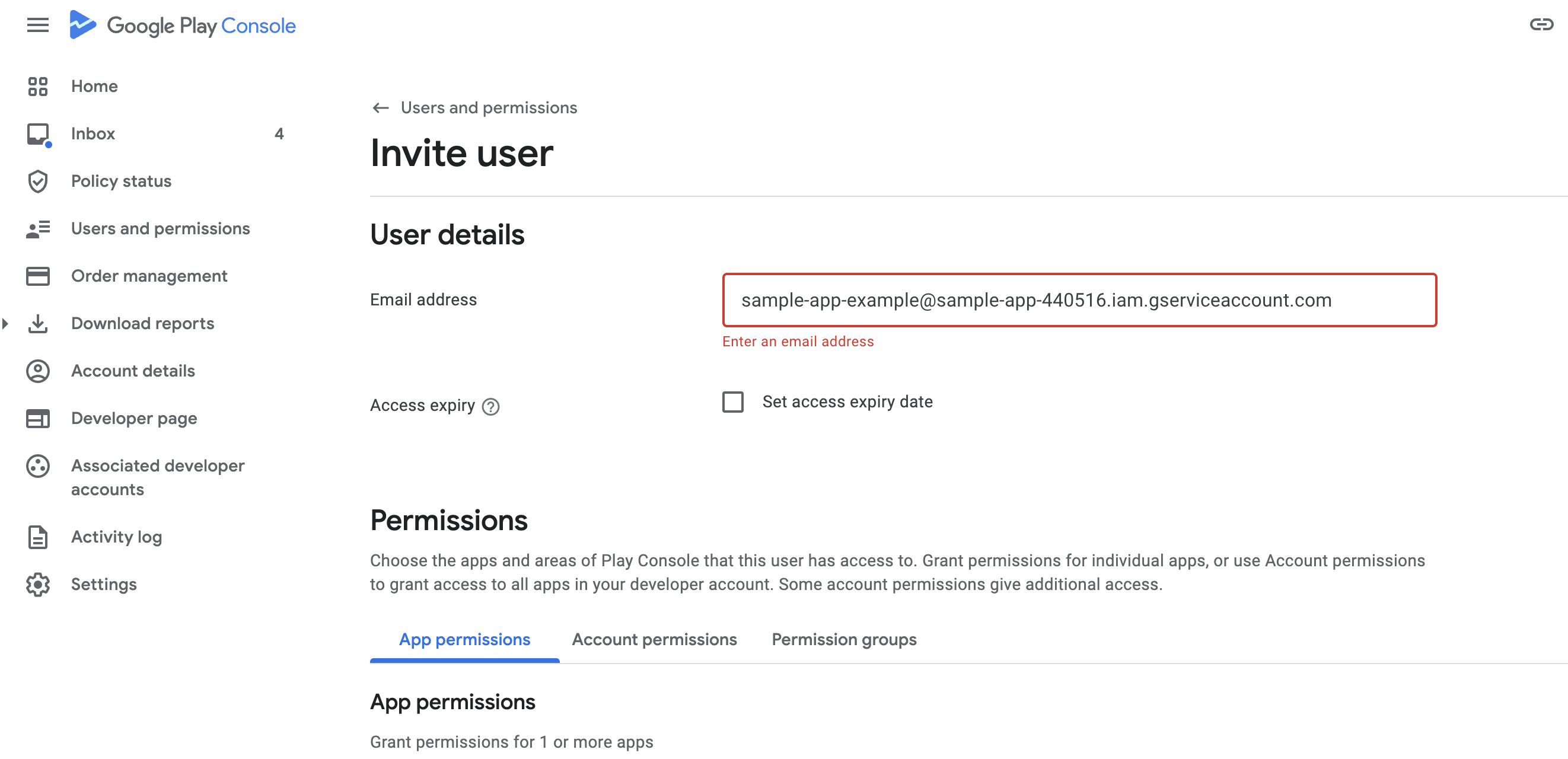
    Paste it in here and scroll down a little bit.
    <Frame>
      <img src="https://mintcdn.com/shipmobilefast-51a499dc/eqBm0v-I9CQ3GkW-/images/setup/iap/android/step15.png?fit=max&auto=format&n=eqBm0v-I9CQ3GkW-&q=85&s=b68a41089b46fa8365238027a42ba0db" alt="Step 15" className="w-full h-full rounded-xl" width="2644" height="1280" data-path="images/setup/iap/android/step15.png" />
    </Frame>
  </Step>

  <Step>
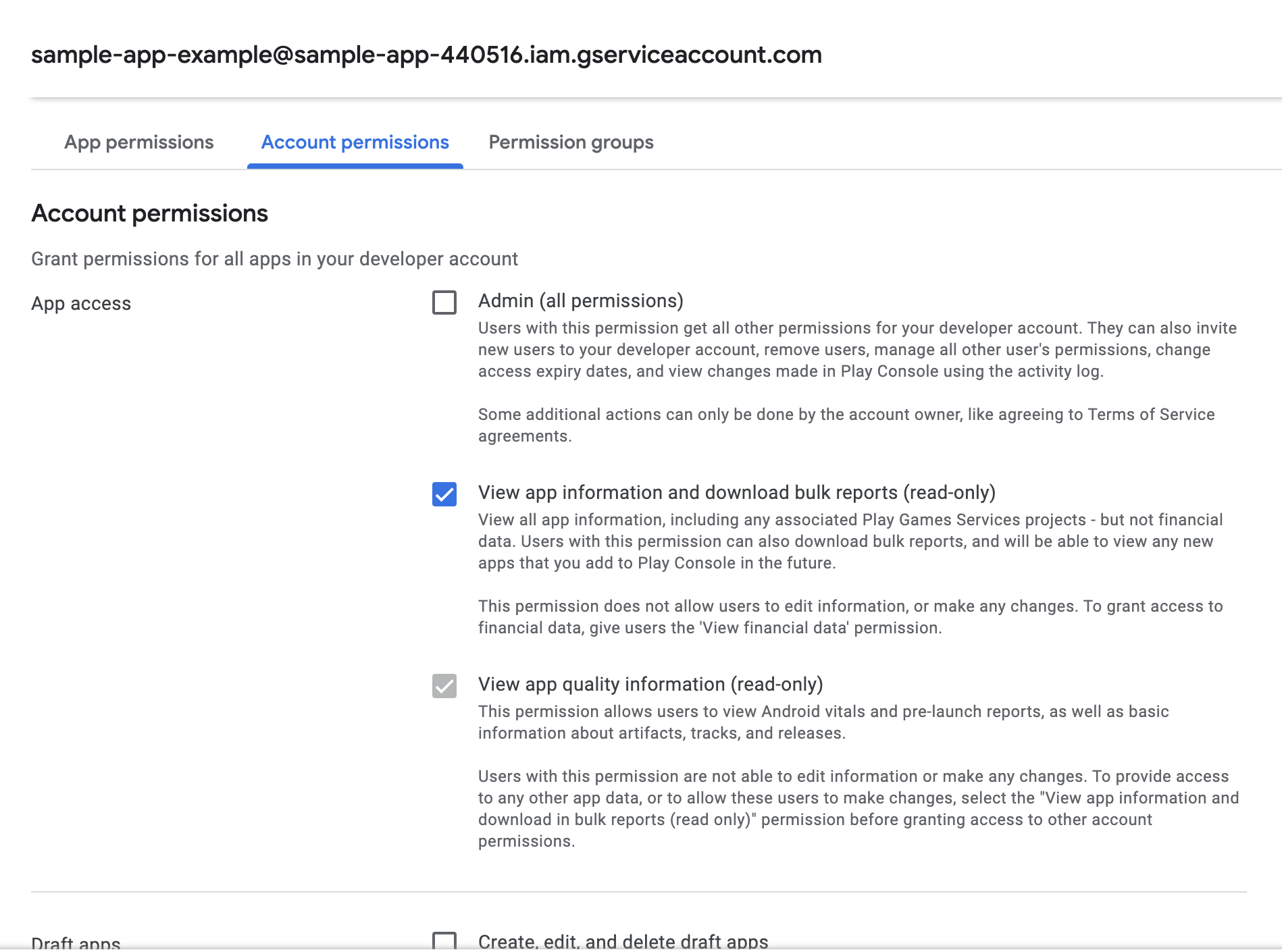
    Click the `Account Permissions` button.
    Grant the following permissions:

    * View app information and download bulk reports (read-only)
    * View financial data, orders, and cancellation survey response
    * Manage orders and subscriptions
    <Frame>
      <img src="https://mintcdn.com/shipmobilefast-51a499dc/eqBm0v-I9CQ3GkW-/images/setup/iap/android/step16.png?fit=max&auto=format&n=eqBm0v-I9CQ3GkW-&q=85&s=2f48b979c28fec04acb41dcbe26fb4f0" alt="Step 16" className="w-full h-full rounded-xl" width="1898" height="1410" data-path="images/setup/iap/android/step16.png" />
    </Frame>
  </Step>

  <Step>
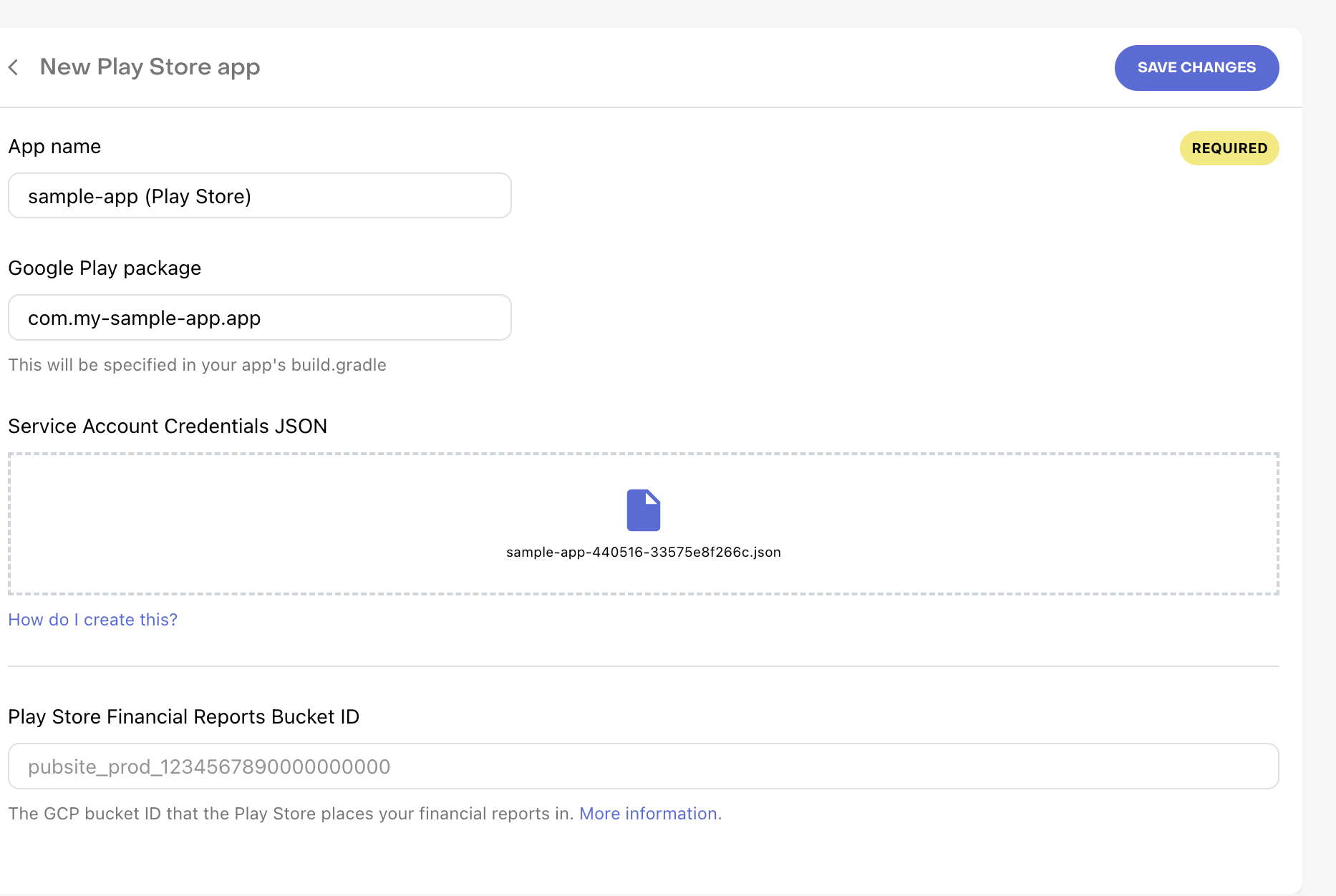
    Turn back to the RevenueCat dashboard and drop a json file in here.

    * Write your app package name in here.
    <Frame>
      <img src="https://mintcdn.com/shipmobilefast-51a499dc/eqBm0v-I9CQ3GkW-/images/setup/iap/android/step18.png?fit=max&auto=format&n=eqBm0v-I9CQ3GkW-&q=85&s=03e4d97f16ad2dcd17bf1efb64db9ad3" alt="Step 18" className="w-full h-full rounded-xl" width="1866" height="1252" data-path="images/setup/iap/android/step18.png" />
    </Frame>
  </Step>

  <Step>
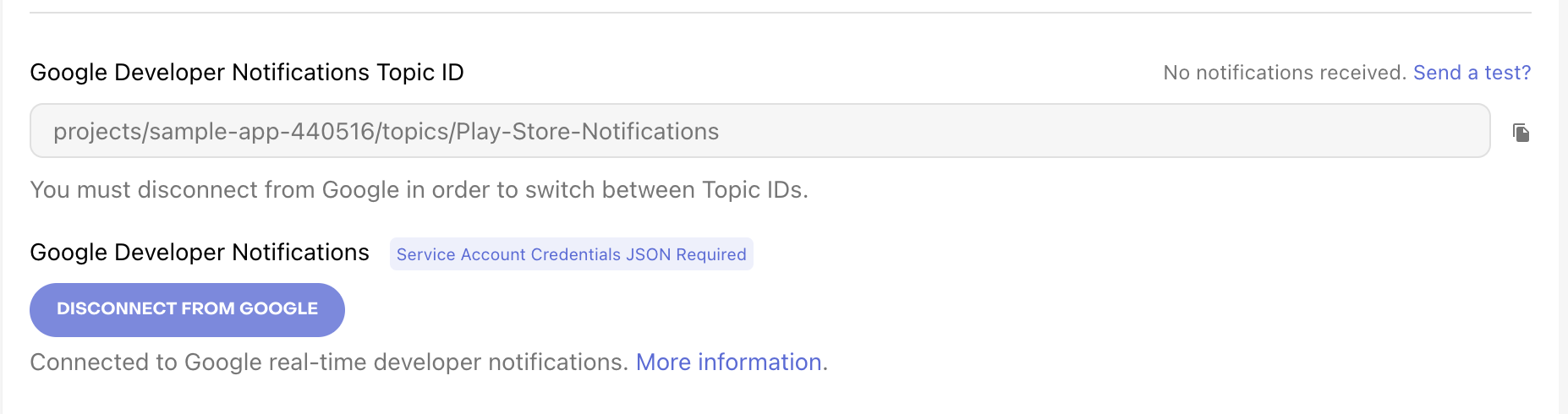
    Pick a Google Developer Notification Topic ID.

    * Click the `Connect to Google` button.

    <Frame>
      <img src="https://mintcdn.com/shipmobilefast-51a499dc/eqBm0v-I9CQ3GkW-/images/setup/iap/android/step19.png?fit=max&auto=format&n=eqBm0v-I9CQ3GkW-&q=85&s=09bb13350f3ad27b502997378f08149b" alt="Step 19" className="w-full h-full rounded-xl" width="1822" height="1274" data-path="images/setup/iap/android/step19.png" />
    </Frame>
  </Step>

  <Step>
    Then you will see like this screen. Copy the Google Developer Notification Topic ID.
    <Frame>
      <img src="https://mintcdn.com/shipmobilefast-51a499dc/eqBm0v-I9CQ3GkW-/images/setup/iap/android/step20.png?fit=max&auto=format&n=eqBm0v-I9CQ3GkW-&q=85&s=8d22958b28f0e7c26d65ffb8d503ee74" alt="Step 20" className="w-full h-full rounded-xl" width="1854" height="490" data-path="images/setup/iap/android/step20.png" />
    </Frame>
  </Step>

  <Step>
    Go to the Play Console.

    <Frame>
      <img src="https://mintcdn.com/shipmobilefast-51a499dc/eqBm0v-I9CQ3GkW-/images/setup/iap/android/step21.png?fit=max&auto=format&n=eqBm0v-I9CQ3GkW-&q=85&s=959d4274c428dfefa879368305307276" alt="Step 21" className="w-full h-full rounded-xl" width="610" height="1264" data-path="images/setup/iap/android/step21.png" />
    </Frame>
  </Step>

  <Step>
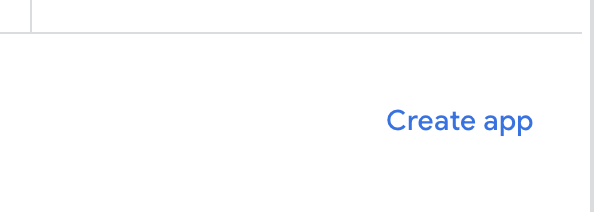
    Click the `Create App` button if you don't have any app.
    <Frame>
      <img src="https://mintcdn.com/shipmobilefast-51a499dc/eqBm0v-I9CQ3GkW-/images/setup/iap/android/step22.png?fit=max&auto=format&n=eqBm0v-I9CQ3GkW-&q=85&s=d9b8b38d492c89b2b15909ca0565272c" alt="Step 22" className="w-full h-full rounded-xl ml-2" width="594" height="212" data-path="images/setup/iap/android/step22.png" />
    </Frame>
  </Step>

  <Step>
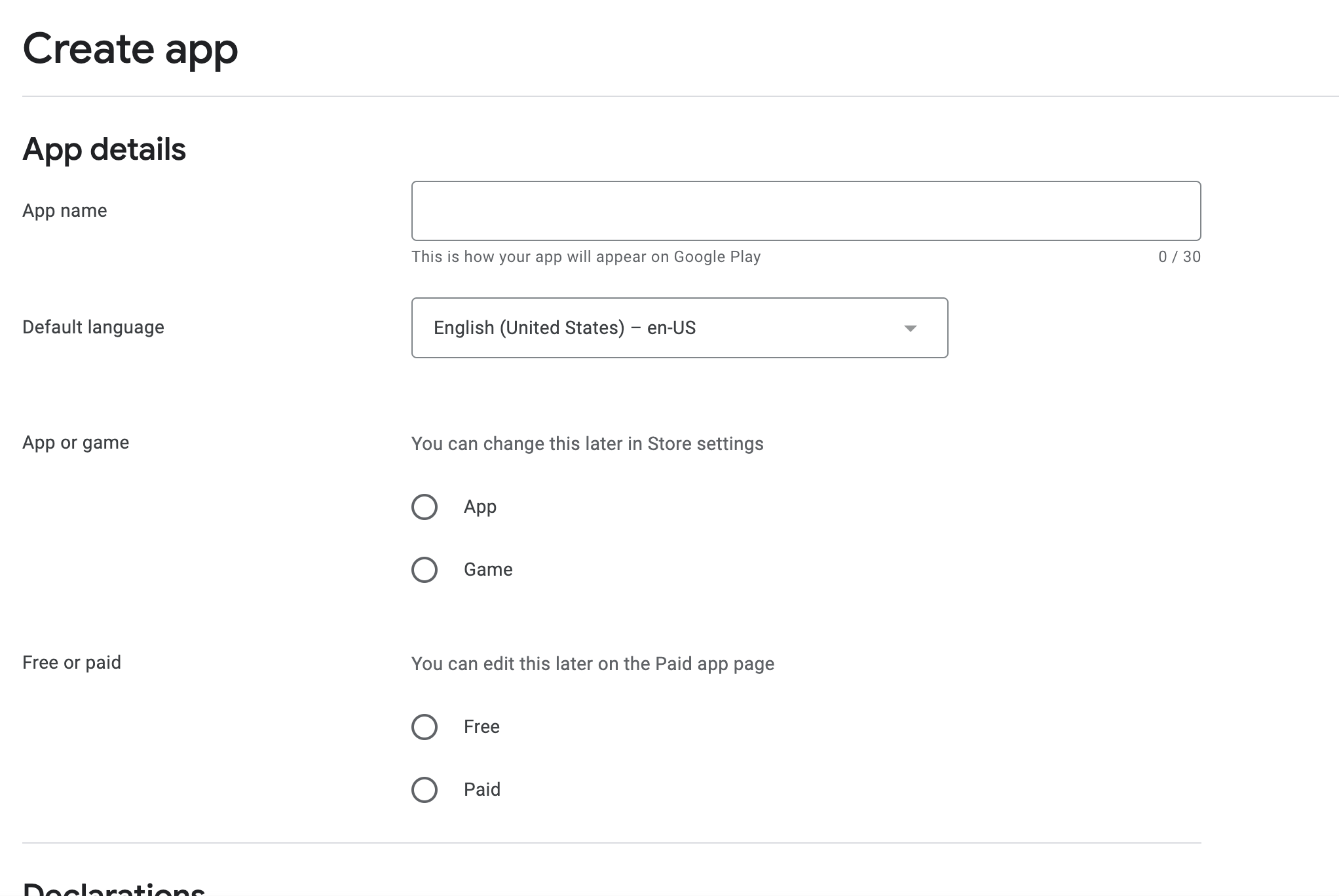
    Fill the form

    <Frame>
      <img src="https://mintcdn.com/shipmobilefast-51a499dc/eqBm0v-I9CQ3GkW-/images/setup/iap/android/step23.png?fit=max&auto=format&n=eqBm0v-I9CQ3GkW-&q=85&s=d9e9564d0f843d33a523cede1ec03f68" alt="Step 23" className="w-full h-full rounded-xl ml-2" width="2044" height="1368" data-path="images/setup/iap/android/step23.png" />
    </Frame>
  </Step>

  <Step>
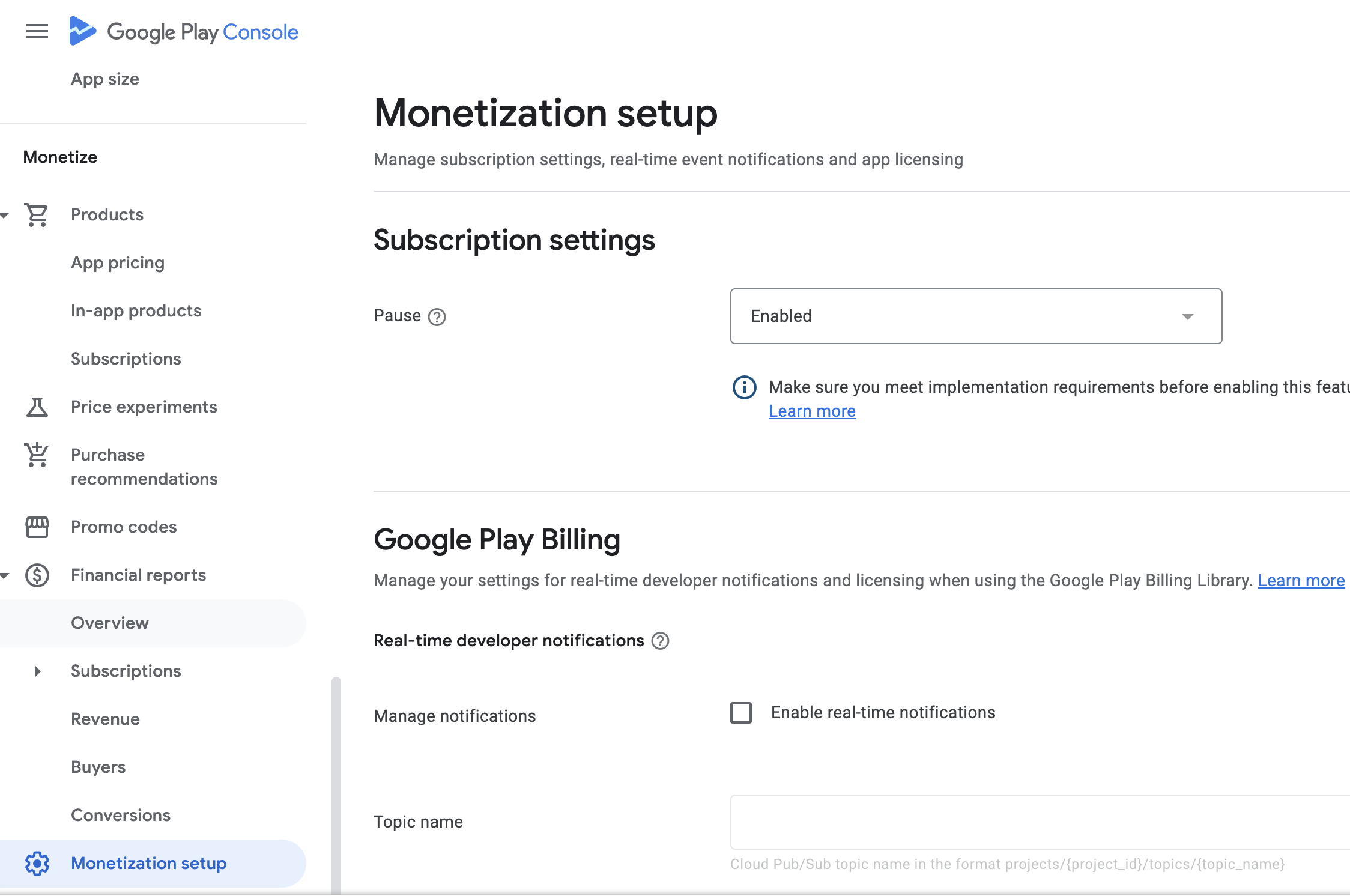
    Go to the `Monetization` section.

    <Frame>
      <img src="https://mintcdn.com/shipmobilefast-51a499dc/eqBm0v-I9CQ3GkW-/images/setup/iap/android/step24.png?fit=max&auto=format&n=eqBm0v-I9CQ3GkW-&q=85&s=3a50469e1f50d7a3abd939bb7d1f3aaf" alt="Step 24" className="w-full h-full rounded-xl ml-2" width="2248" height="1492" data-path="images/setup/iap/android/step24.png" />
    </Frame>
  </Step>

  <Step>
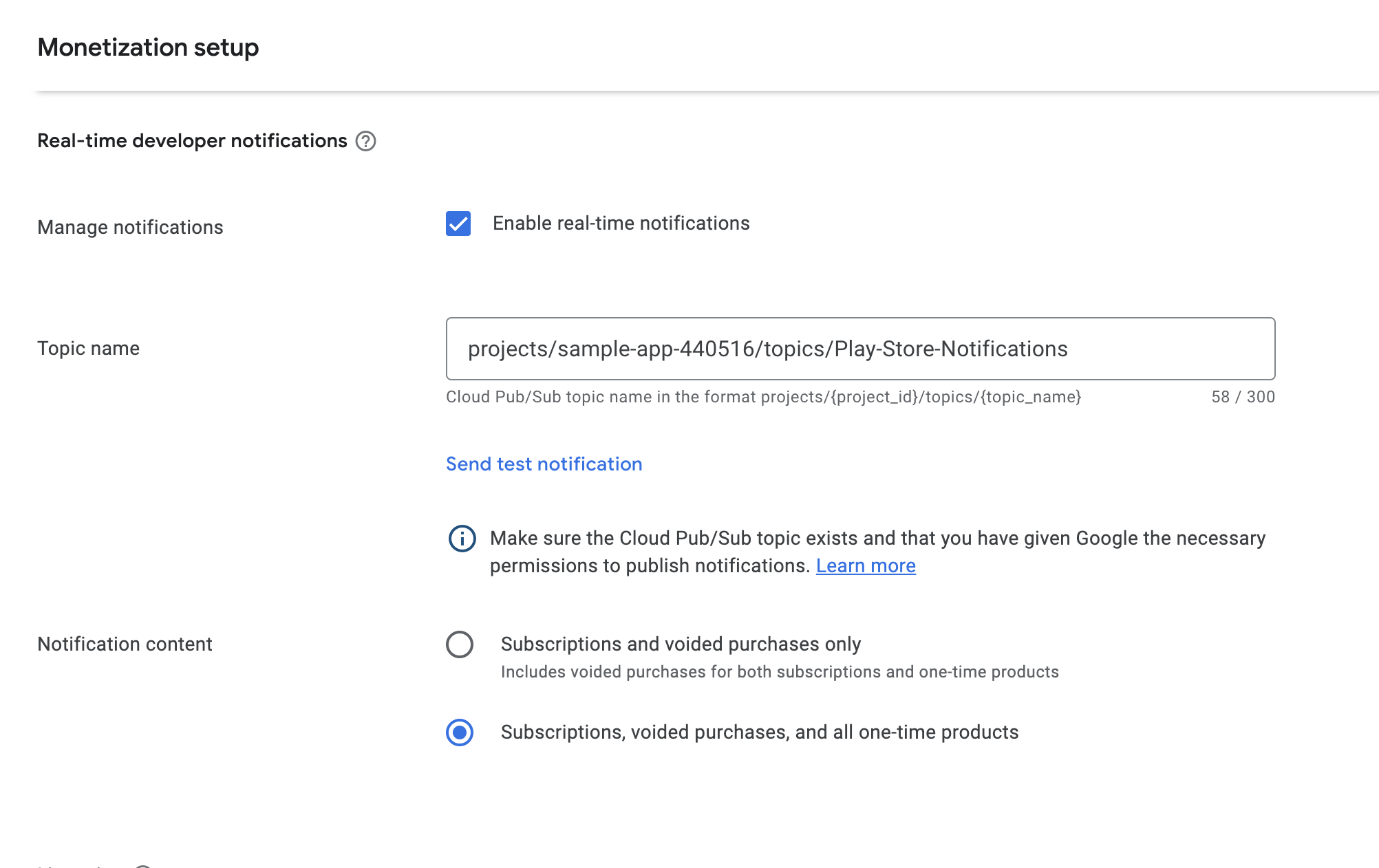
    * Paste your Developer Notification Topic ID in here.
    * Pick notification content.
    <Frame>
      <img src="https://mintcdn.com/shipmobilefast-51a499dc/eqBm0v-I9CQ3GkW-/images/setup/iap/android/step25.png?fit=max&auto=format&n=eqBm0v-I9CQ3GkW-&q=85&s=483ae54ba9371b63e8b716e686474c62" alt="Step 25" className="w-full h-full rounded-xl ml-2" width="2004" height="1262" data-path="images/setup/iap/android/step25.png" />
    </Frame>
  </Step>

  <Step>
    Copy the RevenueCat Public Key and paste it in `.env` file.

    ```
    EXPO_PUBLIC_RC_GOOGLE_KEY=goog_...
    ```
  </Step>

  <Step>
    <Check>
      That's it! You have successfully completed the setup for Android.
    </Check>
  </Step>
</Steps>