> ## Documentation Index
> Fetch the complete documentation index at: https://docs.shipmobilefast.com/llms.txt
> Use this file to discover all available pages before exploring further.
# IOS
> Setup in-app purchases for iOS
 We are using [RevenueCat](https://www.revenuecat.com/) to handle in-app purchases.
* Relevant Links: [RevenueCat Docs](https://www.revenuecat.com/docs)
First, you need an Apple Developer Account to setup in-app purchases.
## Setup
Firstly, you need to create a new app in AppStoreConnect.
We are using [RevenueCat](https://www.revenuecat.com/) to handle in-app purchases.
* Relevant Links: [RevenueCat Docs](https://www.revenuecat.com/docs)
First, you need an Apple Developer Account to setup in-app purchases.
## Setup
Firstly, you need to create a new app in AppStoreConnect.
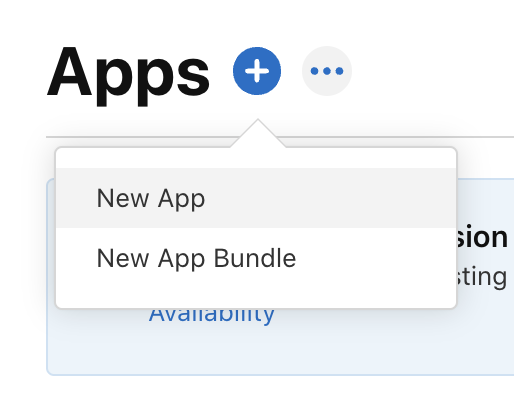 After creating the new app button, you will see the following screen.
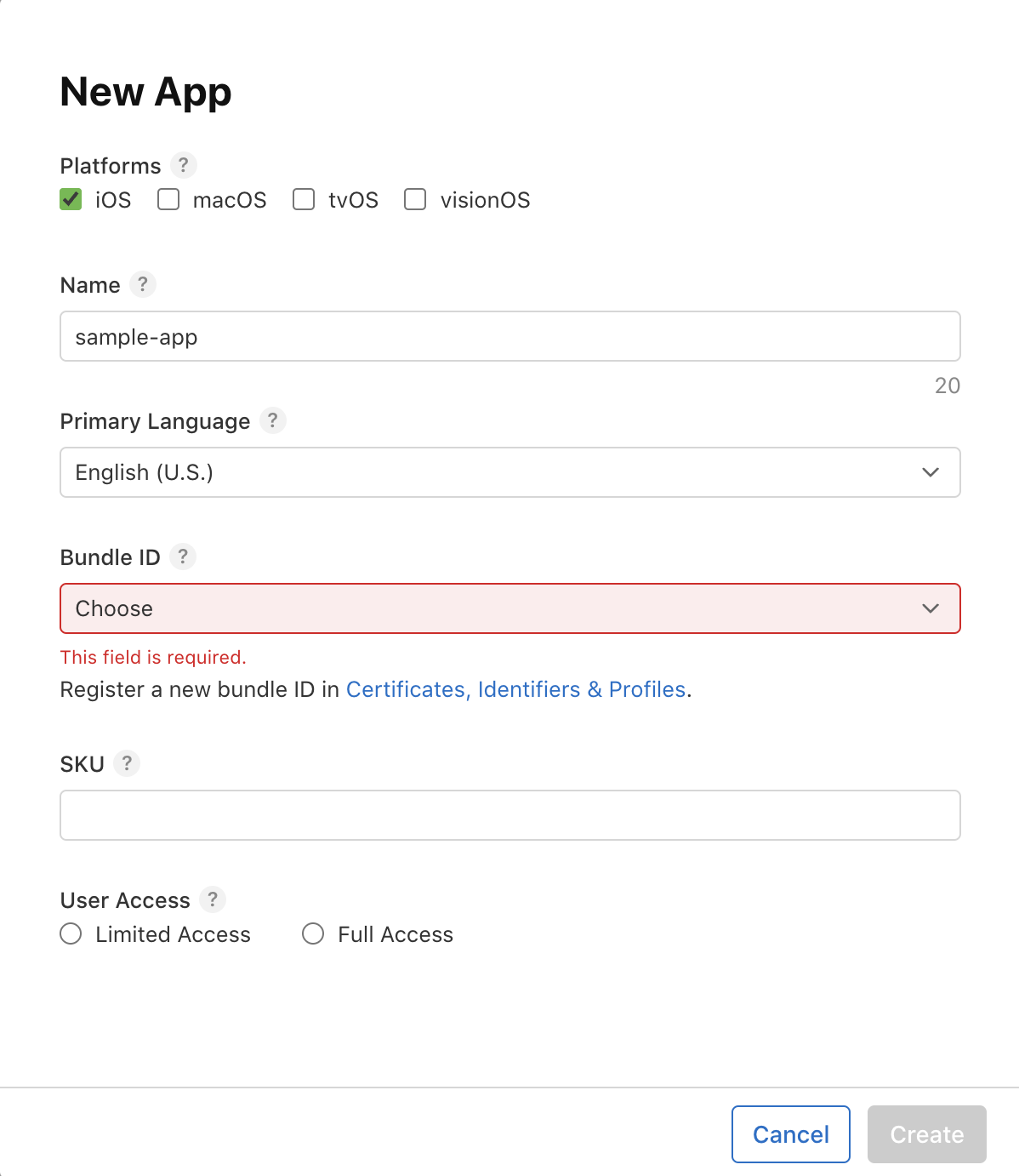 Please click the `Certificate Identifiers & Profiles` link.
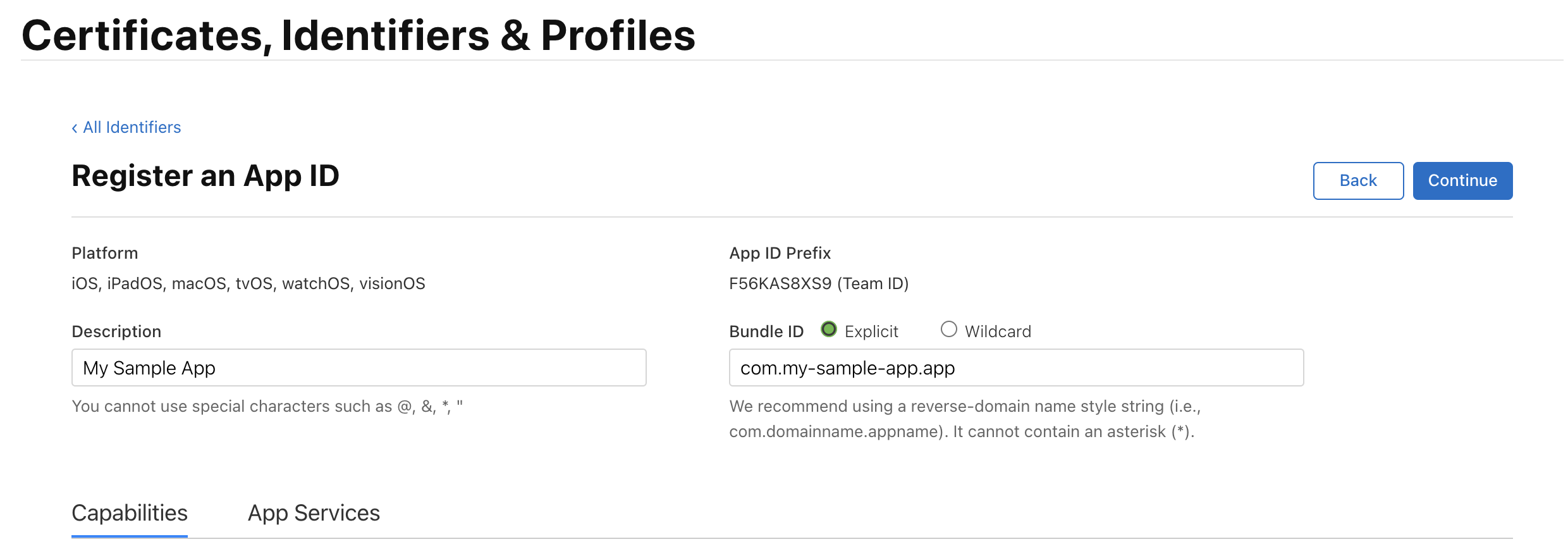 Fill the App Bundle ID with your app's bundle ID. like: `com.shipmobilefast.app` We mentioned this bundle ID in the [Quick Start section](/quickstart).
* I mean this is your app's bundle ID.
After filling the bundle ID, click the `Continue` button and turn back to New App Adding screen.
Fill the App Bundle ID with your app's bundle ID. like: `com.shipmobilefast.app` We mentioned this bundle ID in the [Quick Start section](/quickstart).
* I mean this is your app's bundle ID.
After filling the bundle ID, click the `Continue` button and turn back to New App Adding screen.
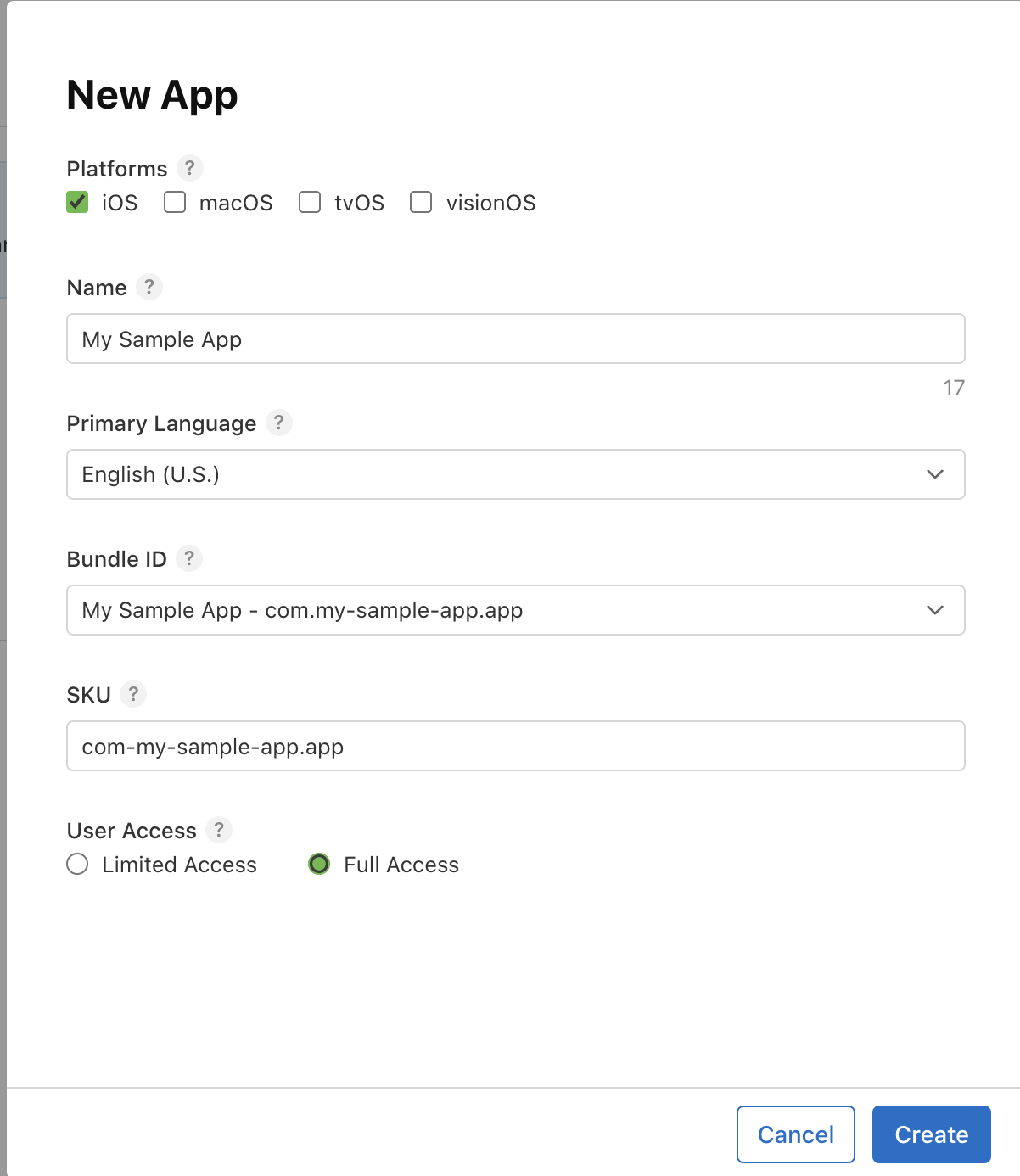 Please click the `Create` button.
After clicking the `Create` button, you will see the following screen.
* Go to the `App Information` tab and scroll down to the `App Specific Shared Secret` section.
* Click the `Manage` button and copy the `App Specific Shared Secret`.
Please click the `Create` button.
After clicking the `Create` button, you will see the following screen.
* Go to the `App Information` tab and scroll down to the `App Specific Shared Secret` section.
* Click the `Manage` button and copy the `App Specific Shared Secret`.
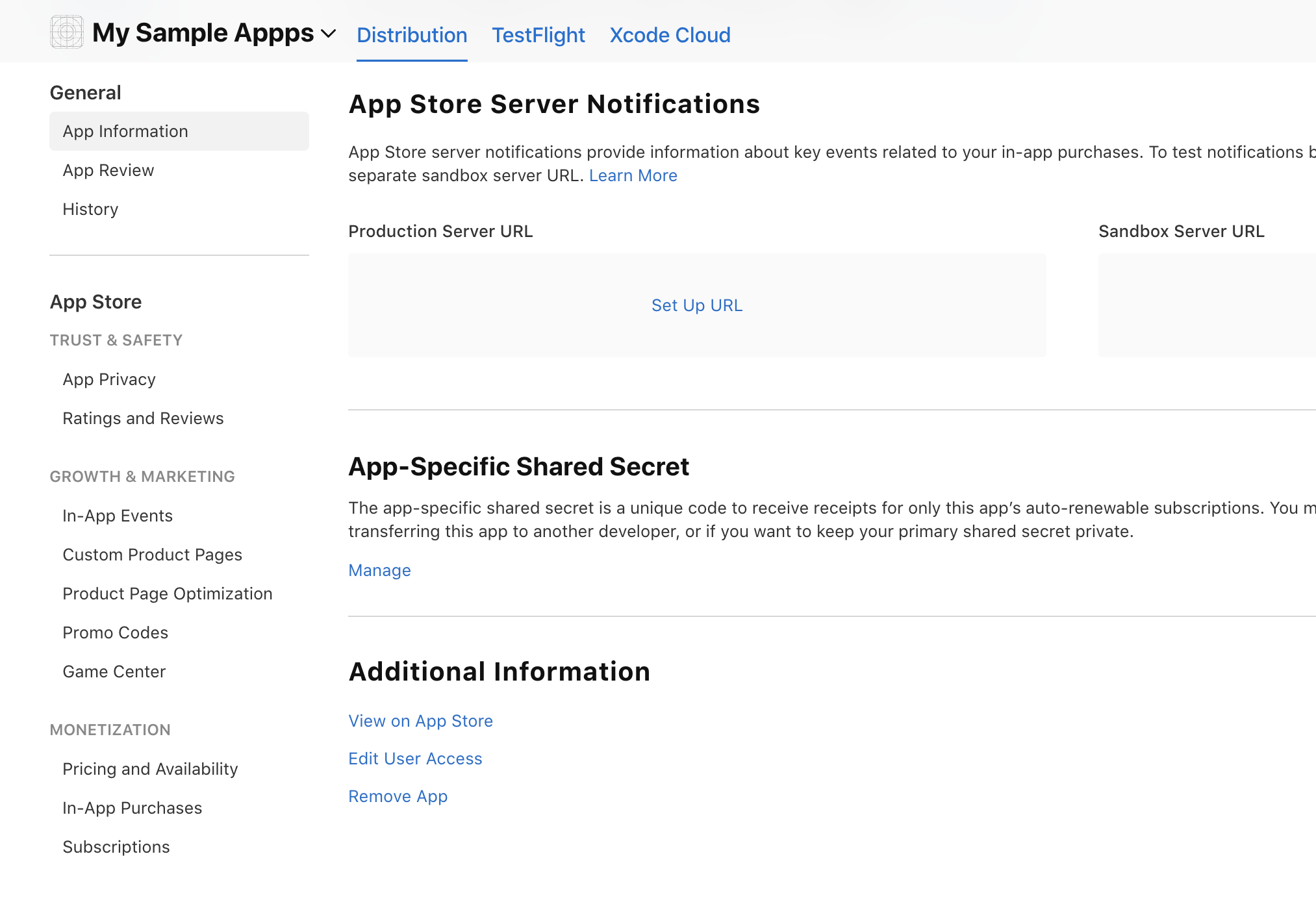 After clicking the `Manage` button, please click the `Generate` button.
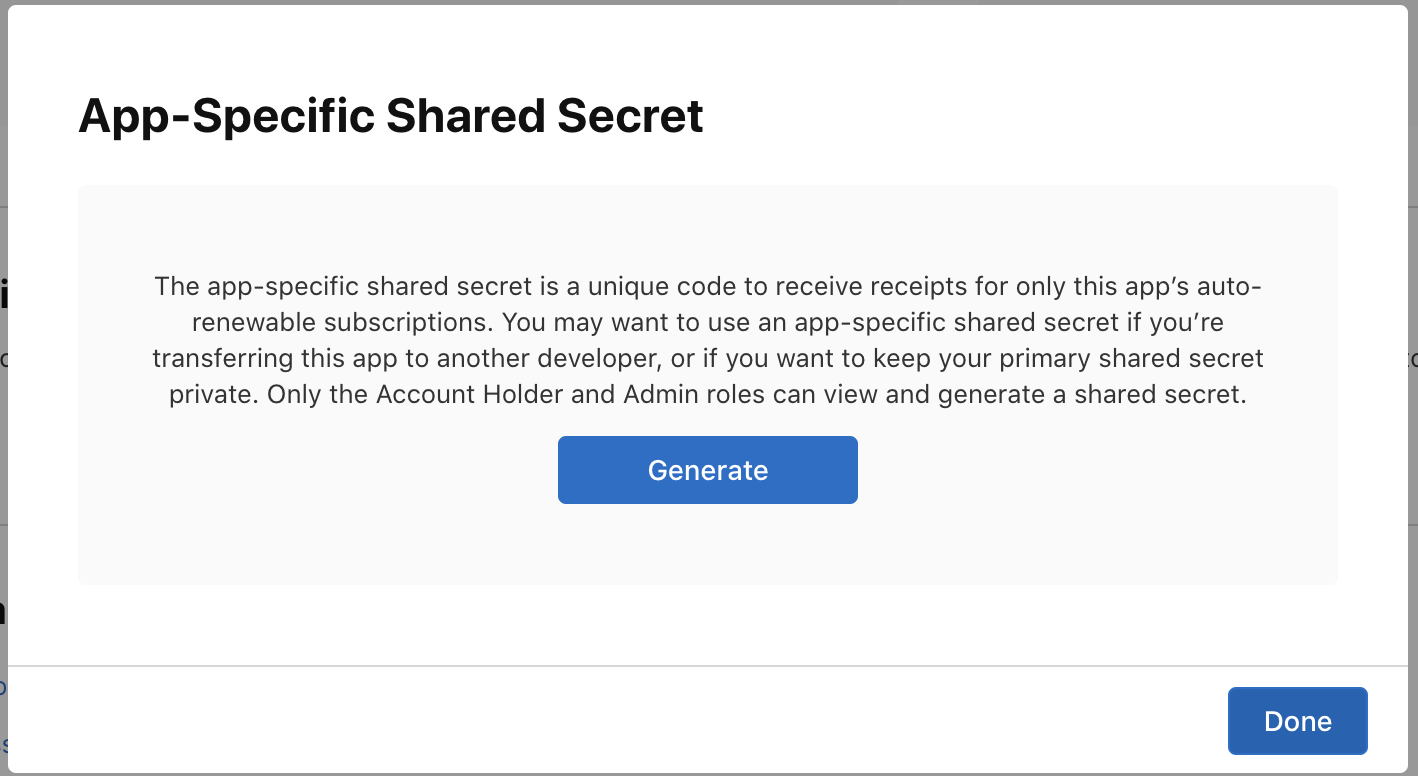 After clicking the `Generate` button, you will see the following screen.
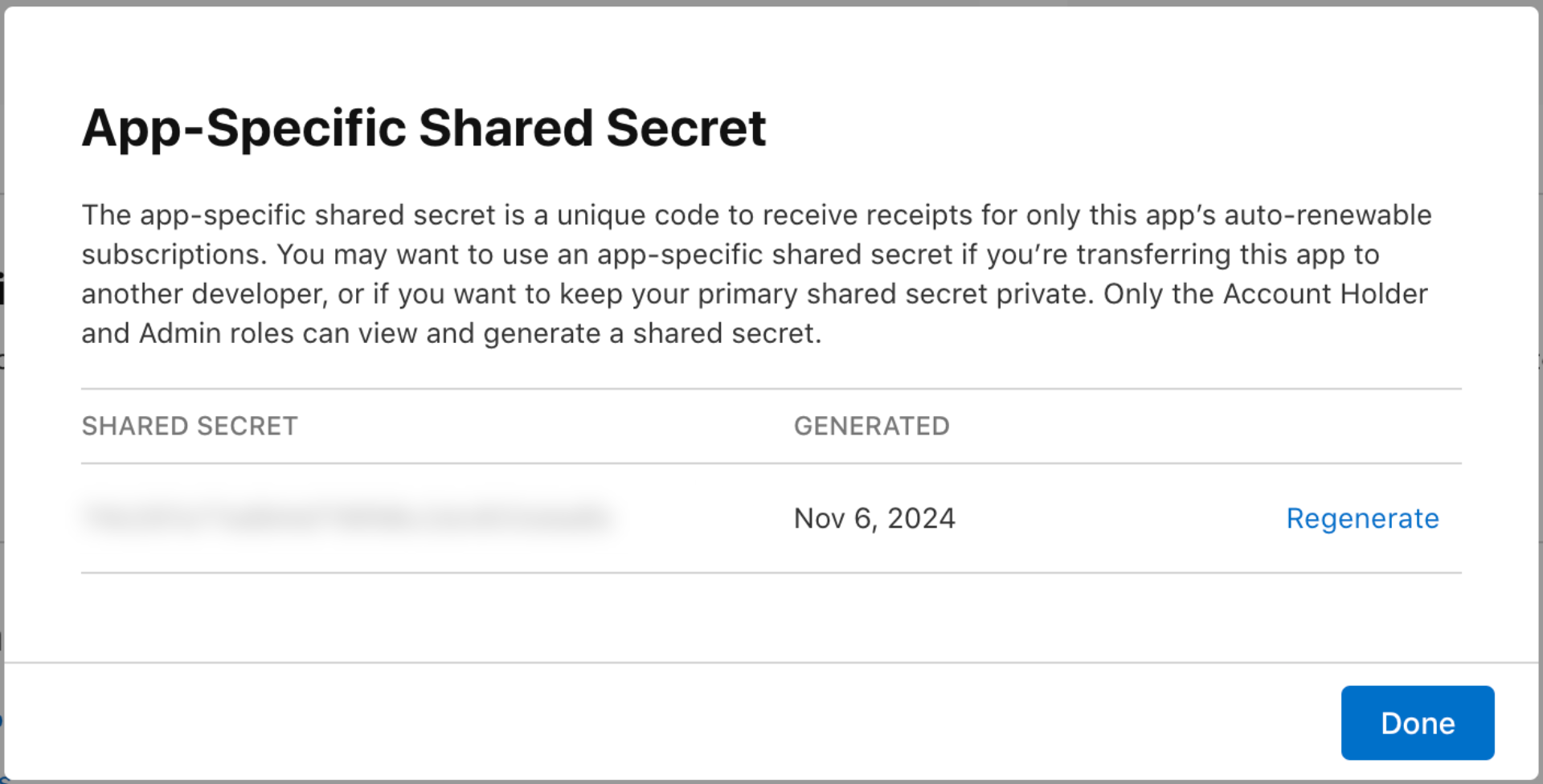 Please copy the `Shared Secret` value and keep it in a safe place. We will use it in the next step.
After copying the `Shared Secret` value, go back to the RevenueCat dashboard and paste it in the `App Specific Shared Secret` field.
Please copy the `Shared Secret` value and keep it in a safe place. We will use it in the next step.
After copying the `Shared Secret` value, go back to the RevenueCat dashboard and paste it in the `App Specific Shared Secret` field.
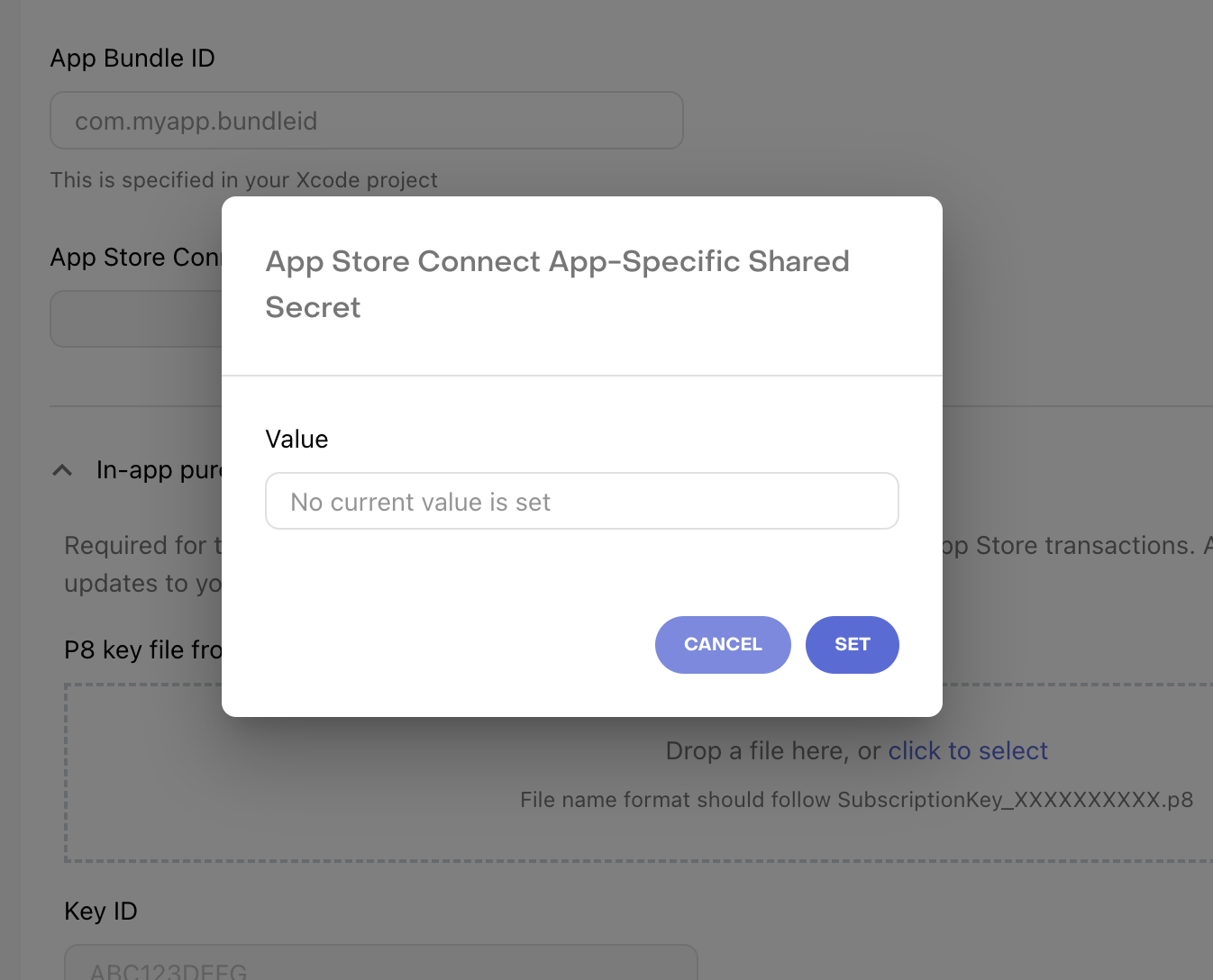 Please click the `Set` button. But don't close this tab. If you try to `Save Changes`, you will lose the `Shared Secret` value and you will get an error.
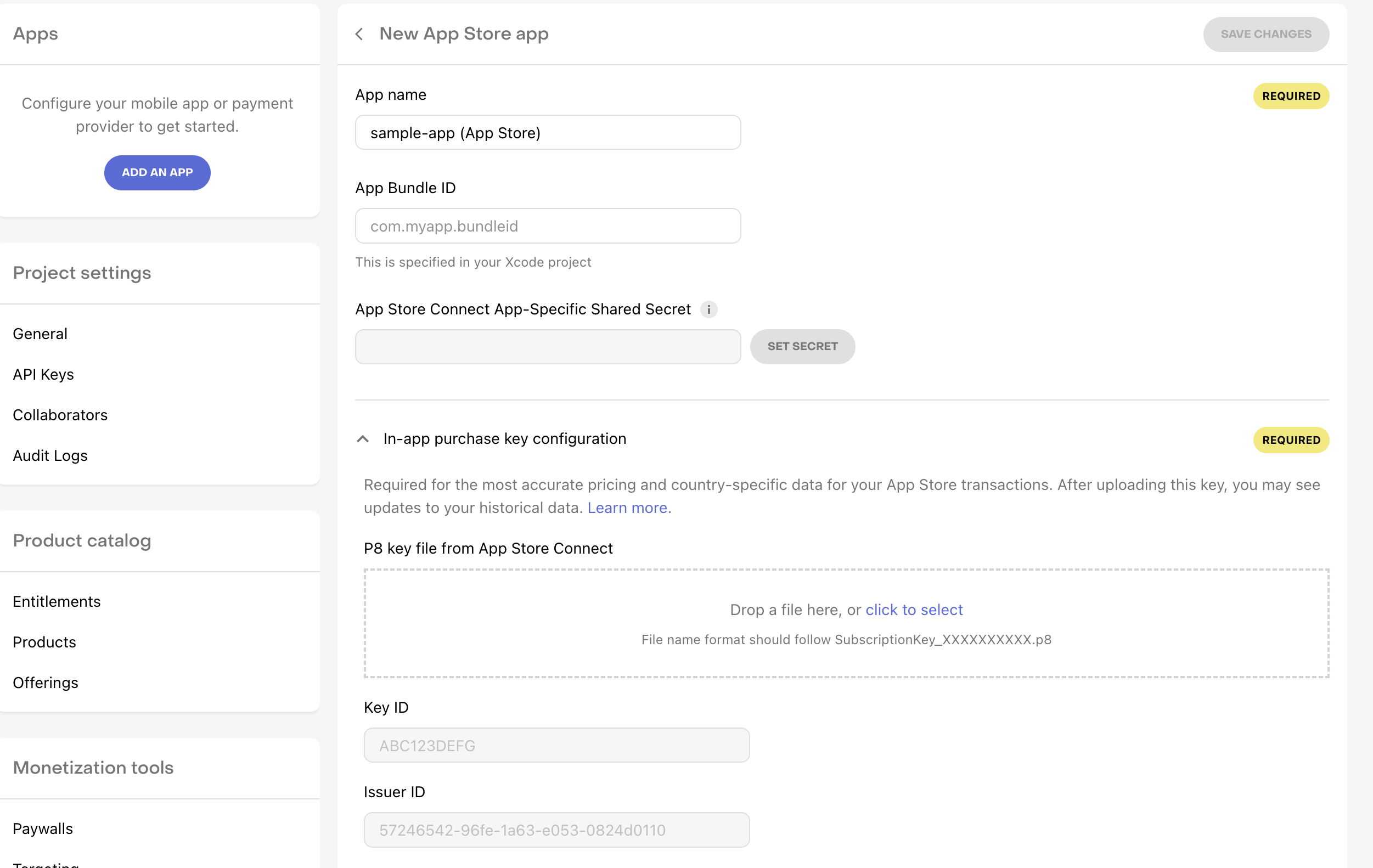
After clicking the `Set` button, you will see the following screen. Now go to the `App Store Connect` dashboard again.
Please click the `Set` button. But don't close this tab. If you try to `Save Changes`, you will lose the `Shared Secret` value and you will get an error.
After clicking the `Set` button, you will see the following screen. Now go to the `App Store Connect` dashboard again.
 After going to the `App Store Connect` dashboard, go to the `Users and Access` section.
1. First copy your Issuer ID and paste it on RevenueCat `Issuer ID` field.
2. Click the `+` button to create a new key and Download it.
After going to the `App Store Connect` dashboard, go to the `Users and Access` section.
1. First copy your Issuer ID and paste it on RevenueCat `Issuer ID` field.
2. Click the `+` button to create a new key and Download it.
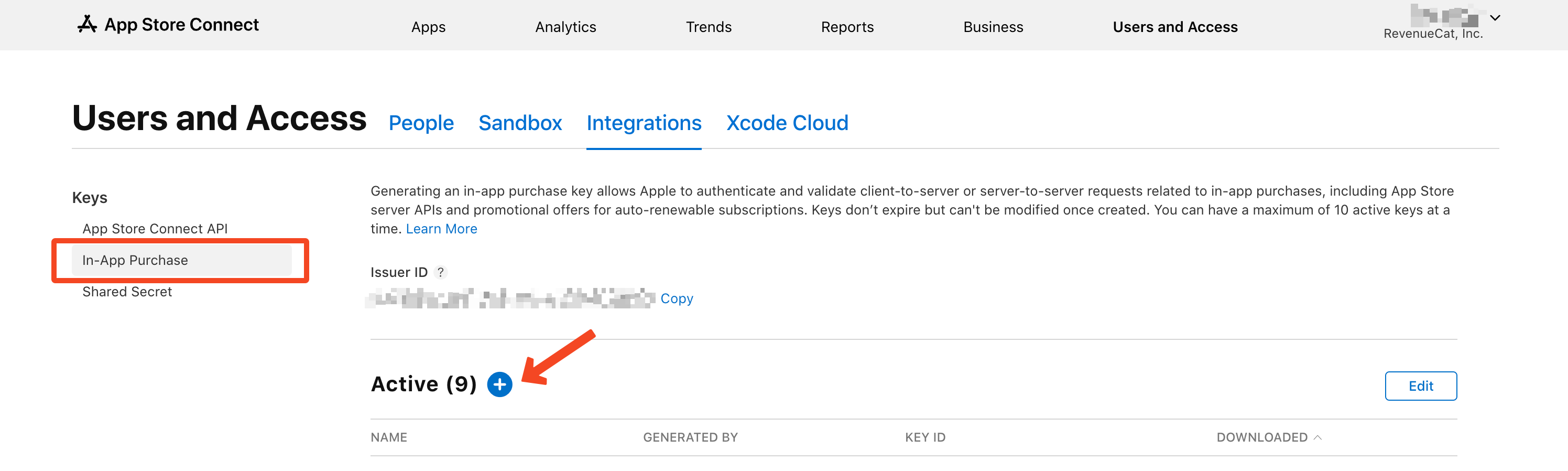 Please click the `In-App Purchase` tab under the `Keys` section.
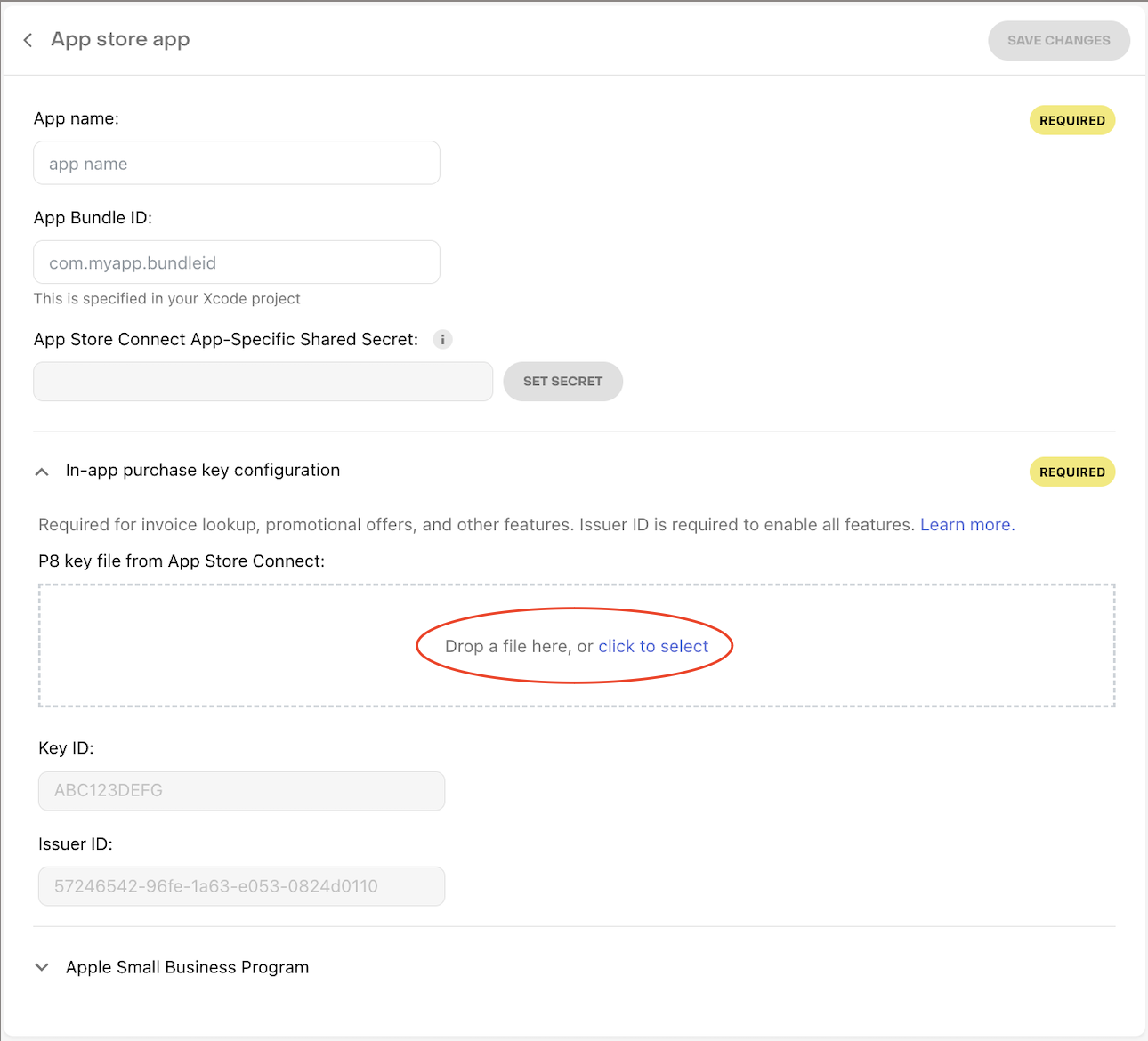
After clicking the `+` button, download the .p8 file and save it in a safe place. Then go back to the RevenueCat dashboard.
Please define your app name & bundle ID.
Please set your App-Specific Shared Secret.
Please upload the .p8 file to the `P8 key file from App Store Connect` field.
Please paste your `Issuer ID` to the `Issuer ID` field.
Please click the `Save Changes` button.
Please click the `In-App Purchase` tab under the `Keys` section.
After clicking the `+` button, download the .p8 file and save it in a safe place. Then go back to the RevenueCat dashboard.
Please define your app name & bundle ID.
Please set your App-Specific Shared Secret.
Please upload the .p8 file to the `P8 key file from App Store Connect` field.
Please paste your `Issuer ID` to the `Issuer ID` field.
Please click the `Save Changes` button.
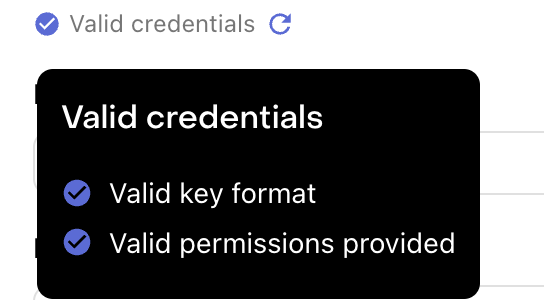 That's it! Now we need to implement the App Store Connect API setup.
## App Store Connect API Setup
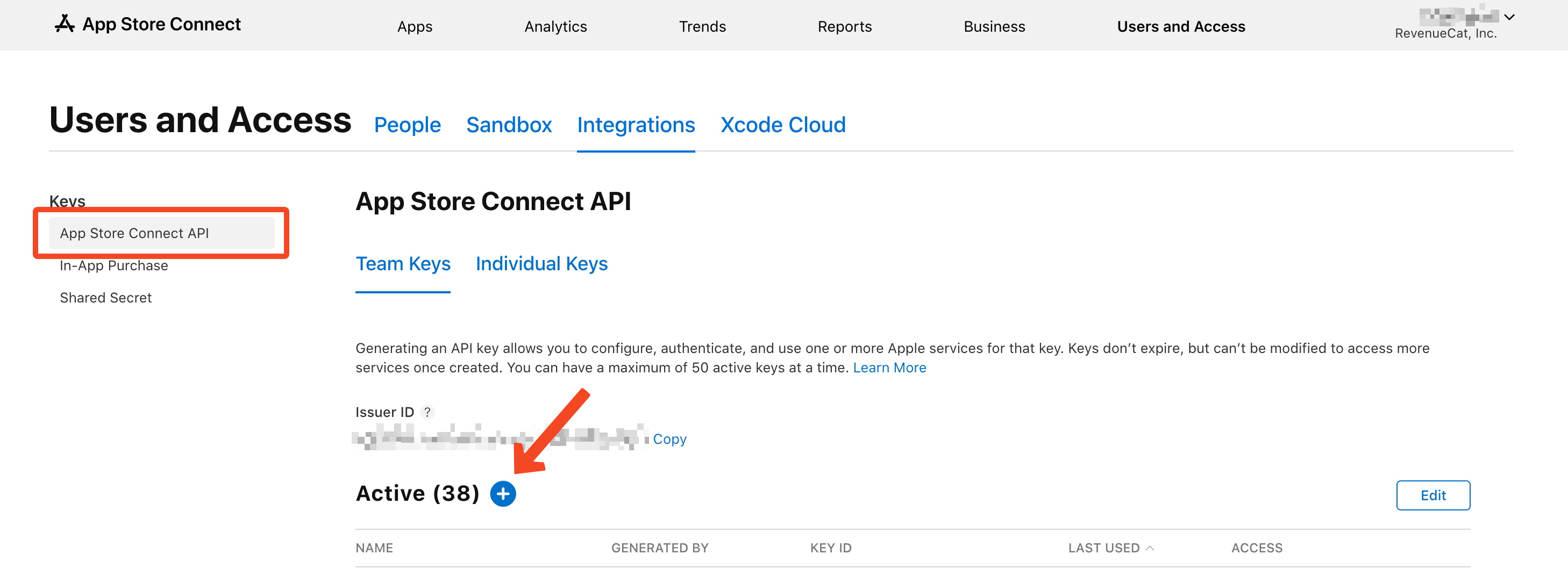
* Go to the `Users and Access` section.
* Click `App Store Connect API` tab under the `Keys` section.
* Click the `+` button to create a new key.
That's it! Now we need to implement the App Store Connect API setup.
## App Store Connect API Setup
* Go to the `Users and Access` section.
* Click `App Store Connect API` tab under the `Keys` section.
* Click the `+` button to create a new key.
 Generate API key for App Store Connect API.
Name can be anything. Like name of your app. (Ship Mobile Fast API Key)
Generate API key for App Store Connect API.
Name can be anything. Like name of your app. (Ship Mobile Fast API Key)
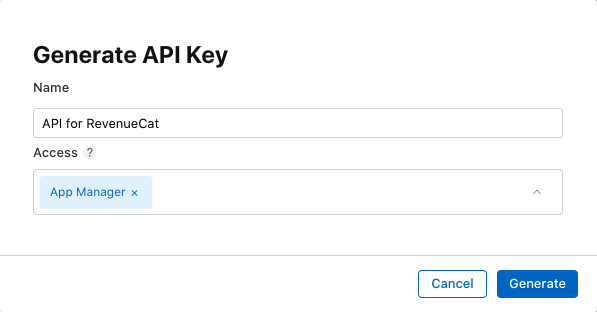 Please click the `Generate` button and download the .p8 file. Please save it in a safe place.
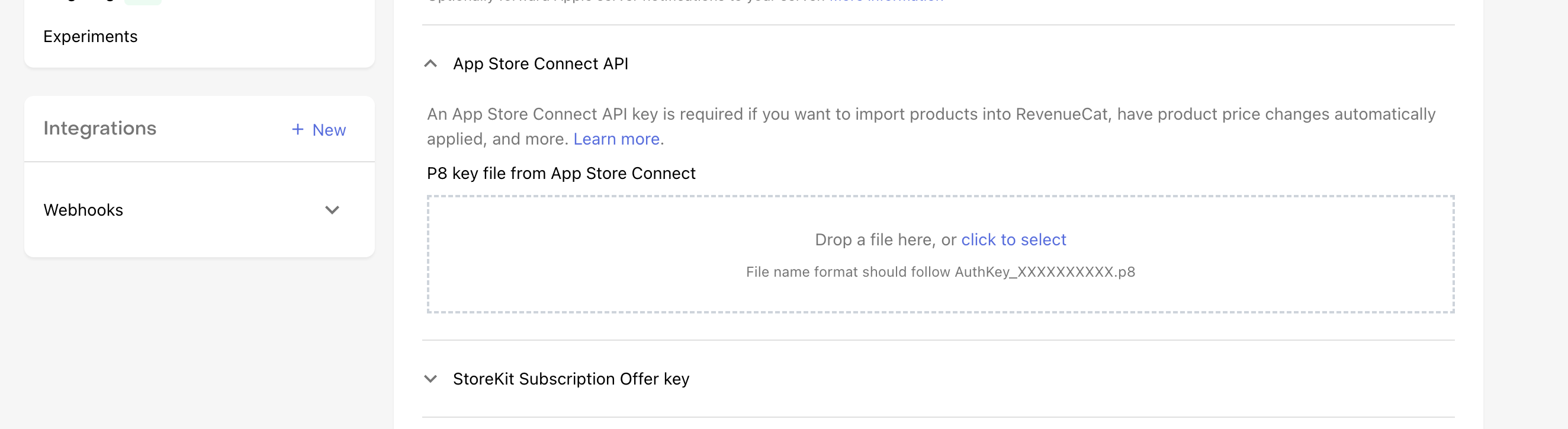
Turn back to the RevenueCat dashboard and paste the .p8 file to the `P8 key file from App Store Connect` field.
Please click the `Generate` button and download the .p8 file. Please save it in a safe place.
Turn back to the RevenueCat dashboard and paste the .p8 file to the `P8 key file from App Store Connect` field.
 Please paste your `Issuer ID` to the `Issuer ID` field.
Please click the `Save Changes` button.
Then click the `Reports` link.
Please paste your `Issuer ID` to the `Issuer ID` field.
Please click the `Save Changes` button.
Then click the `Reports` link.
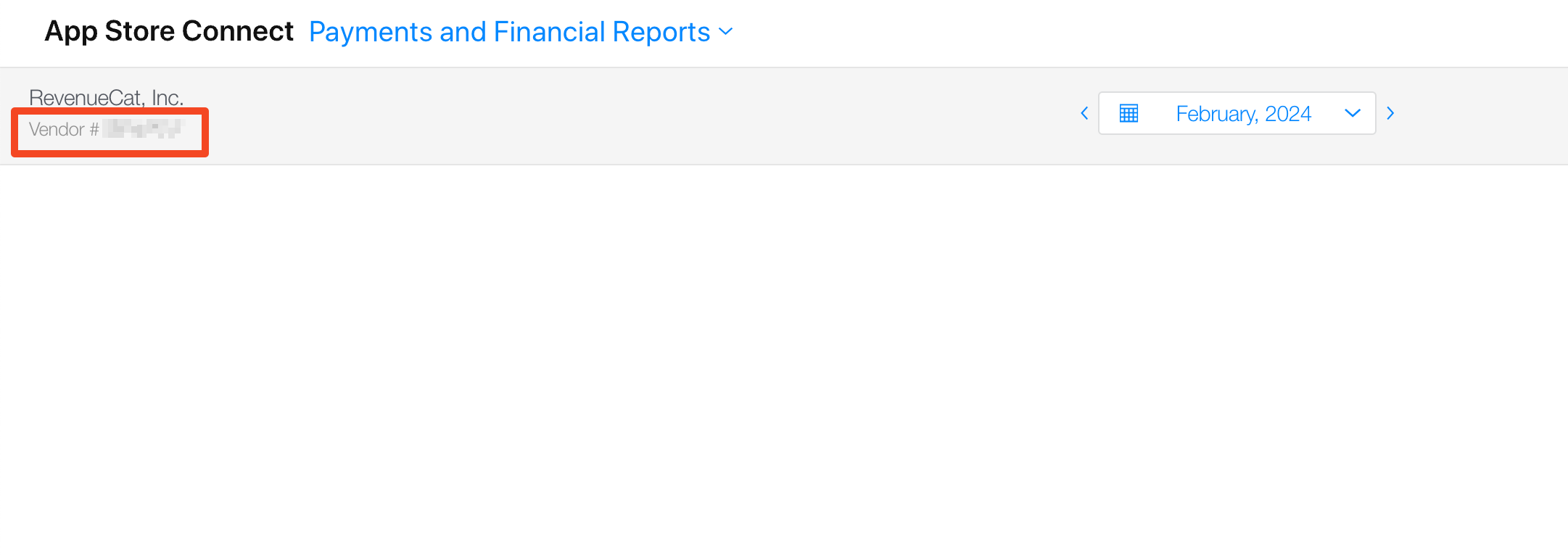
 Please copy the Vendor ID and paste it to the `Vendor ID` field in the RevenueCat dashboard.
 Copy your Public API Key and paste it to the `.env` file.
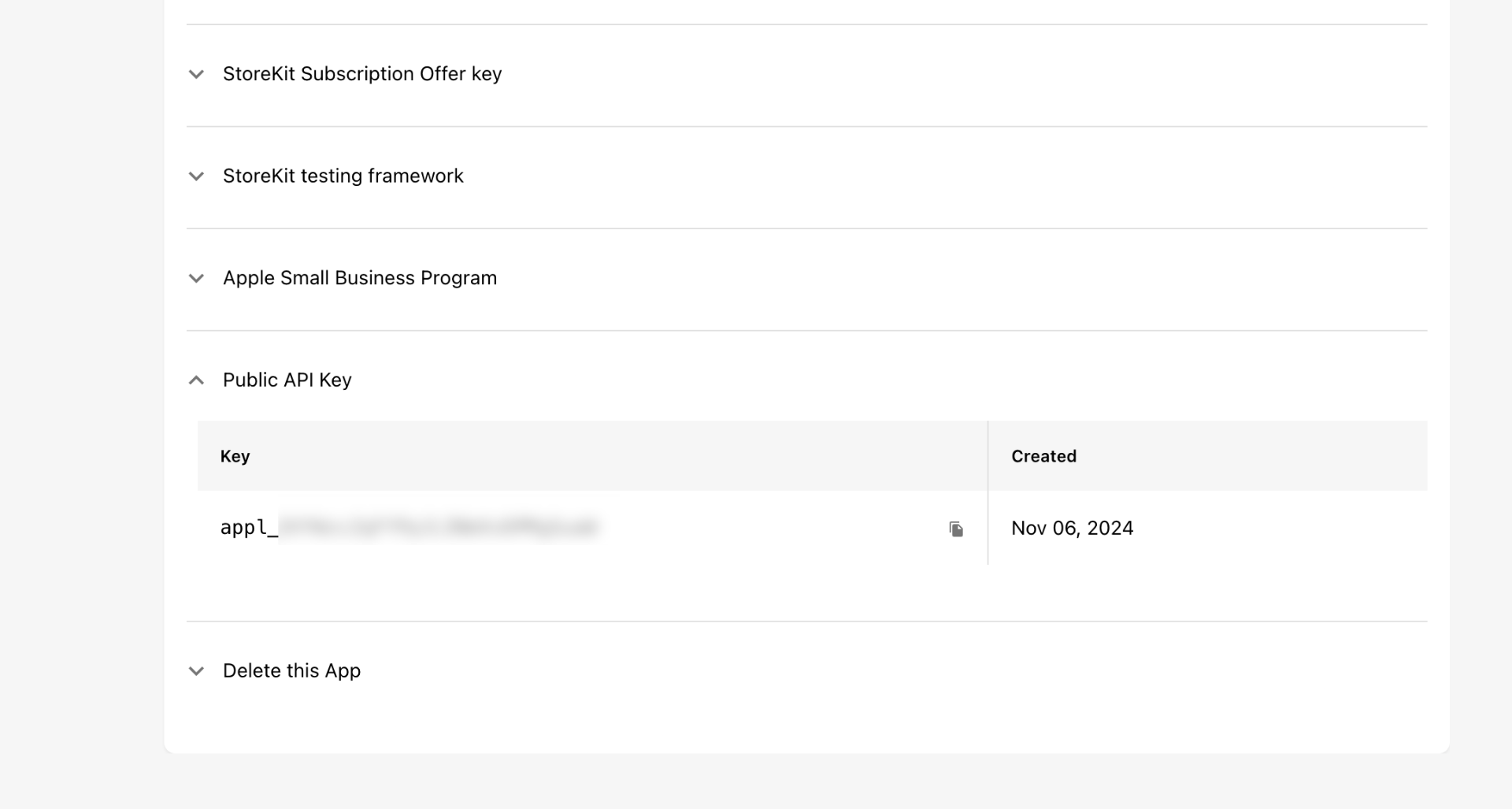 ```
EXPO_PUBLIC_RC_APPLE_KEY=appl_...
EXPO_PUBLIC_RC_GOOGLE_KEY=goog_...
```
That's it! You have successfully completed the setup for iOS.
```
EXPO_PUBLIC_RC_APPLE_KEY=appl_...
EXPO_PUBLIC_RC_GOOGLE_KEY=goog_...
```
That's it! You have successfully completed the setup for iOS.