> ## Documentation Index
> Fetch the complete documentation index at: https://docs.shipmobilefast.com/llms.txt
> Use this file to discover all available pages before exploring further.
# PostHog
> Set up PostHog for analytics
 ## Quick Start
First, go to the [PostHog Setup](https://posthog.com/) and create an account.
After you create your account, you'll see this screen.
## Quick Start
First, go to the [PostHog Setup](https://posthog.com/) and create an account.
After you create your account, you'll see this screen.
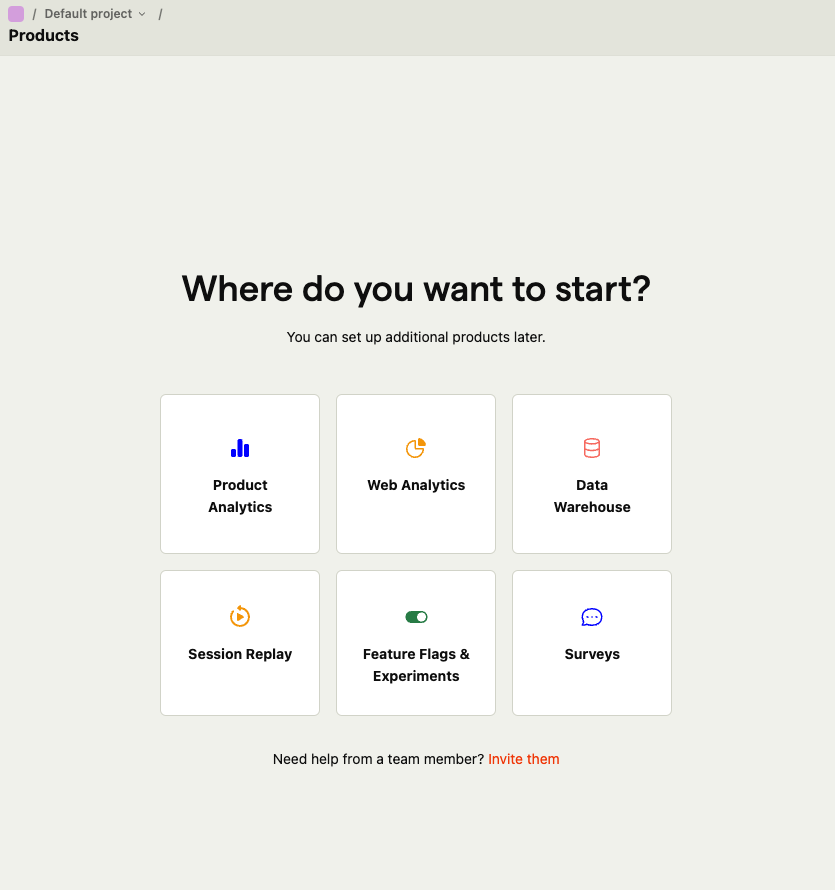 Click the `Product Analytics` button.
After you click the `Product Analytics` button, you'll see this screen and pick the `React Native` option.
Click the `Product Analytics` button.
After you click the `Product Analytics` button, you'll see this screen and pick the `React Native` option.
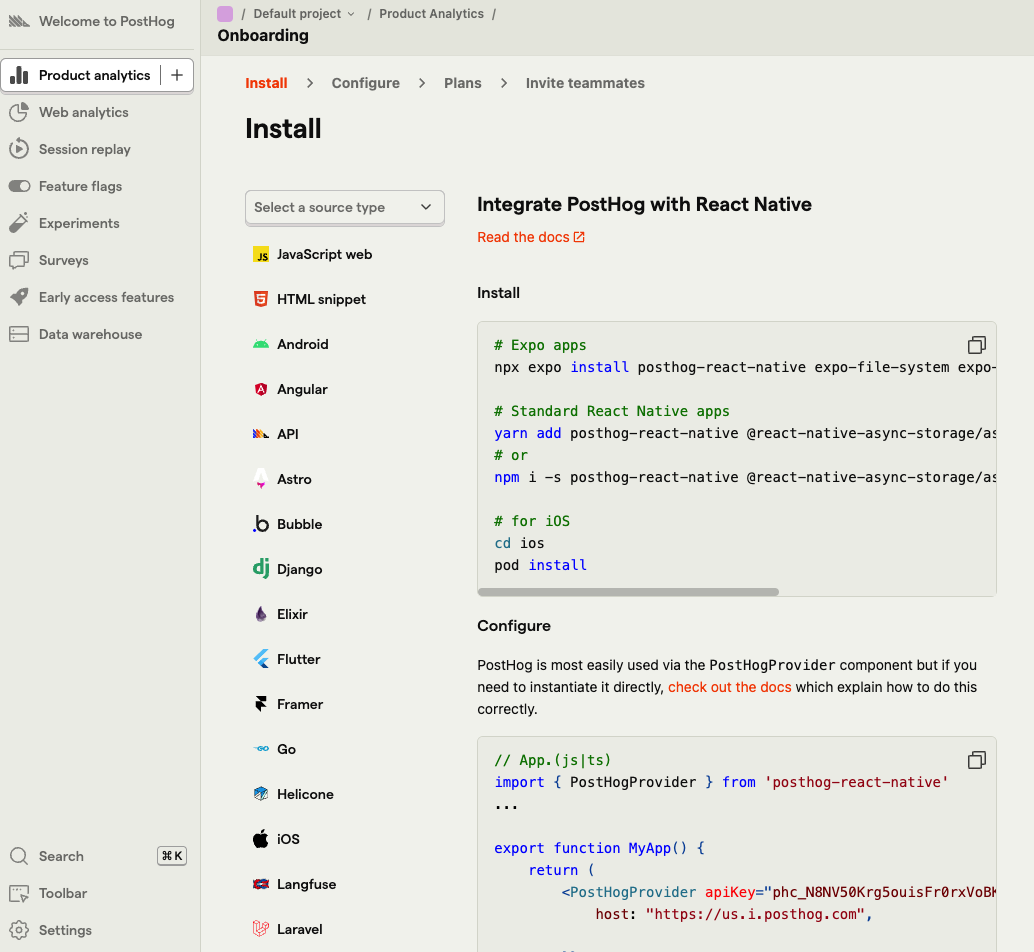 Copy the `apiKey` and host.
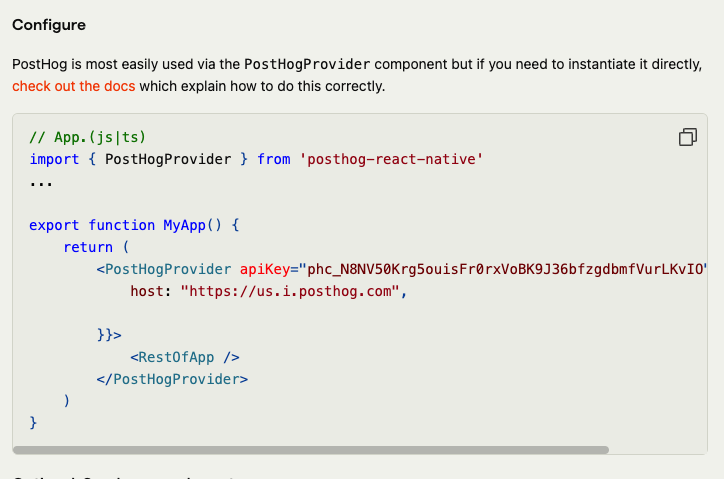 Go to the `.env` file and add this:
```
EXPO_PUBLIC_POSTHOG_API_KEY=your-posthog-api-key-here
EXPO_PUBLIC_POSTHOG_HOST=your-posthog-host-here
```
Then go to the `app/_layout.tsx` file and add this:
```tsx app/_layout.tsx theme={null}
import { PostHogProvider } from 'posthog-react-native';
import { posthog } from '@/services/posthog/posthogConfig';
```
And add this to the bottom of the `app/_layout.tsx` file:
```tsx app/_layout.tsx theme={null}
const RootLayout = () => {
return (
{/* If you want to use Posthog, add the following lines 👇 */}
{...}
{/* 👈 */}
);
};
```
This is optional, but if you want to session replay, you can uncomment some of the following lines:
As a final step, go to the `@services/posthog/posthogConfig.ts` file and you can uncomment some of the following lines.
That's it. You are done. Capture even the Imagination!
Go to the `.env` file and add this:
```
EXPO_PUBLIC_POSTHOG_API_KEY=your-posthog-api-key-here
EXPO_PUBLIC_POSTHOG_HOST=your-posthog-host-here
```
Then go to the `app/_layout.tsx` file and add this:
```tsx app/_layout.tsx theme={null}
import { PostHogProvider } from 'posthog-react-native';
import { posthog } from '@/services/posthog/posthogConfig';
```
And add this to the bottom of the `app/_layout.tsx` file:
```tsx app/_layout.tsx theme={null}
const RootLayout = () => {
return (
{/* If you want to use Posthog, add the following lines 👇 */}
{...}
{/* 👈 */}
);
};
```
This is optional, but if you want to session replay, you can uncomment some of the following lines:
As a final step, go to the `@services/posthog/posthogConfig.ts` file and you can uncomment some of the following lines.
That's it. You are done. Capture even the Imagination!