> ## Documentation Index
> Fetch the complete documentation index at: https://docs.shipmobilefast.com/llms.txt
> Use this file to discover all available pages before exploring further.
# Delete Account
> Delete Account Screen
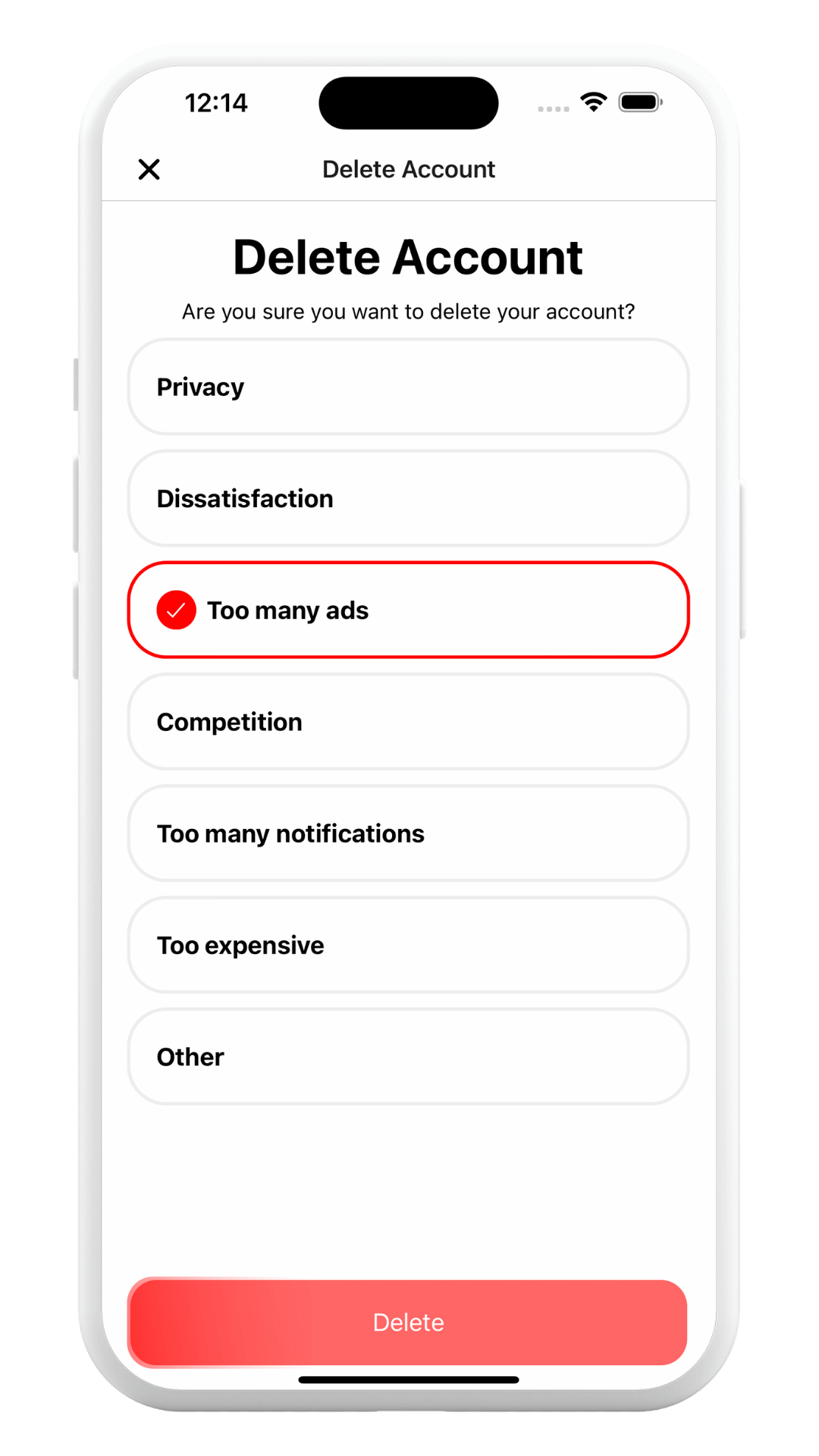
## Prebuilt Delete Account Screen
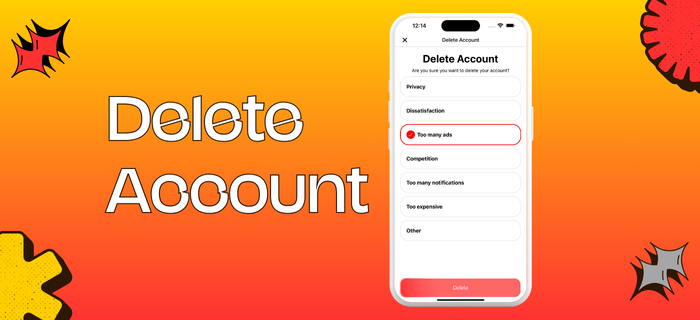
You have prebuilt delete account screen with custom radio buttons.
 ### Result:
You can customize the screen with your own design.
Path: `/app/(auth)/settings/delete-account.tsx`
For changing the button texts, you should go `/data/DeleteAccount.ts`
You will see `DeleteAccountReasons` array.
If you want to change or add new buttons, you must go `/i18n/locales//translation.json`
Find the `settings.deleteAccount.reasons` object.
Add the new reason to the `reasons` array.
The last step, you need to implement your own logic for deleting the account.
Everything will be working automatically. You're done.
### Result:
You can customize the screen with your own design.
Path: `/app/(auth)/settings/delete-account.tsx`
For changing the button texts, you should go `/data/DeleteAccount.ts`
You will see `DeleteAccountReasons` array.
If you want to change or add new buttons, you must go `/i18n/locales//translation.json`
Find the `settings.deleteAccount.reasons` object.
Add the new reason to the `reasons` array.
The last step, you need to implement your own logic for deleting the account.
Everything will be working automatically. You're done.