> ## Documentation Index
> Fetch the complete documentation index at: https://docs.shipmobilefast.com/llms.txt
> Use this file to discover all available pages before exploring further.
# Onboarding
> Onboarding component
## Prebuilt Onboarding Pages
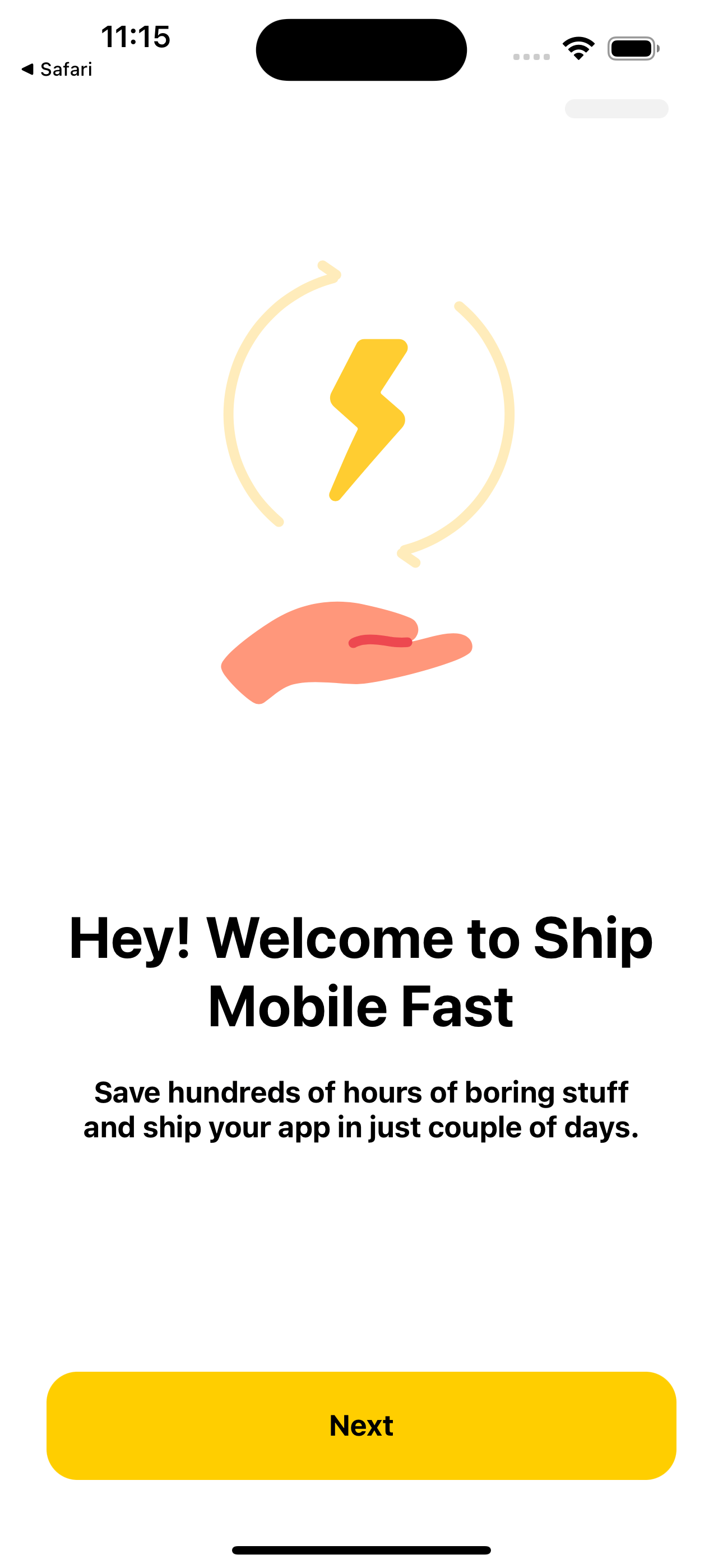
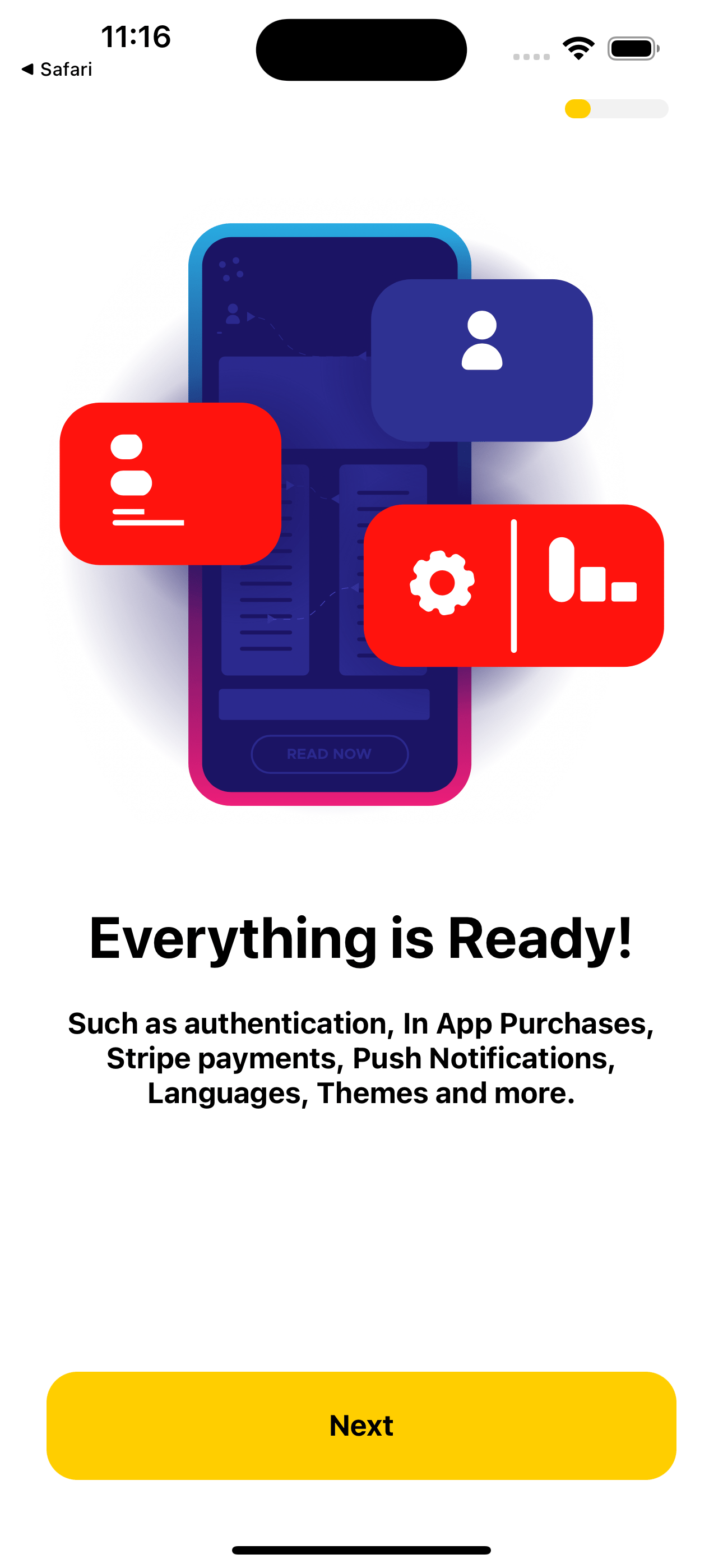
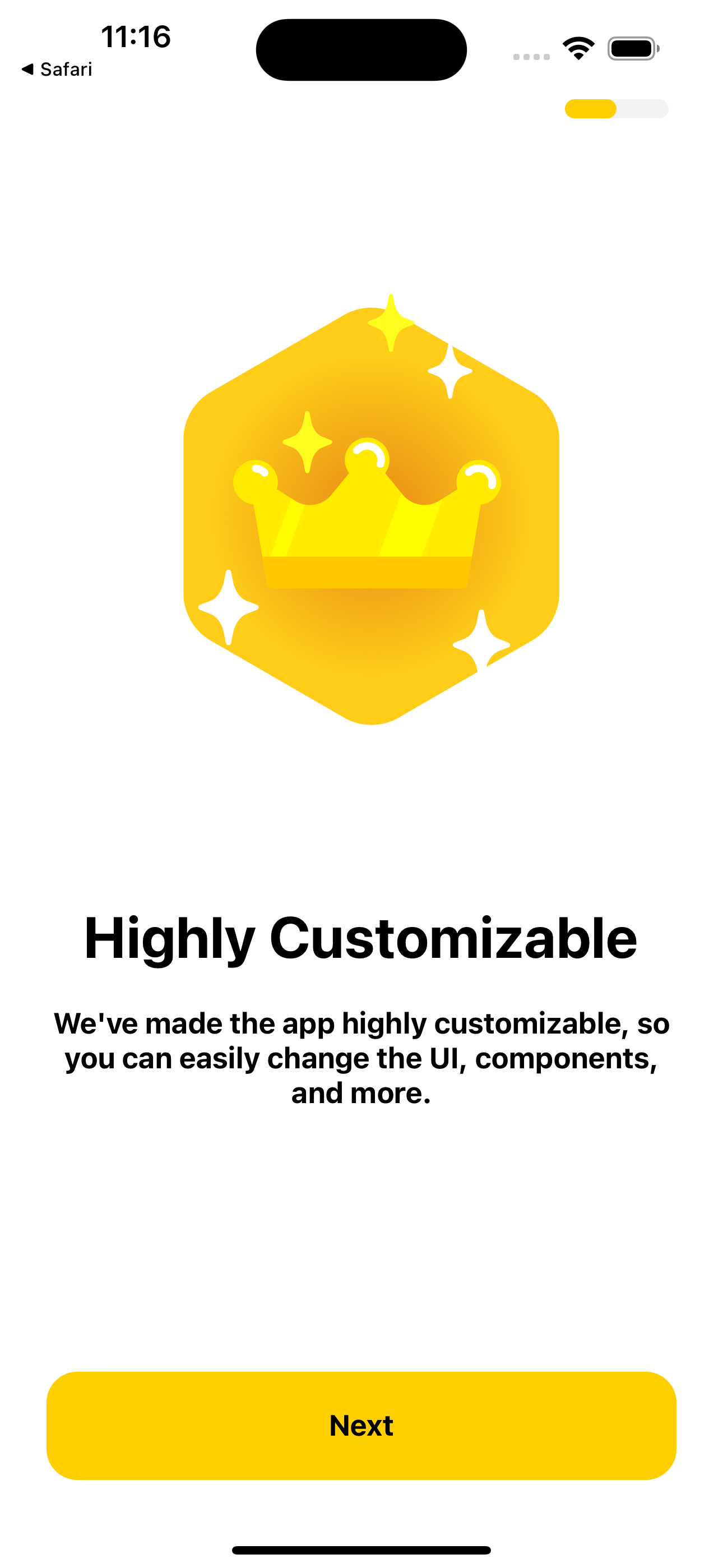
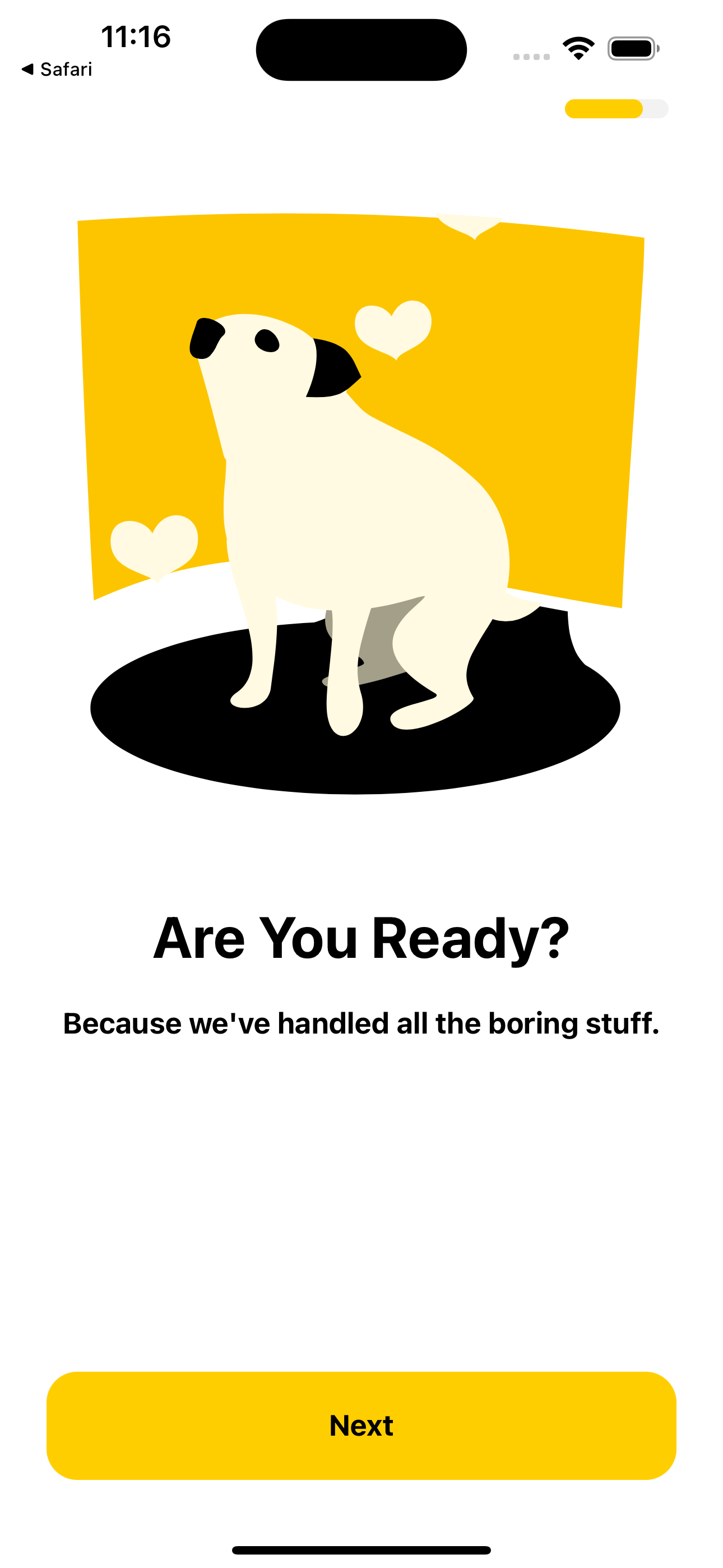
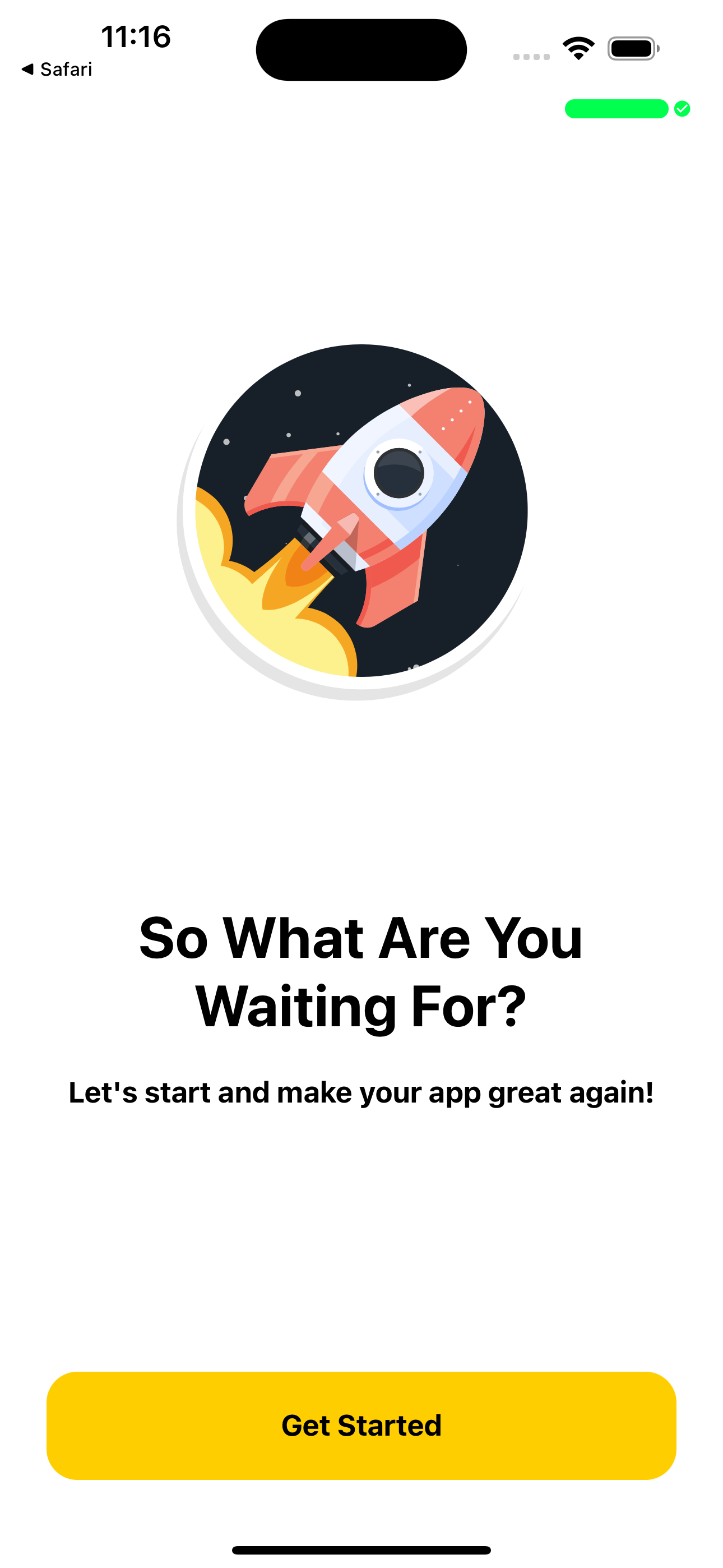
You will have 5 prebuilt onboarding pages.
 ## Onboarding Components
### Usage
Onboarding basically work with these data:
If you want to change the title and descriptions, follow this steps:
Go to the `i18n/locales/en-US.ts` file and create the `onboarding` key.
```tsx theme={null}
onboarding: {
title1: 'Onboarding 1',
desc1: 'Onboarding 1 description',
title2: 'Onboarding 2',
desc2: 'Onboarding 2 description',
title3: 'Onboarding 3',
desc3: 'Onboarding 3 description',
},
```
Go to the Onboarding Slide and import translation.
```tsx components/common/onboarding/onboarding-slide.tsx theme={null}
import { useTranslation } from 'react-i18next';
```
Thats it! You don't need to write single line of code.
```tsx data/Onboarding.ts theme={null}
export const onboardingData: OnboardingItem[] = [
{
id: '1',
title: 'onboarding.title1',
description: 'onboarding.desc1',
lottie: require('@/assets/lotties/onboarding.json'),
// If you want to use an image instead of a lottie, uncomment the following lines 👇
// Lottie and Image can not work together. You need to choose one of them.
// image: require('@/assets/images/logo.png'),
},
...
];
```
You can even add 20 onboarding slides. You don't have any limitation.
Go to the `data/Onboarding.ts` file to add your own onboarding images and animations.
## Onboarding Components
### Usage
Onboarding basically work with these data:
If you want to change the title and descriptions, follow this steps:
Go to the `i18n/locales/en-US.ts` file and create the `onboarding` key.
```tsx theme={null}
onboarding: {
title1: 'Onboarding 1',
desc1: 'Onboarding 1 description',
title2: 'Onboarding 2',
desc2: 'Onboarding 2 description',
title3: 'Onboarding 3',
desc3: 'Onboarding 3 description',
},
```
Go to the Onboarding Slide and import translation.
```tsx components/common/onboarding/onboarding-slide.tsx theme={null}
import { useTranslation } from 'react-i18next';
```
Thats it! You don't need to write single line of code.
```tsx data/Onboarding.ts theme={null}
export const onboardingData: OnboardingItem[] = [
{
id: '1',
title: 'onboarding.title1',
description: 'onboarding.desc1',
lottie: require('@/assets/lotties/onboarding.json'),
// If you want to use an image instead of a lottie, uncomment the following lines 👇
// Lottie and Image can not work together. You need to choose one of them.
// image: require('@/assets/images/logo.png'),
},
...
];
```
You can even add 20 onboarding slides. You don't have any limitation.
Go to the `data/Onboarding.ts` file to add your own onboarding images and animations.