> ## Documentation Index
> Fetch the complete documentation index at: https://docs.shipmobilefast.com/llms.txt
> Use this file to discover all available pages before exploring further.
# Paywall
> Paywall Screen
## Prebuilt Paywall Page
You will have prebuilt paywall page.
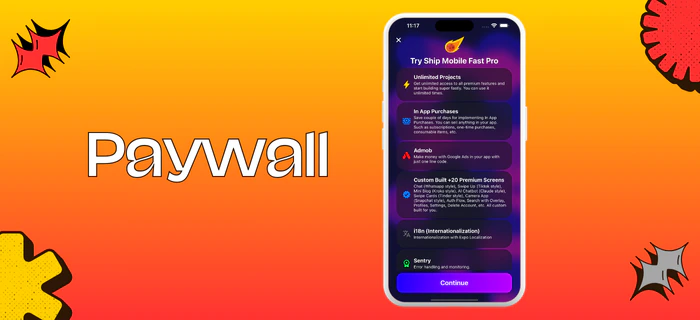 Path: `/app/(auth)/(modals)/paywall.tsx`
## Result
Path: `/app/(auth)/(modals)/paywall.tsx`
## Result
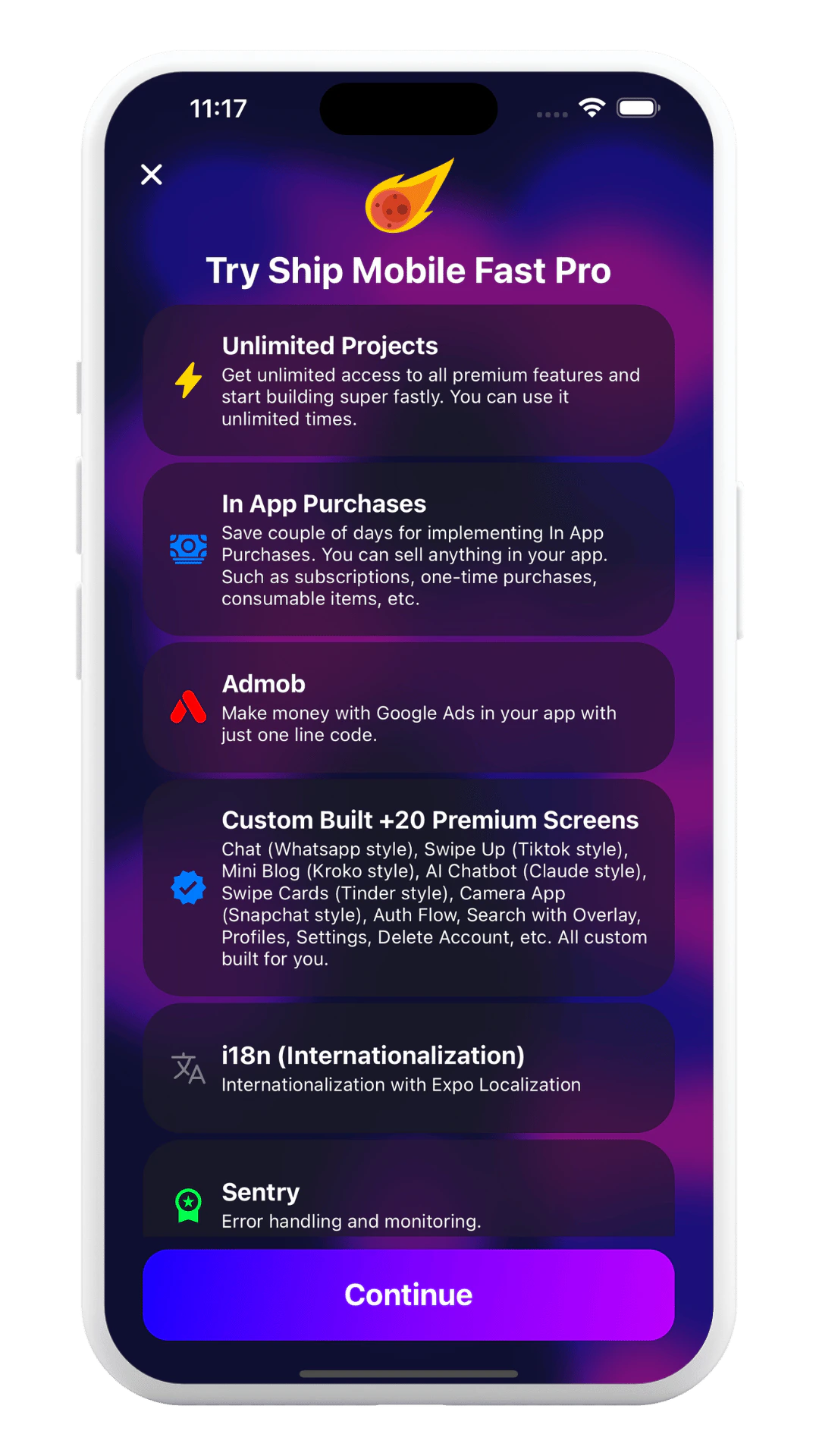 You can customize the paywall screen with your own design.
If you want to show the paywall screen after onboarding, you need to move this file out of the `(auth)` folder.
You can customize the paywall screen with your own design.
If you want to show the paywall screen after onboarding, you need to move this file out of the `(auth)` folder.