> ## Documentation Index
> Fetch the complete documentation index at: https://docs.shipmobilefast.com/llms.txt
> Use this file to discover all available pages before exploring further.
# Search
> Search Screen
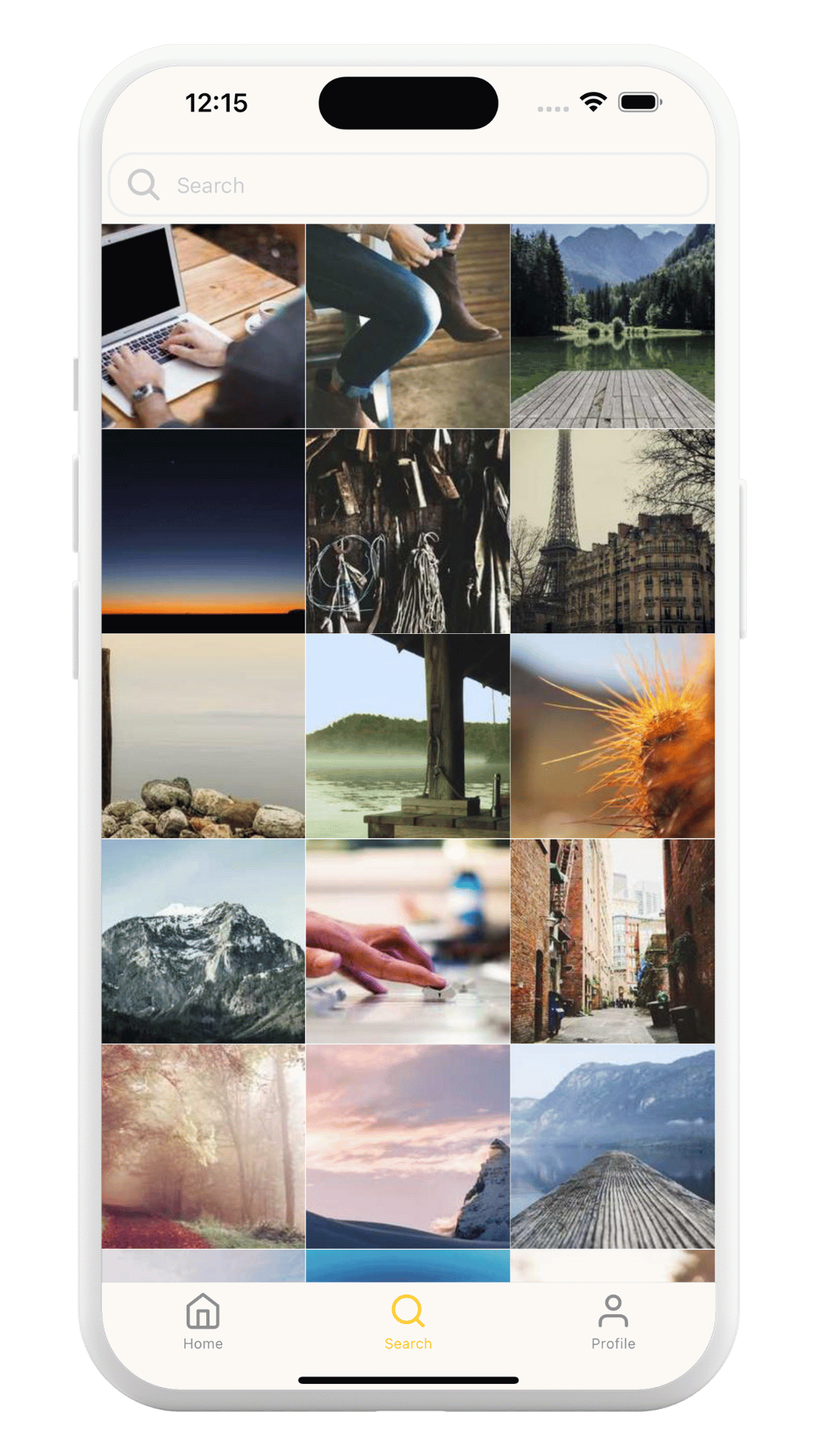
## Prebuilt Search Screen
You have prebuilt Search Screen with Super Compatible [SearchBar](/components/searchbar).
 Path: `/app/(auth)/(tabs)/search.tsx`
You can customize the screen with your own design.
### Result:
Path: `/app/(auth)/(tabs)/search.tsx`
You can customize the screen with your own design.
### Result:
 ### Custom Search Functionality
How can you make it?
Go to the `/app/(tabs)` folder and create a new folder with the name `search`.
Create a slug with `[id].tsx` and add it to the the `search` folder.
Add the search functionality to the `search/[id].tsx` file.
Thats it! You have a custom search functionality. Like [Kroko Social](https://kroko.social)
### Custom Search Functionality
How can you make it?
Go to the `/app/(tabs)` folder and create a new folder with the name `search`.
Create a slug with `[id].tsx` and add it to the the `search` folder.
Add the search functionality to the `search/[id].tsx` file.
Thats it! You have a custom search functionality. Like [Kroko Social](https://kroko.social)